> For the complete documentation index, see [llms.txt](https://docs.theshoppad.com/blogstudio/llms.txt). Markdown versions of documentation pages are available by appending `.md` to page URLs; this page is available as [Markdown](https://docs.theshoppad.com/blogstudio/customize-the-app/add-a-buy-button-to-your-article.md).
# Add a Buy Button to your article
Add a Buy Now button block to a Blog Studio article and link it to a store product so readers go straight to the checkout page.
You can create an article that includes a Buy Button linking to a product from your store that leads customers directly to the checkout page. Follow the steps below on how to add this Buy Button.
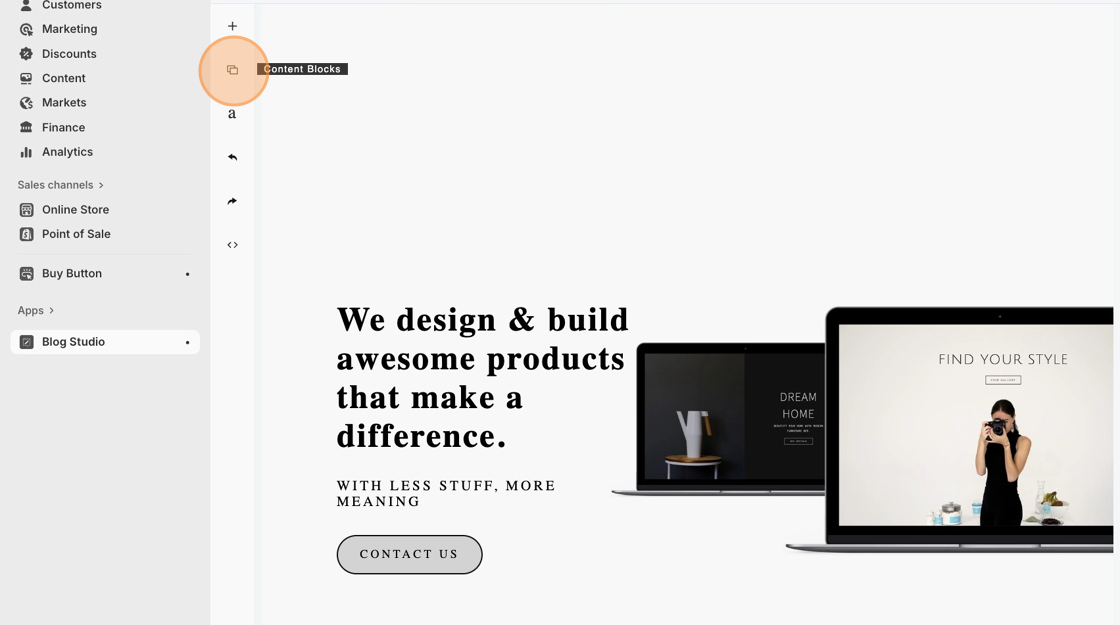
1. Starting from the Blog Studio editor, click the **Content Blocks icon**.
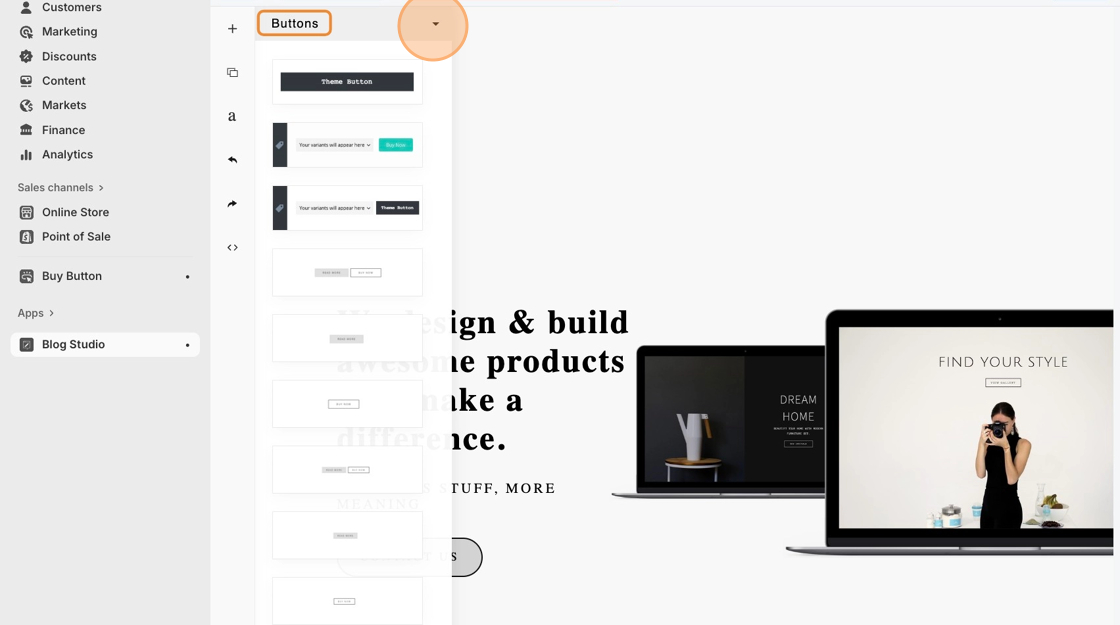
2. Navigate to the **Buttons** menu.
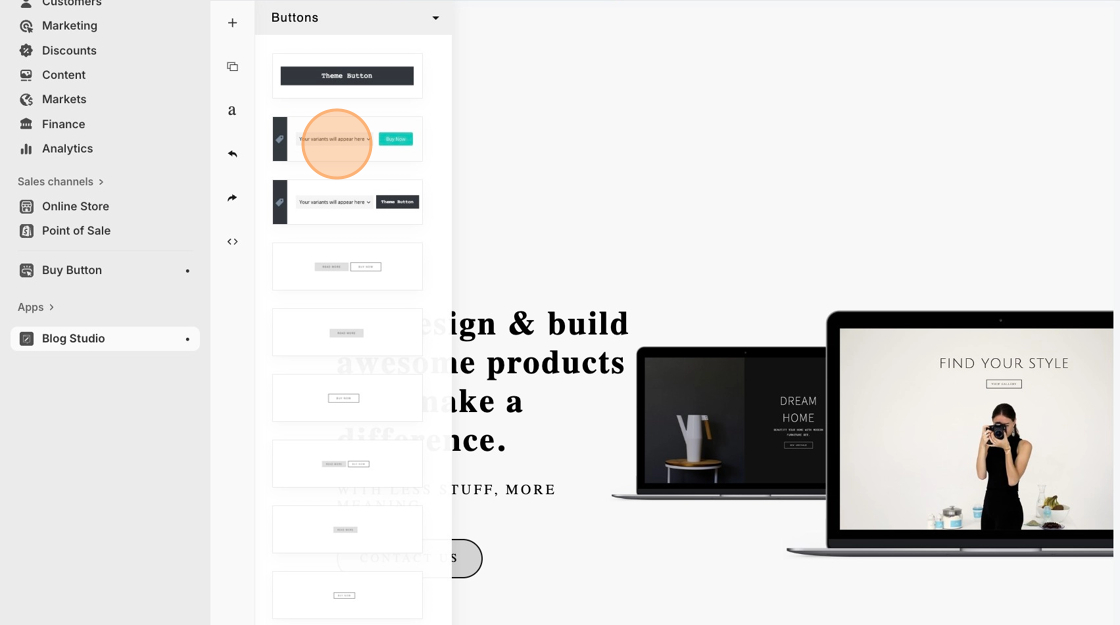
3. Under the Buttons menu, drag and drop the **Buy Now Button block** into your article.
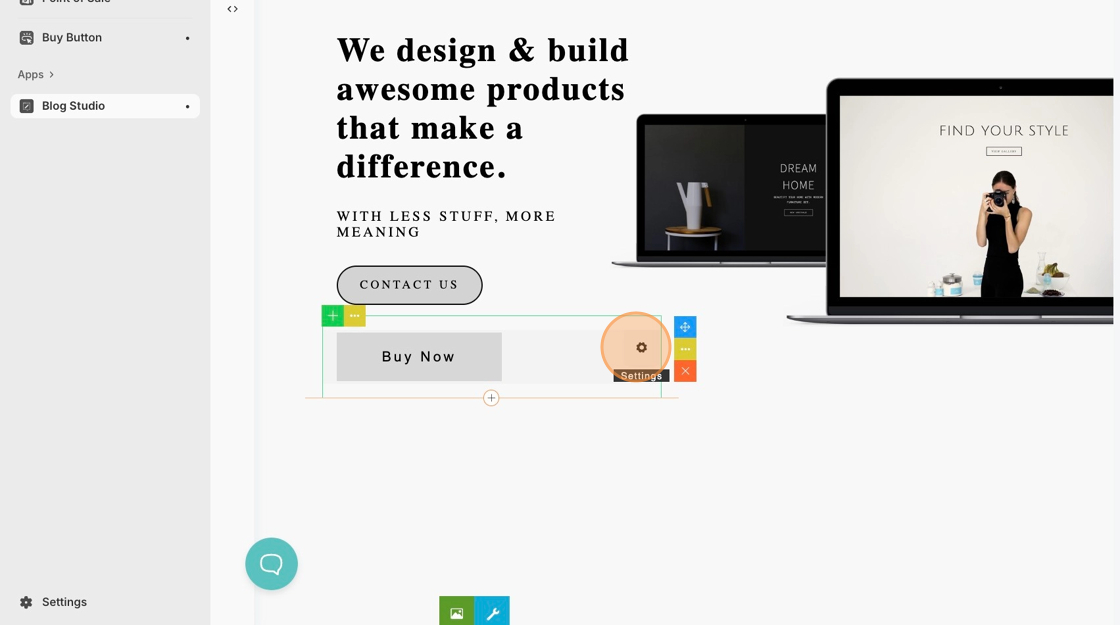
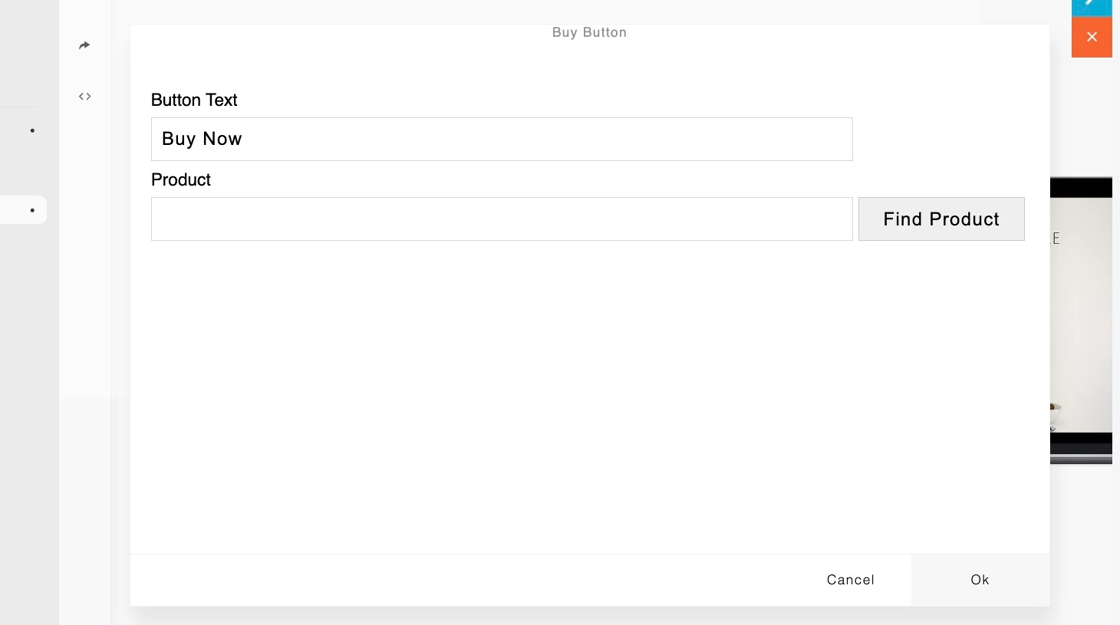
4. Click on the Buy Now Button Block, then hit the **Gear icon**. _This will open the Buy Button's configuration menu._
5. Click the **Find Product** button.
6. Select a product from your store.
7. After selecting a product, hit the **Add** button.
8. Feel free to change the text of the button. Once you're done, click **Ok**.
:::note
On the live view of the article, the button will include all of the different variants within the drop-down menu above it. Clicking on **Buy Now** will lead customers directly to checkout.
:::