> For the complete documentation index, see [llms.txt](https://docs.theshoppad.com/blogstudio/llms.txt). Markdown versions of documentation pages are available by appending `.md` to page URLs; this page is available as [Markdown](https://docs.theshoppad.com/blogstudio/customize-the-app/add-third-party-embed-code-to-your-article.md).
# Add third-party embed code to your article
Paste third-party embed code into a Blog Studio article by dragging the Advanced Code Snippet content block into the page and editing it.
Follow the steps below on how to add third-party embed code to your articles.
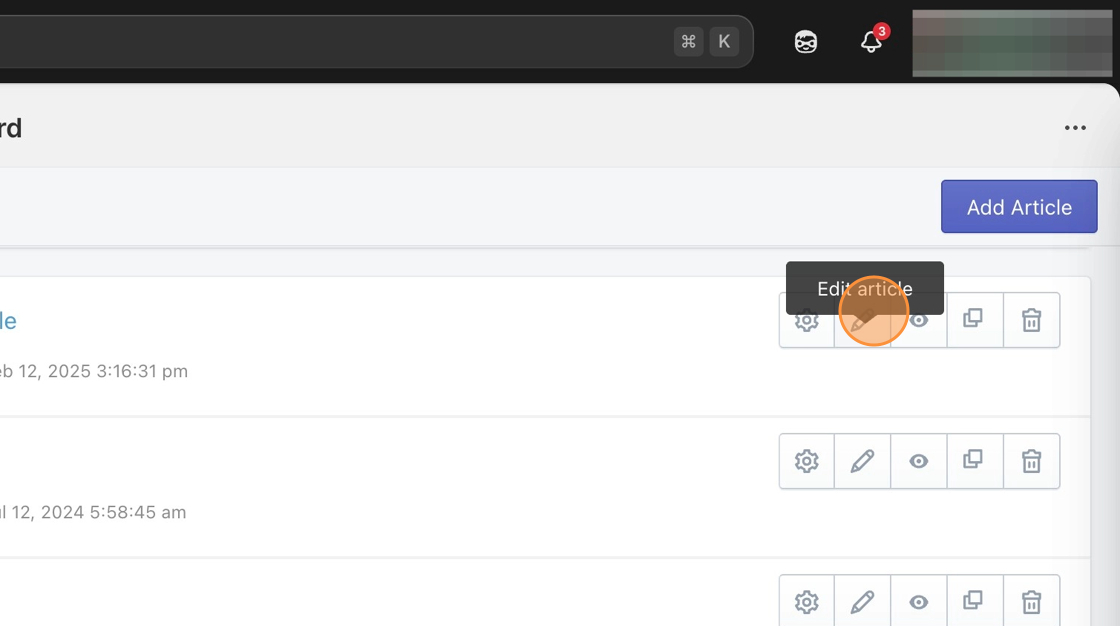
1\. From your Blog Studio dashboard, click on the **Pencil Icon** to edit your article.
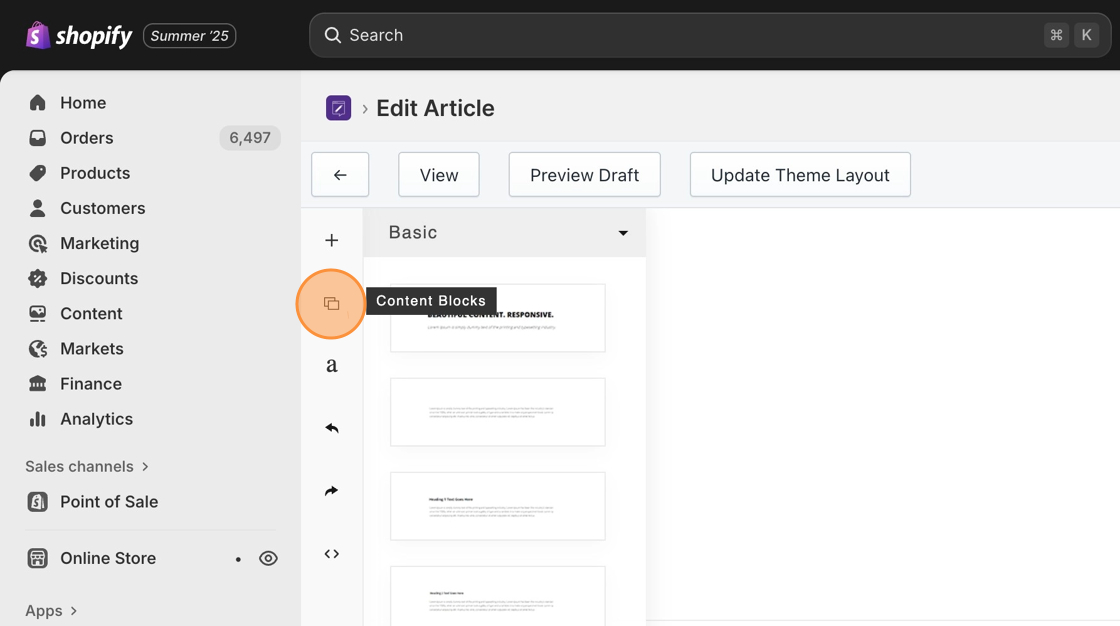
2\. On the left sidebar, click the **Content Blocks** **icon**.
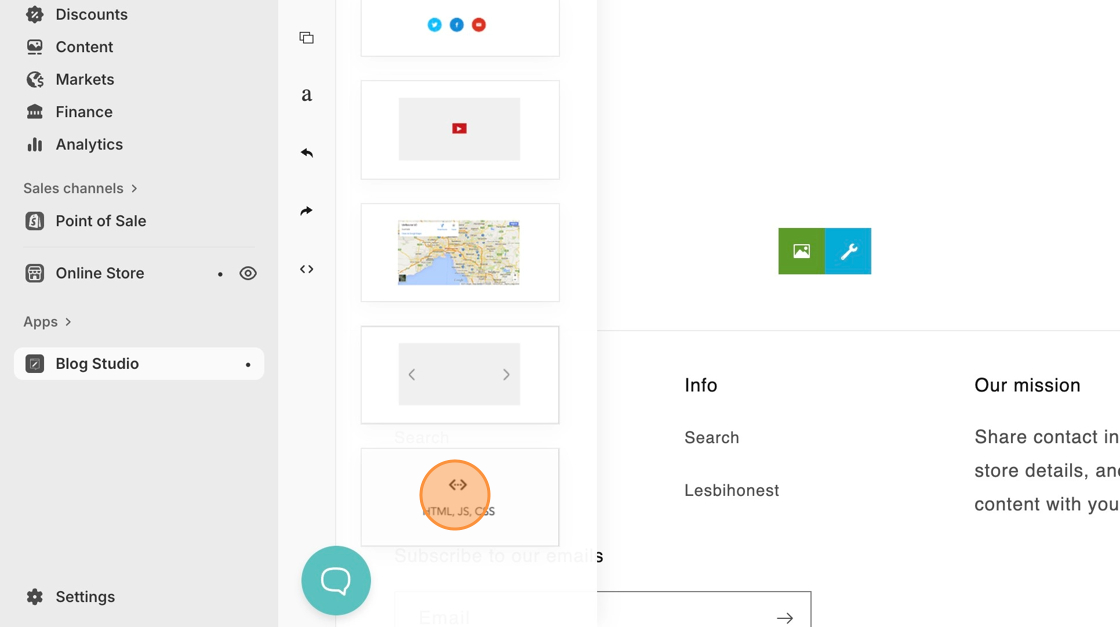
3\. In the Basic content blocks, scroll down to locate the **Advanced Code Snippet** block.
4\. Drag and drop the block into your page.
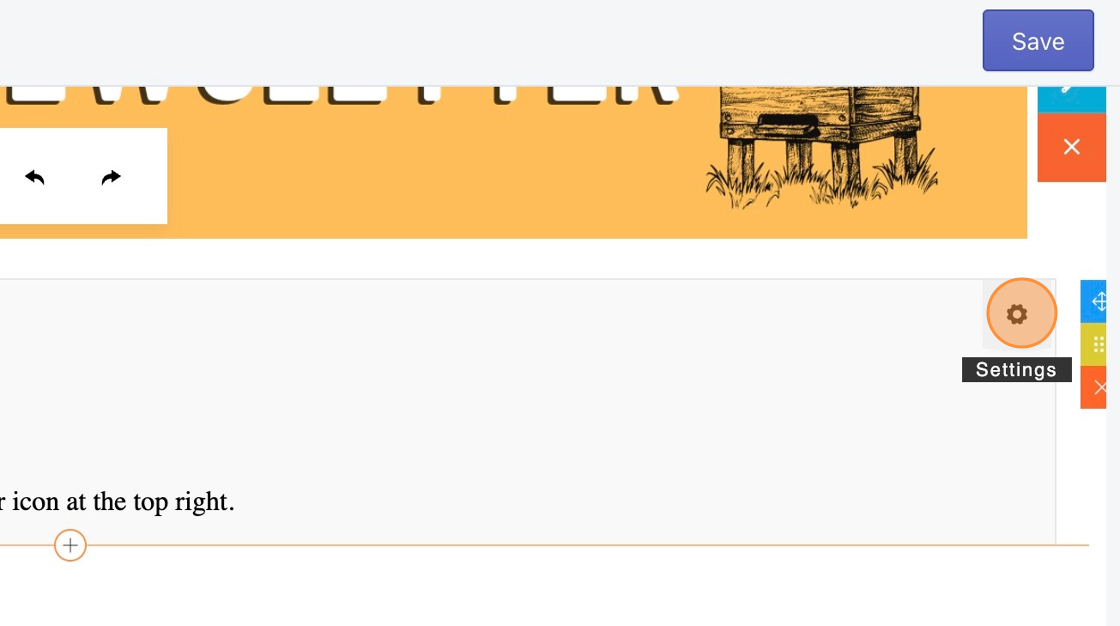
5\. Click into the block, and hit the **Gear icon**.
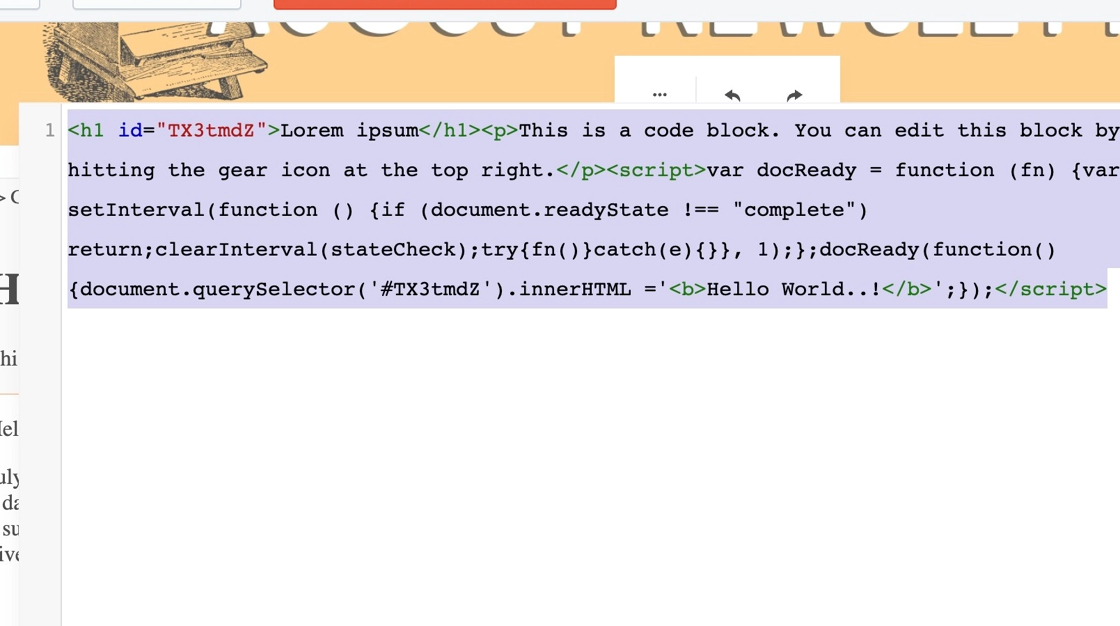
6\. Highlight the code snippet that you see and delete it.
7\. Copy and paste in your third-party embed code.
8\. Click **Ok**.
9\. Save your changes.
Third-party embed code will only display properly on the live view of your article. After hitting **Save** on the editor, please click the **View** button at the top left corner.