> For the complete documentation index, see [llms.txt](https://docs.theshoppad.com/bouncer/llms.txt). Markdown versions of documentation pages are available by appending `.md` to page URLs; this page is available as [Markdown](https://docs.theshoppad.com/bouncer/customize-bouncer/edit-bouncers-text.md).
# Edit Bouncer's text
Change the Enter and Exit button labels and the month names in the Bouncer age verification popup, including text for Facebook verification.
By default, the Bouncer age verification pop-up displays with two buttons (one that says **Enter**, and the another that says **Exit**), and a month, day, and year drop down menus. If you have selected to verify with Facebook, it will also display a Facebook verification button.
Follow the steps below to change the text of the buttons and month names.
### Edit your store's code
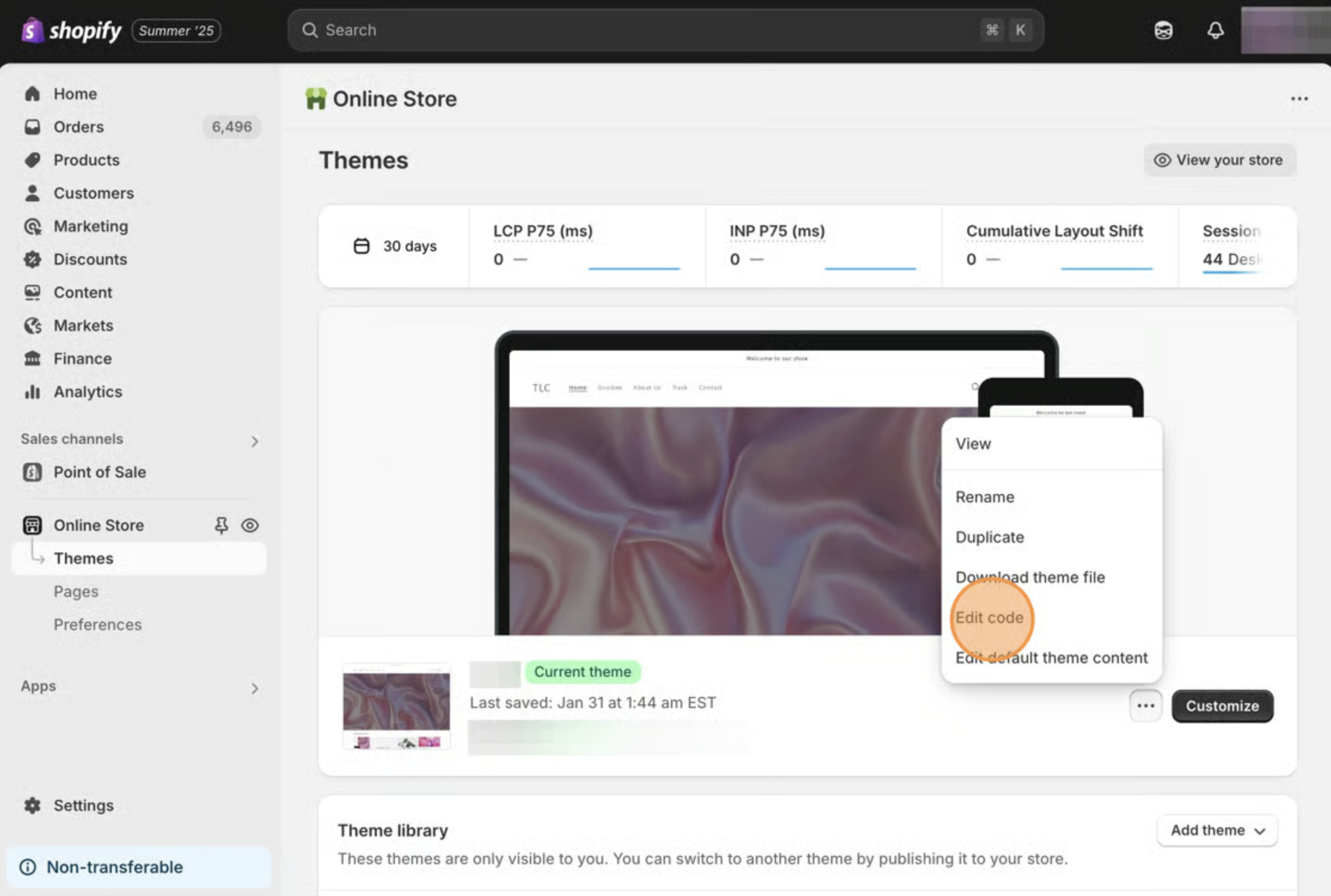
1. Starting from your Shopify admin dashboard, click on **Online Store**, then click on **Themes.**
2. Find the theme you want to edit, click the **Actions** button, then click **Edit code.**
### Add the snippet to your theme
1. On the left side, under the **Layout** heading, click on the _theme.liquid_ file.
2. Copy the following code snippet.
```
```
3. Paste it directly after the **\** tag.
4\. Replace the text within the quotes (XXXXX) with your desired messaging (don't remove the quotes!).
5\. Translate the months to your desired language.
6\. **Save** your changes.