> For the complete documentation index, see [llms.txt](https://docs.theshoppad.com/coin/llms.txt). Markdown versions of documentation pages are available by appending `.md` to page URLs; this page is available as [Markdown](https://docs.theshoppad.com/coin/customize-coin/display-prices-without-decimal-values.md).
# Display prices without decimal values
Show Coin's converted prices as whole numbers instead of odd decimal amounts by adding a small code change in your Shopify theme files.
Sometimes, conversions result in strange price values that are not typically seen on retail stores (for example, $3.00 --> $4.39). If you'd rather display the converted prices without decimal values, follow the steps below.
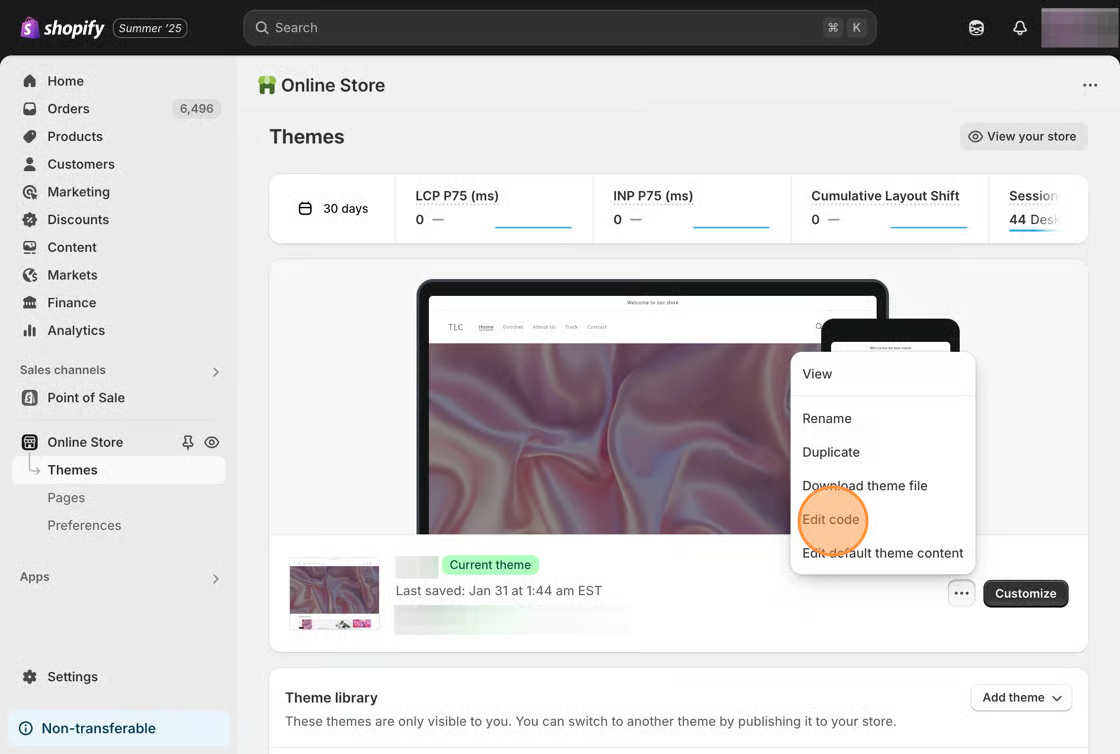
1\. Starting from your Shopify admin dashboard, click on **Online Store**, then click **Themes.**
2\. Find the theme you want to edit, click the **...** button, then click **Edit code**.
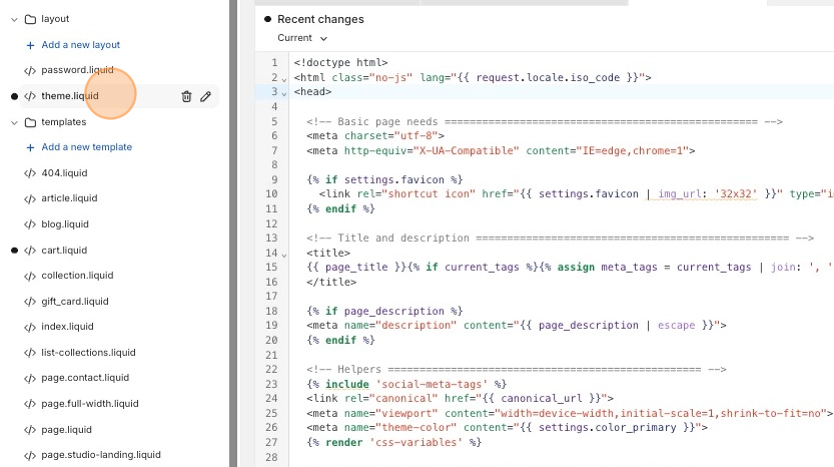
3\. Click on the _**theme.liquid**_ file that's located in the **layout** folder.
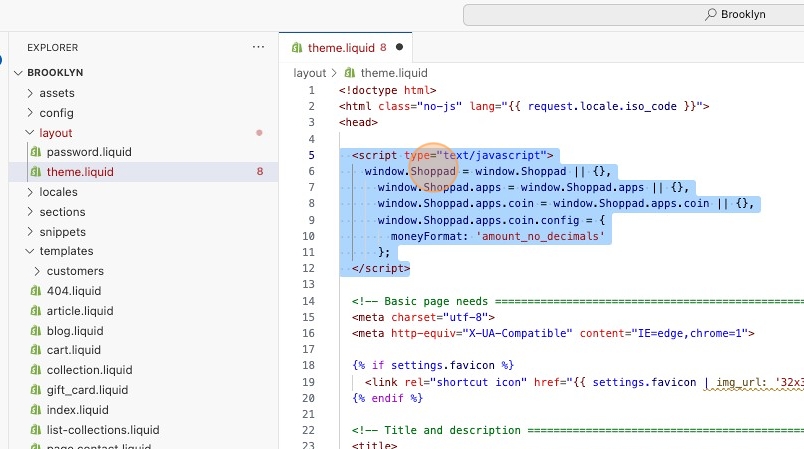
4\. Copy the code snippet below.
```html
```
5\. Paste it directly after the **\** tag.
4\. Save your changes.
:::note
Note: This will not affect your base currency, as it's formatting is controlled by Shopify. Check out [this Shopify article](https://help.shopify.com/manual/payments/currency-formatting) for information on how to update your base currency's formatting settings.
:::