> For the complete documentation index, see [llms.txt](https://docs.theshoppad.com/infinite-options/llms.txt). Markdown versions of documentation pages are available by appending `.md` to page URLs; this page is available as [Markdown](https://docs.theshoppad.com/infinite-options/display-options-on-shopify-notifications/shopify-emails-and-packing-slip-templates/abandoned-checkout.md).
# Abandoned Checkout
Have Infinite Options selections appear in your Shopify Abandoned Checkout email by working with the ShopPad support team on the template code.
#### Contact the Support Team (Recommended)
:::note
We recommend contacting our support team before making any changes to your notification templates
:::
We recommend contacting our support team before making changes to your notification templates. Because Shopify's notification templates can vary between stores and have become more complex over time, we'll send a collaborator request so we can add the necessary code snippets and ensure your option selections display correctly.
#### Manual Instructions
If you're comfortable editing Shopify Liquid, you're welcome to follow the manual instructions below. Keep in mind that notification templates vary between stores, so the code location and required changes may differ from the examples in this guide. If you run into any issues, our support team is happy to help.
Follow the steps below to display option selections in the abandoned checkout emails.
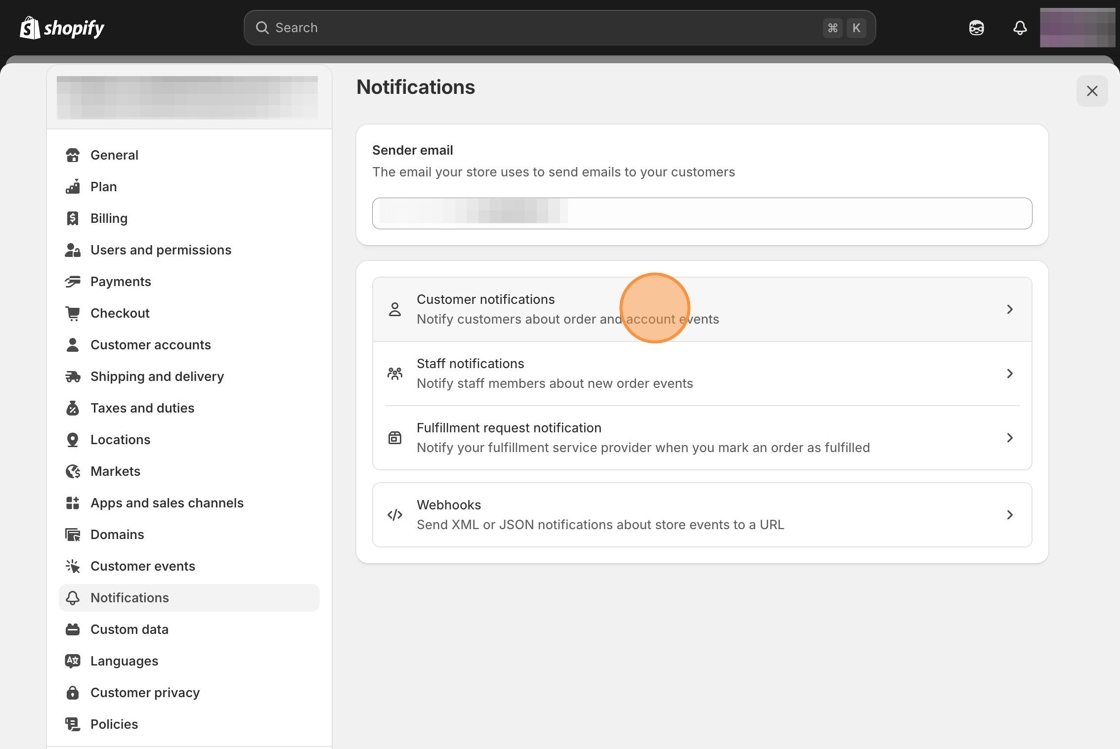
1\. Starting from your Shopify admin dashboard, navigate to the **Settings** tab, click on **Notifications**, then **Customer notifications.**
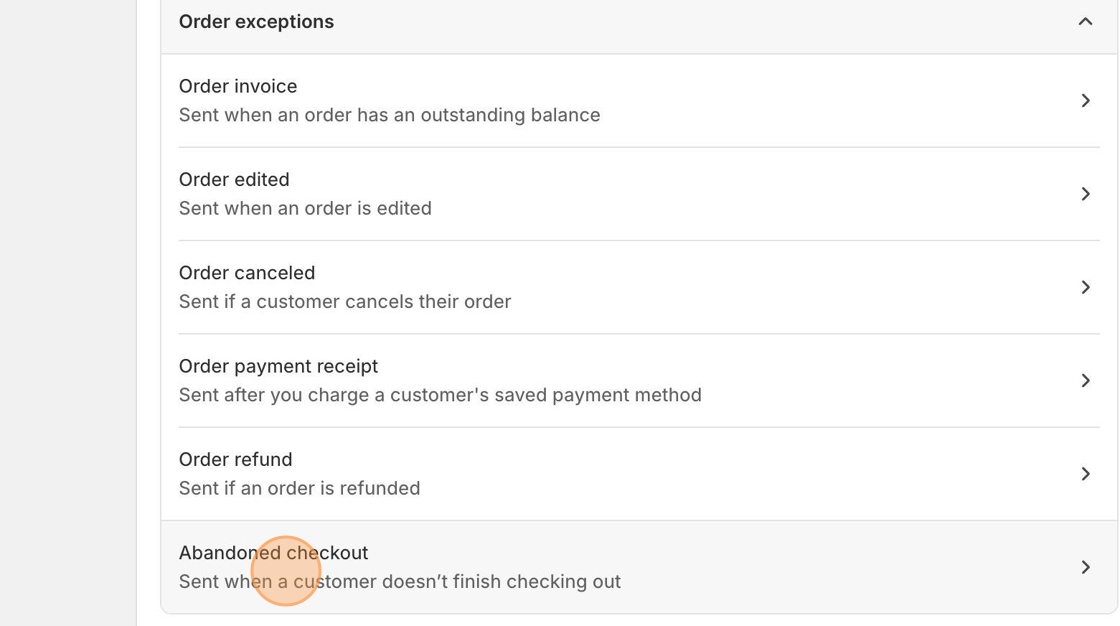
2\. Search for the Order exceptions section and select the Abandoned checkout template.
3\. Select the **Edit code** button at the top right.
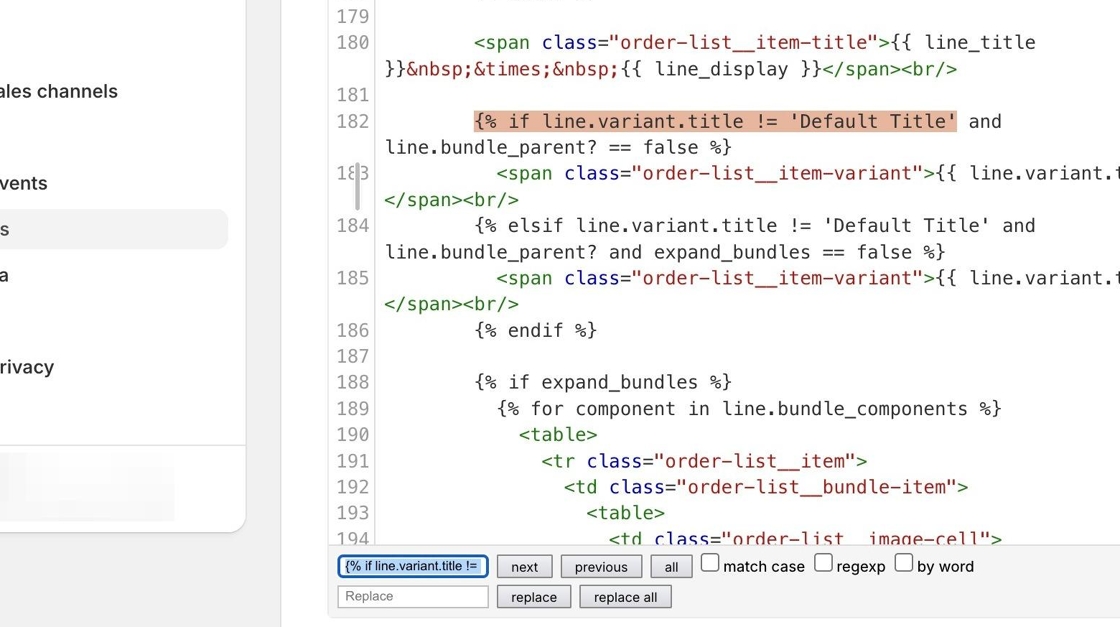
4\. Locate the following line of code (remove any unnecessary spaces at the end).
```liquid
{% if line.variant.title != 'Default Title'
```
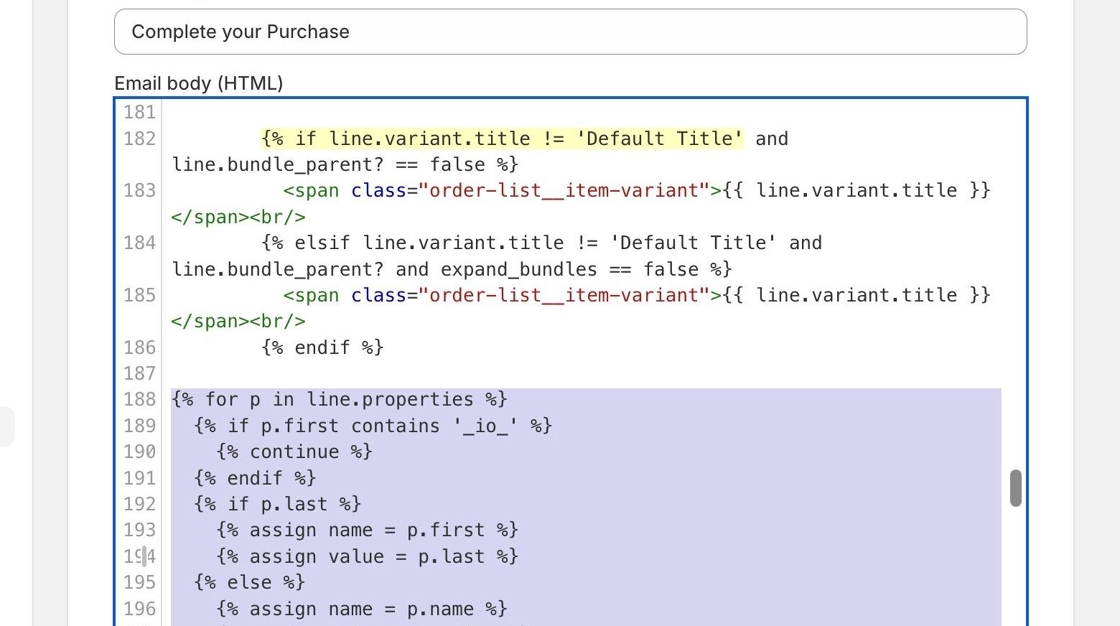
5\. Copy and paste the following snippet after the section of code.
```liquid
{% for p in line.properties %}
{% if p.first contains '_io_' %}
{% continue %}
{% endif %}
{% if p.last %}
{% assign name = p.first %}
{% assign value = p.last %}
{% else %}
{% assign name = p.name %}
{% assign value = p.value %}
{% endif %}
{% unless value == blank %}
{{ name }}:
{% if p.last contains '//uploadery.s3' %}
Link to your file
{% else %}
{{ value }}
{% endif %}
{% endunless %}
{% endfor %}
```
6\. Click the **Save** button at the top of the page.