> For the complete documentation index, see [llms.txt](https://docs.theshoppad.com/infinite-options/llms.txt). Markdown versions of documentation pages are available by appending `.md` to page URLs; this page is available as [Markdown](https://docs.theshoppad.com/infinite-options/increase-the-cost-of-an-option/native-bundling.md).
# Add pricing to your options
Set up Infinite Options add-on pricing to charge per quantity, a flat rate, a percentage or per character, with or without a linked Shopify product.
Add-on pricing lets you charge customers extra when they select an option or enter a value in a field. You can choose how the price is calculated: per quantity, as a flat rate, as a percentage of the product price, or per character.
You can also choose whether to connect the add-on to a Shopify product. Connecting an add-on to a Shopify product gives it an SKU and lets Shopify track its inventory. If you don't need an SKU or inventory tracking, you can add the charge without connecting it to a product.
:::note
If you're currently using our legacy bundling, your existing option sets aren't changed. Any bundling you set up before this feature update keep charging the same way they always have, per quantity.
:::
## **Before you start**
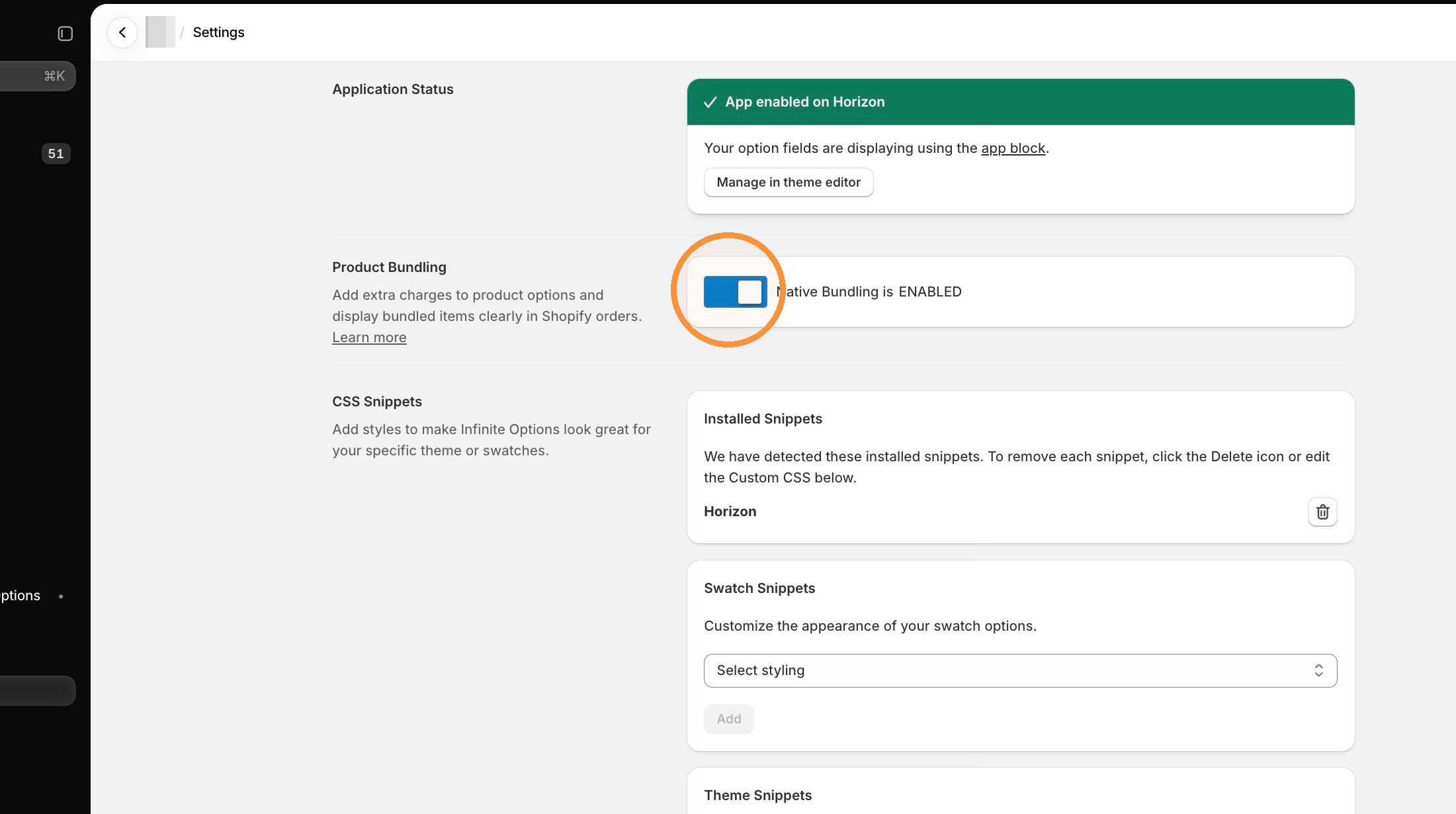
To use add-on pricing, you need to have Native Bundling turned on in the Infinite Options Settings menu.
If Native Bundling is off, the add-on pricing features are hidden in the option set editor.
## **Add pricing to an option**
#### Step 1
Open the option set you want to edit.
#### Step 2
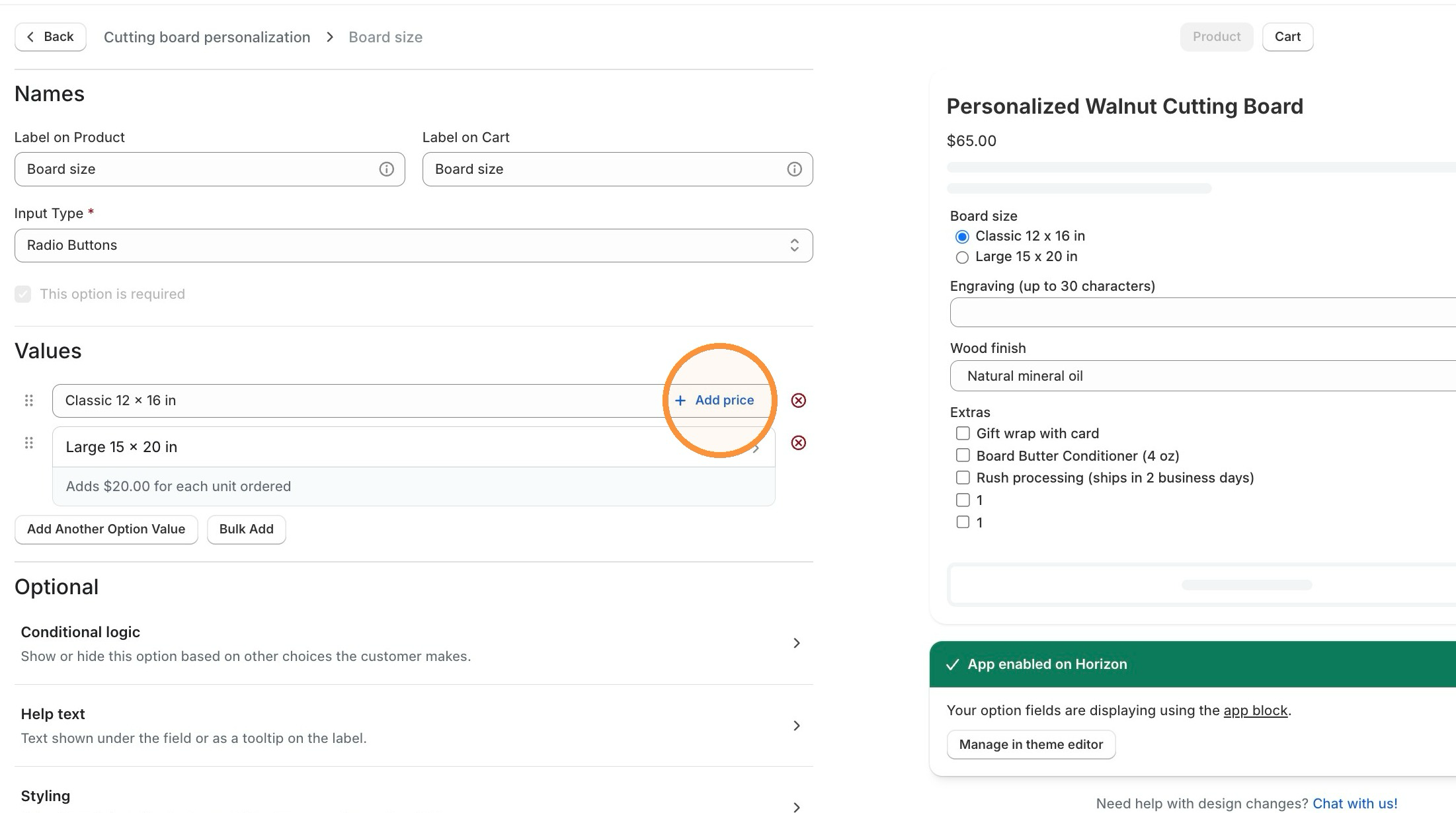
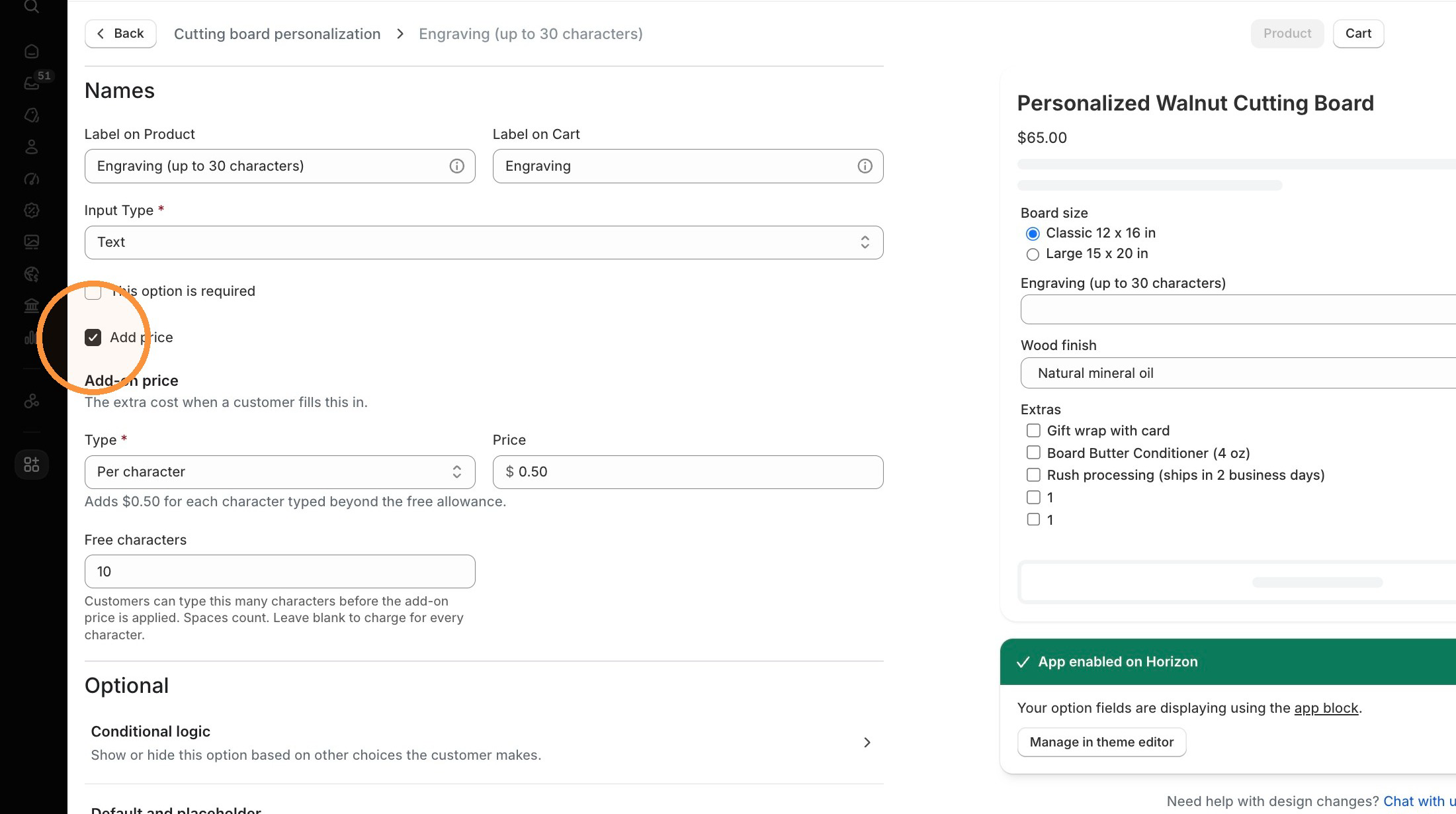
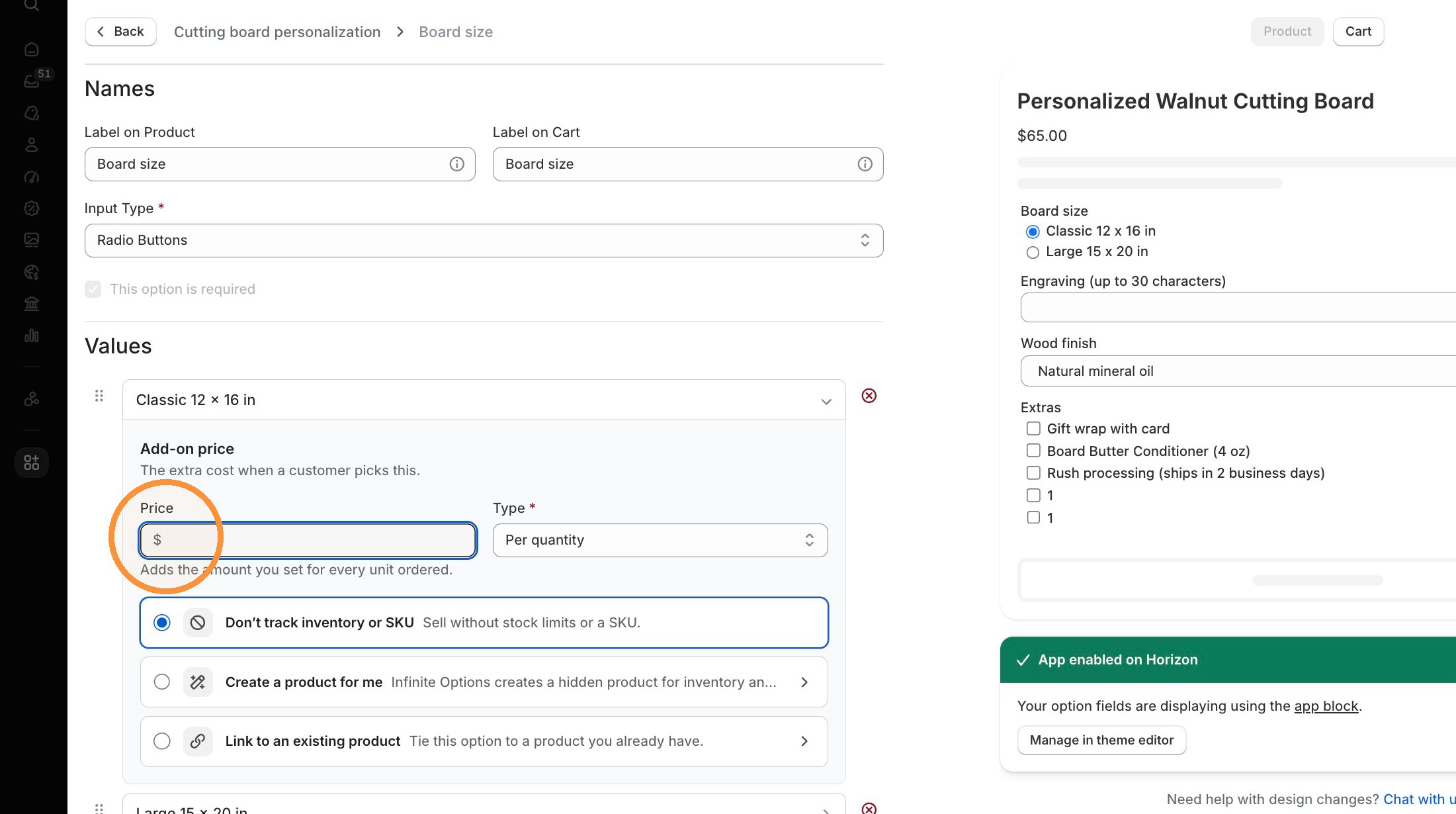
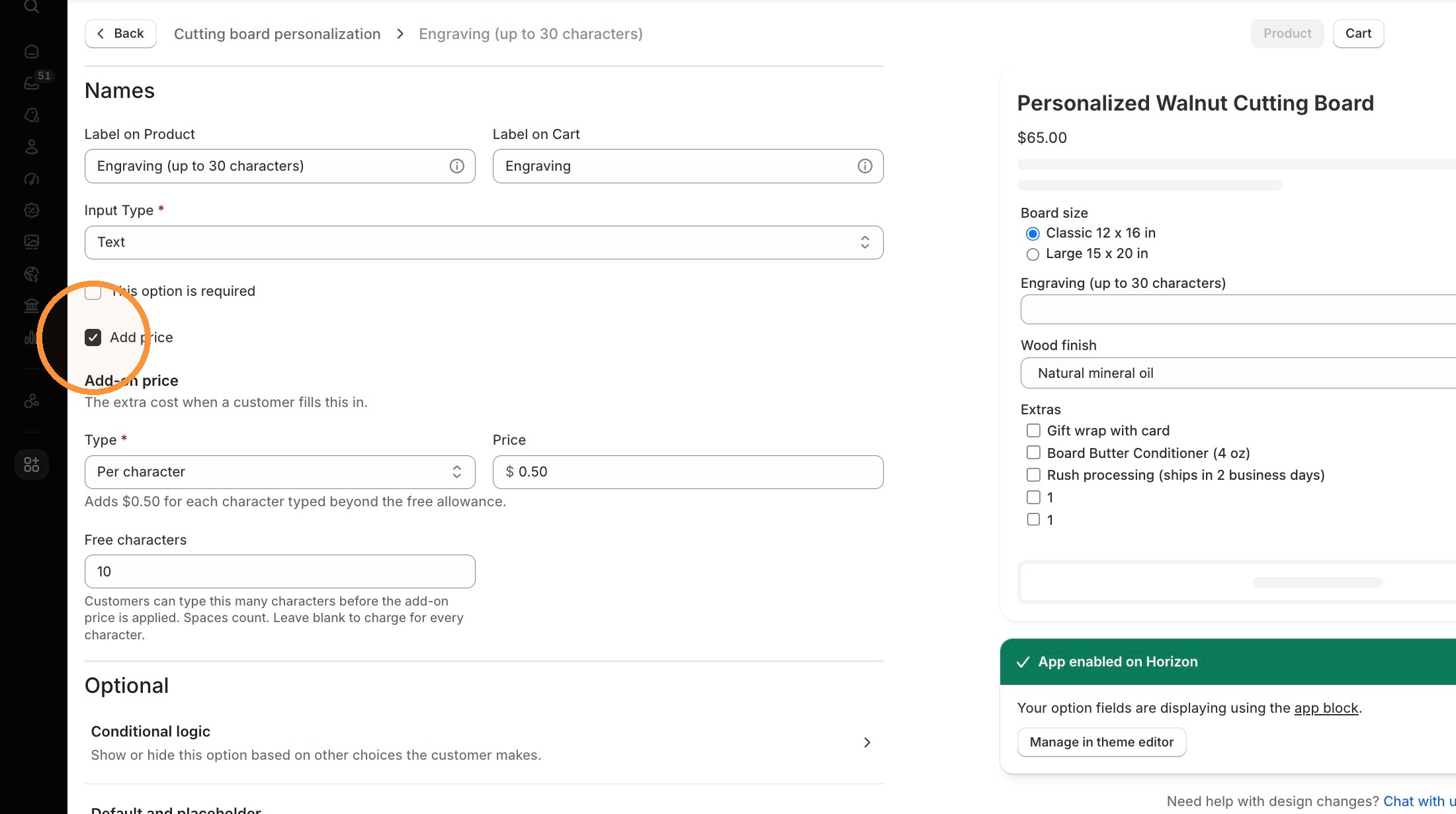
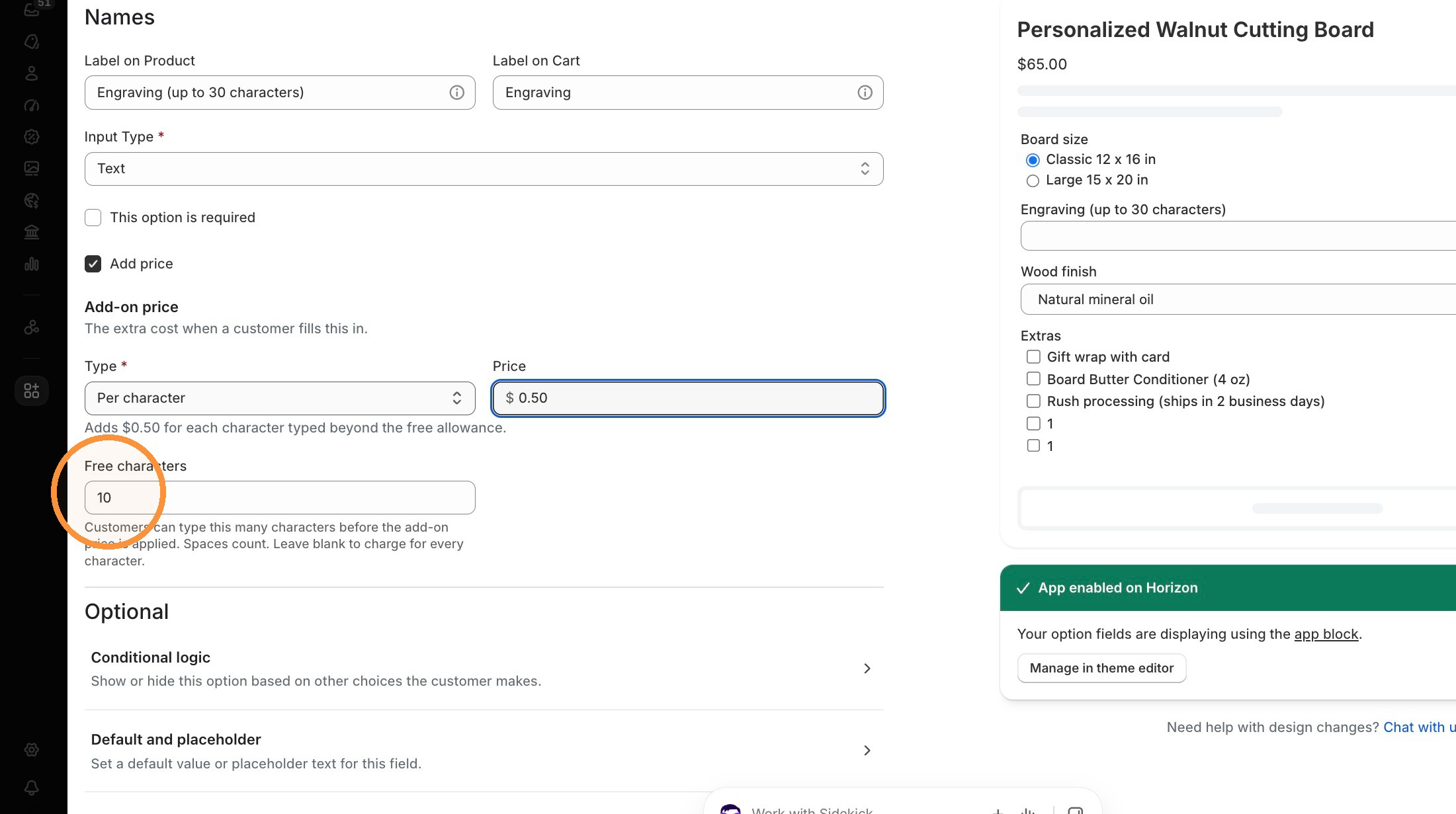
Find the option value you want to charge for, and click **Add price.** For text inputs, check the box to add a price.
### Step 3
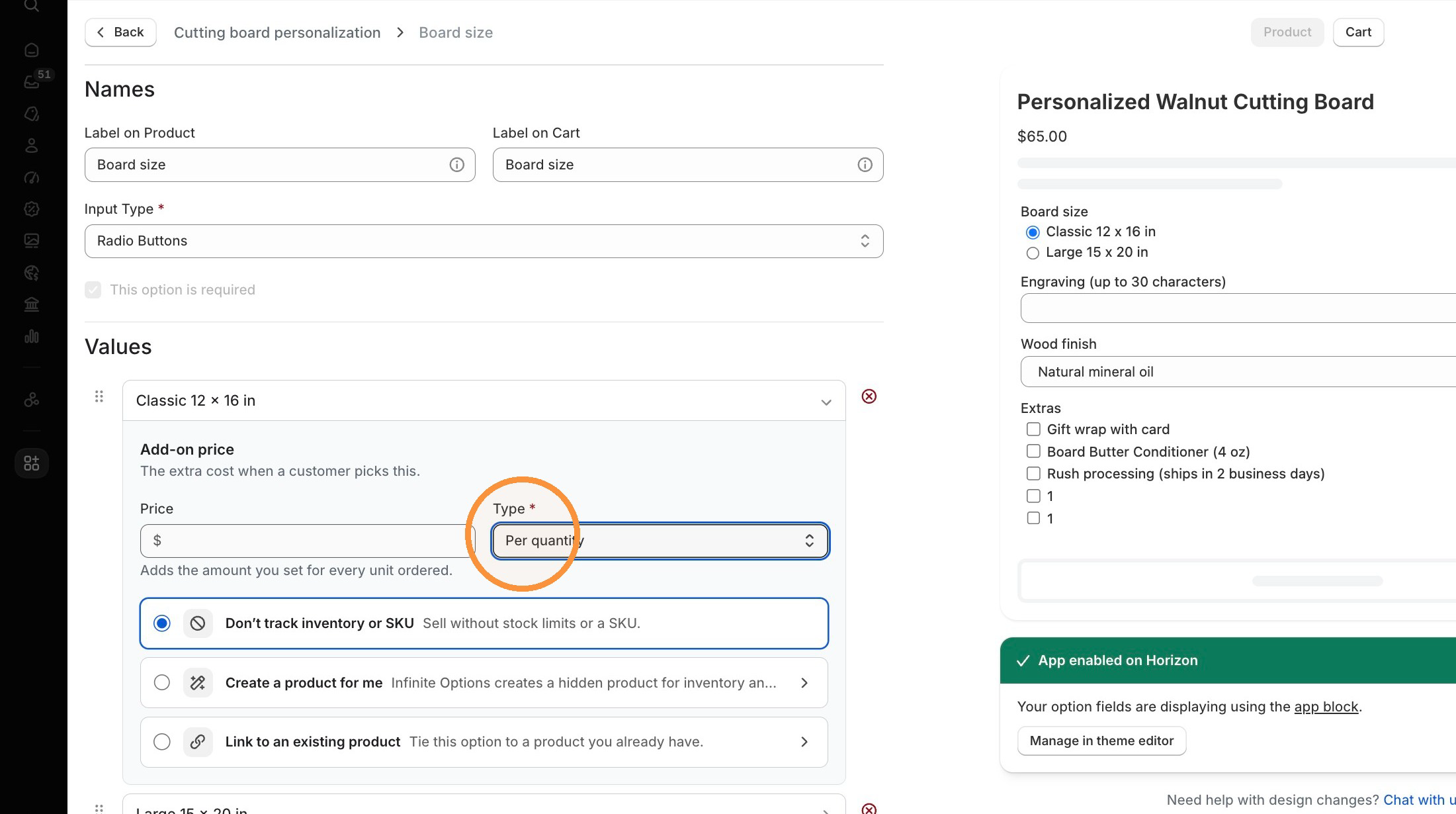
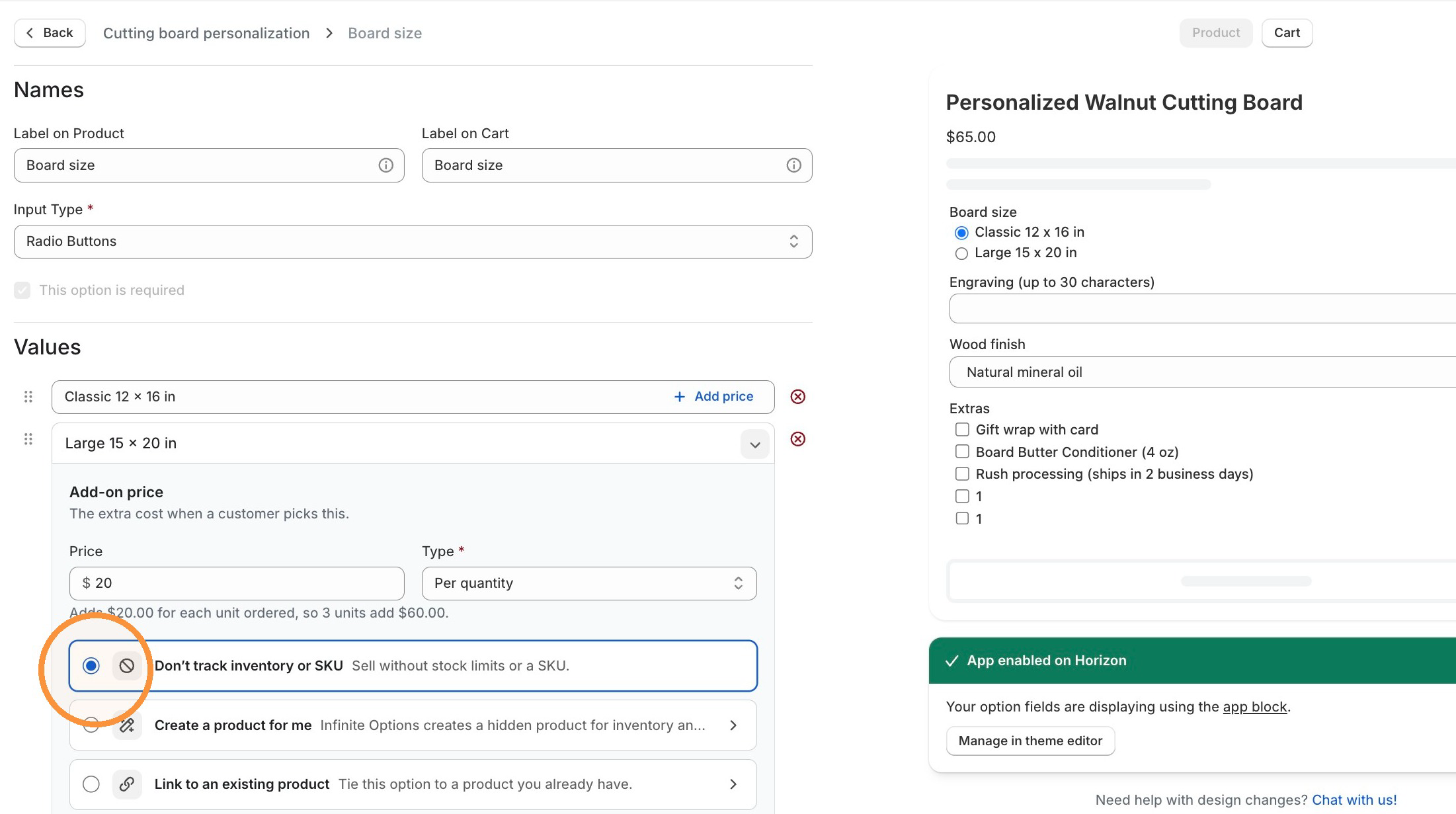
Choose a **Type**. See [Price types](https://docs.theshoppad.com/infinite-options/~/revisions/ZzOYmh9fgcMVcmgHahbn/increase-the-cost-of-an-option/native-bundling/#price-types) below.
### Step 4
Enter a price in the Price field or a percentage if you chose Percentage for the Type.
### Step 5
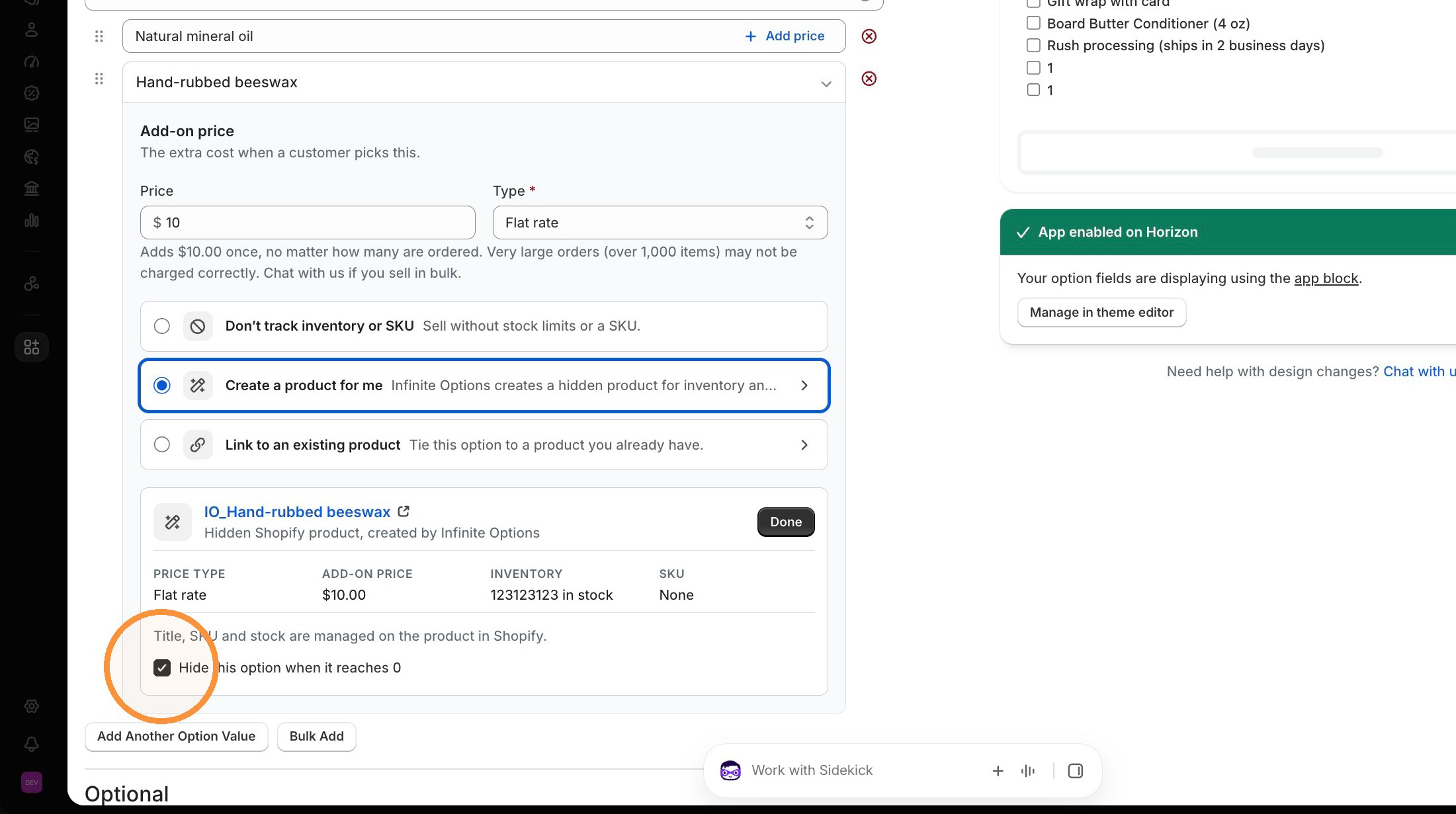
Choose whether to connect the add-on to a Shopify product: Don't track inventory or SKU, Create a product for me, or Link to an existing product: See [Choose whether to track inventory](https://docs.theshoppad.com/infinite-options/~/revisions/ZzOYmh9fgcMVcmgHahbn/increase-the-cost-of-an-option/native-bundling/#choose-whether-to-track-inventory-or-not)
### Step 6
Click **Save**.
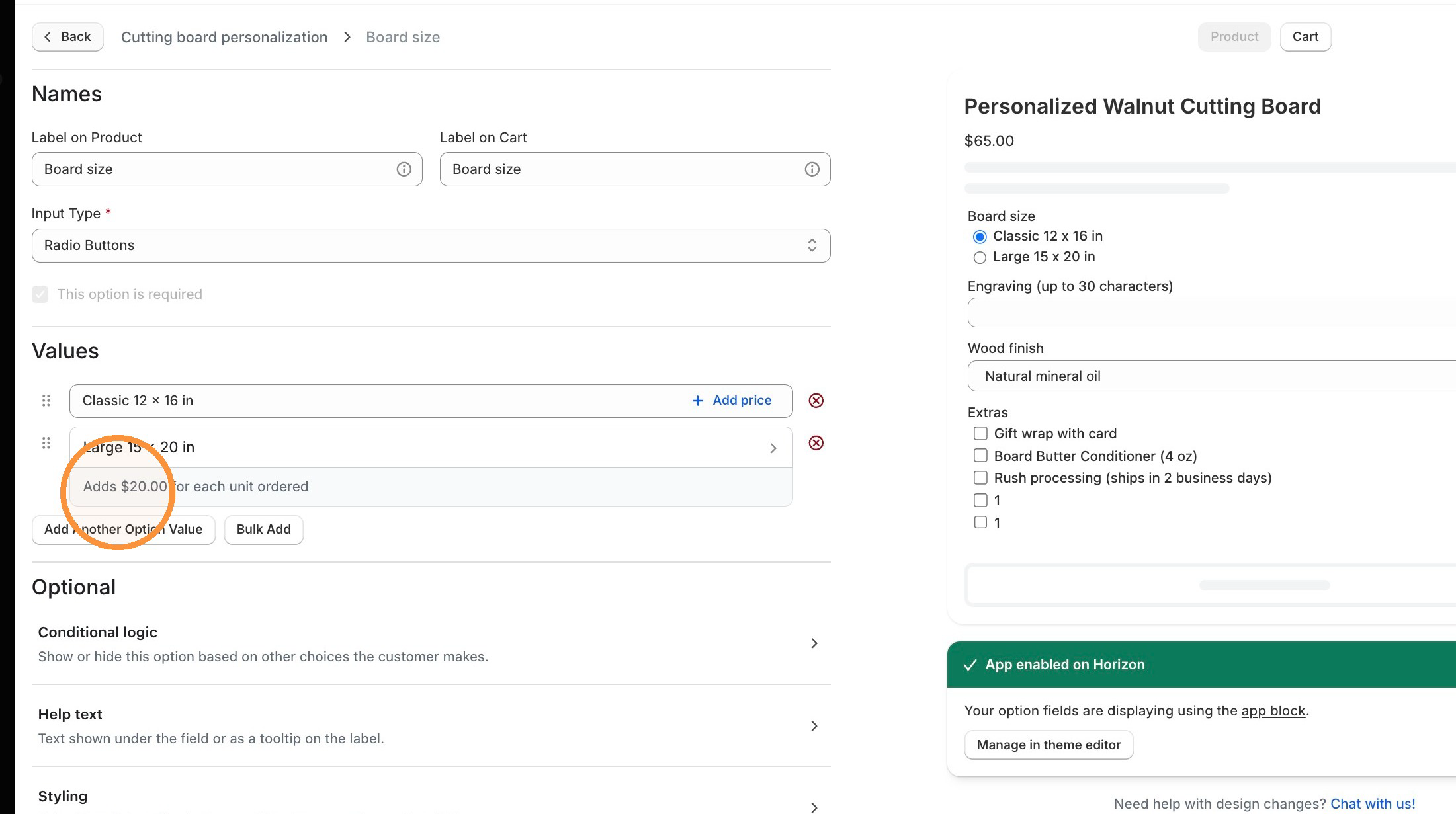
Once a value has a price, its collapsed row shows a short summary such as "Adds $10.00 to the product price" so you can see what each value charges without opening it. If a value shows "Needs a price", open it and enter an amount.
## **Price types**
### Per quantity
Adds the price once for each unit ordered.
This is the default, and it's how all add-on prices worked before this update.
**Example**\
A $5.00 gift wrap add-on on an order of 3 adds $15.00.
### Flat rate
Adds the price once, no matter how many are ordered.
This works well for setup, delivery, or service fees.
**Example**\
A jewelry store offers gift wrapping for a $10 flat fee. If a customer orders 3 items with gift wrapping, they pay $10 for gift wrapping, not $30.
### Percentage
Adds a percentage of the product’s price.
This works well for upgrades that should scale with the product’s value, like personalization, premium materials, or extended protection.
Percentage add-ons are charged for each unit, so the add-on amount goes up with quantity. If the product is on sale, the percentage is based on the sale price.
**Example**\
A store charges 10% for a personalization option. On a $100.00 product, the add-on costs $10.00. If a customer orders 2 products, the add-on costs $20.00.
### Per character
Charges a rate for each character the customer types in a text field, which is useful for engraving, embroidery, and monograms.
Per character pricing is set on the text option itself by clicking the Add pricing checkbox.
Use **Free characters** to set how many characters customers can type before the add-on price applies. Leave it blank to charge for every character.
#### Example
With embroidery at $2.00 per character and 12 free characters, a customer who types "Happy Birthday!" (15 characters) pays $6.00 for the 3 extra characters.
## Choose whether to track inventory or not
When you add a price, you can choose whether to connect the add-on to a Shopify product. This determines whether the add-on has an SKU and inventory tracking in Shopify.
### Don't track inventory or SKU
This is the fastest option. The add-on's cost is added to the main product's price, with no extra product added to the order.
Use this when you don't need an SKU or inventory count for the add-on.
### Create a product for me
Infinite Options will create a hidden product for the add-on so it can have an SKU and inventory.
You set it up once, and after that you manage it in Shopify. See [Create or link add-on products](https://docs.theshoppad.com/infinite-options/~/revisions/bTCXKxxL1hDo2RSgwVXc/increase-the-cost-of-an-option/create-or-link-add-on-products/) for details.
:::note
Products created by Infinite Options will show in the Shopify admin as Draft products, prepended with "IO\_".
:::
### Link to an existing product
Connects the add-on to a product you already have in Shopify. The add-on uses the product's price, SKU, and inventory.
You can enter a different price in the Price field without changing the actual price of the product in Shopify.
See [Create or link add-on products](https://docs.theshoppad.com/infinite-options/increase-the-cost-of-an-option/create-or-link-add-on-products/) for details.
If you choose Don't track inventory or SKU, the add-on has no SKU and doesn't affect inventory in Shopify. If you need either for fulfillment or reporting, create or link a Shopify product instead.
:::note
Changing the price of the linked product via the Price field in the option **will not** affect the actual price of the product in the Shopify admin.
:::
:::caution
Choosing **Don't track inventory or SKU** means the add-on has no SKU and won't account for inventory adjustments. If you need either for fulfillment or reporting, create or link a product instead.
:::
### Hide when out of stock
If you link a product to your add-on, you can optionally choose to automatically hide the priced option when it is out of stock. Click the **Hide this option when the product is sold out** checkbox.
This feature will only work if Shopify tracks inventory for the linked product.
## Show the price to customers
Add-on prices are charged at checkout either way. To show customers the running total and what each choice adds as they make selections, add the Dynamic Bundle Price block to your product page. See [Show prices with the Dynamic Bundle Price block](https://docs.theshoppad.com/infinite-options/~/revisions/bTCXKxxL1hDo2RSgwVXc/increase-the-cost-of-an-option/show-price-changes-on-the-product-page/).
## How discounts work with add-on pricing
Shopify treats the main product and its add-ons as one bundled item.
When a Shopify discount applies to the main product, it applies to the add-on prices too. This includes percentage and fixed amount discounts, Buy X Get Y promotions, discount codes, and automatic discounts.
It applies to the add-on prices _even when_ the discount is limited to a specific product or collection that doesn't include the add-on.
A percentage add-on is calculated from the product's selling price, so it's lower while the product is on sale. Discount codes and automatic discounts then apply to the product and its add-ons together.
Infinite Options can’t currently exclude add-on prices from a Shopify discount, or apply a discount to add-on prices only. If a discount applies to the main product, its add-ons are discounted too.
## **Set it up with Yedric**
You can also ask Yedric, the Infinite Options assistant, to set up add-on pricing for you in chat.
It can set the price type, create or link a product, add an SKU, set starting stock, and turn on hiding when an add-on sells out.
## **Things to know about add-on pricing**
* Price decreases and formula-based pricing aren't currently supported.
* Per character pricing counts every character, including spaces. Most emoji count as two or more characters.
* Per character and percentage add-ons are charged for each unit, so the add-on price increases with quantity. Flat rate add-ons are charged only once per order.
* Flat rate add-ons are divided across the units in an order and rounded to the nearest cent. Because of this rounding, the total can be off by a cent or two. For example, a $10.00 flat rate on an order of 3 may total $9.99.
* Very large orders may not calculate flat rate add-ons correctly. Infinite Options shows the order limit below the price, for example, "Very large orders (over 10,000 items) may not be charged correctly." If you sell in bulk, use Per quantity pricing or a larger flat rate, or contact us for help.
* You can't turn off Native Bundling while an option set is using add-on pricing. The Settings menu will show you which option sets are affected. To turn off Native Bundling, open each affected option set and either remove the add-on pricing or change it to **Link to an existing product** with **Per quantity** pricing. Once all affected option sets have been updated, you can turn off the feature.