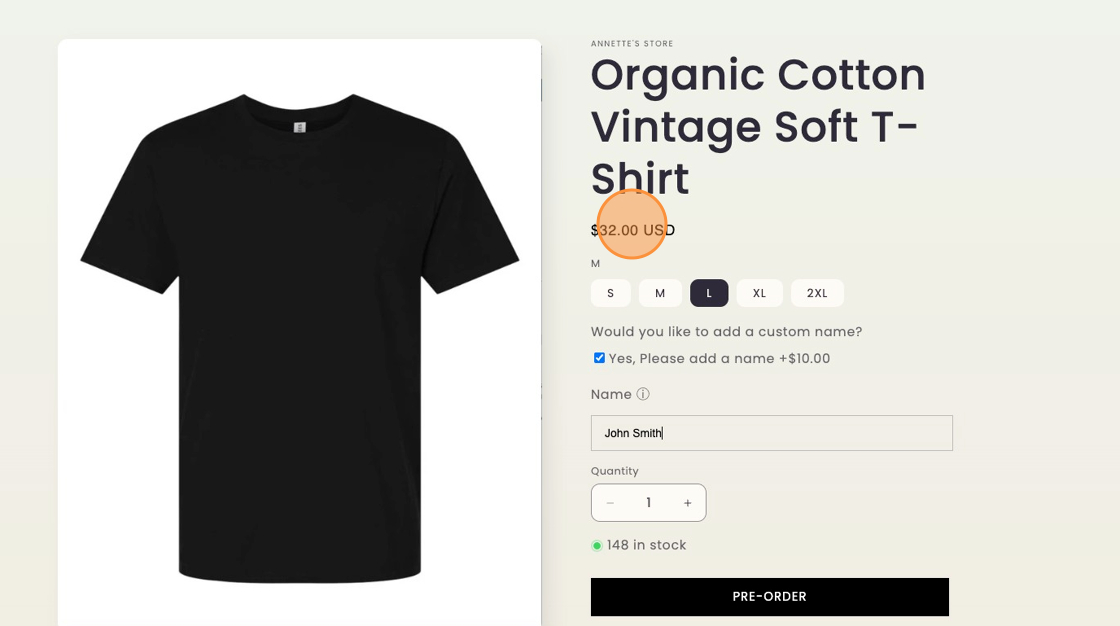
> For the complete documentation index, see [llms.txt](https://docs.theshoppad.com/infinite-options/llms.txt). Markdown versions of documentation pages are available by appending `.md` to page URLs; this page is available as [Markdown](https://docs.theshoppad.com/infinite-options/increase-the-cost-of-an-option/show-price-changes-on-the-product-page.md).
# Show price changes on the product page
Add the Dynamic Bundle Price block to your theme so Infinite Options price changes show on the product page before customers add to cart.
To display price changes on the product page before customers add items to their cart, add the Dynamic Bundle Price block to your theme.
***
**Estimated setup time:** 2–3 minutes
***
### What you'll be adding
To display price changes on the product page, add the **Dynamic Bundle Price block** to your product template.
When a shopper selects an option that increases the price, this block updates the product price displayed on the page.
### Important
:::note
**Important**
The Dynamic Bundle Price block only works on the product template where it is added. If your store uses multiple product templates, you will need to add the block to each template where Infinite Options appears.
:::
If your store uses multiple product templates, add the block to each template where Infinite Options appears.
For example:
* Default product template
* Custom product template
* Bundle product template
If the block isn't added to the template your product uses, the price won't update on the product page.
## Add the Dynamic Price Block via your theme
### Step 1: Open the theme editor
From your Shopify admin:
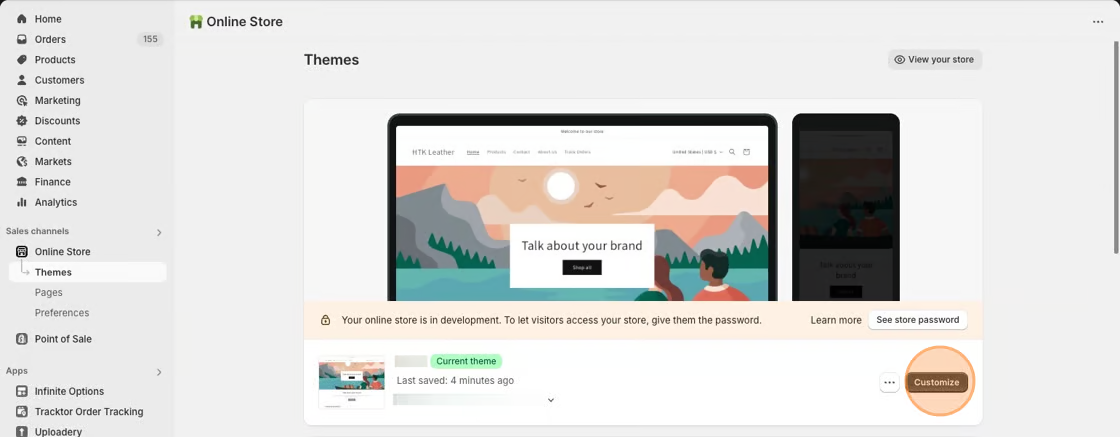
1. Go to **Online Store → Themes**
2. Click **Customize** on your active theme
### Step 2: Open a product template
At the top of the theme editor:
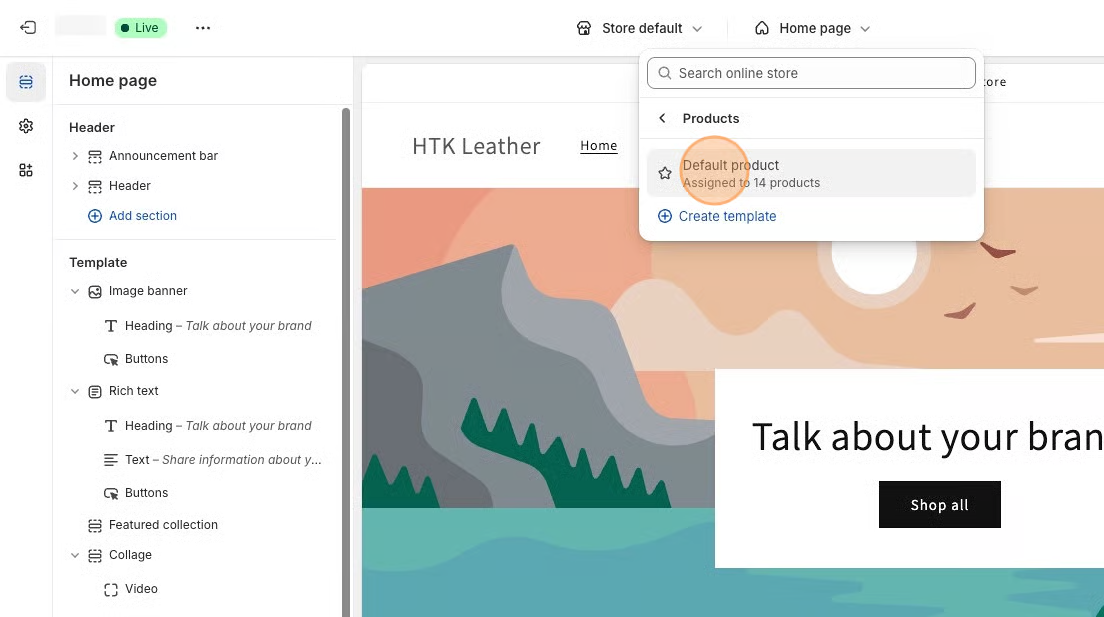
1. Open the page selector dropdown
2. Select **Products**
3. Choose the **product template used by your product**
### Step 3: Add the Dynamic Bundle Price block
In the product template layout:
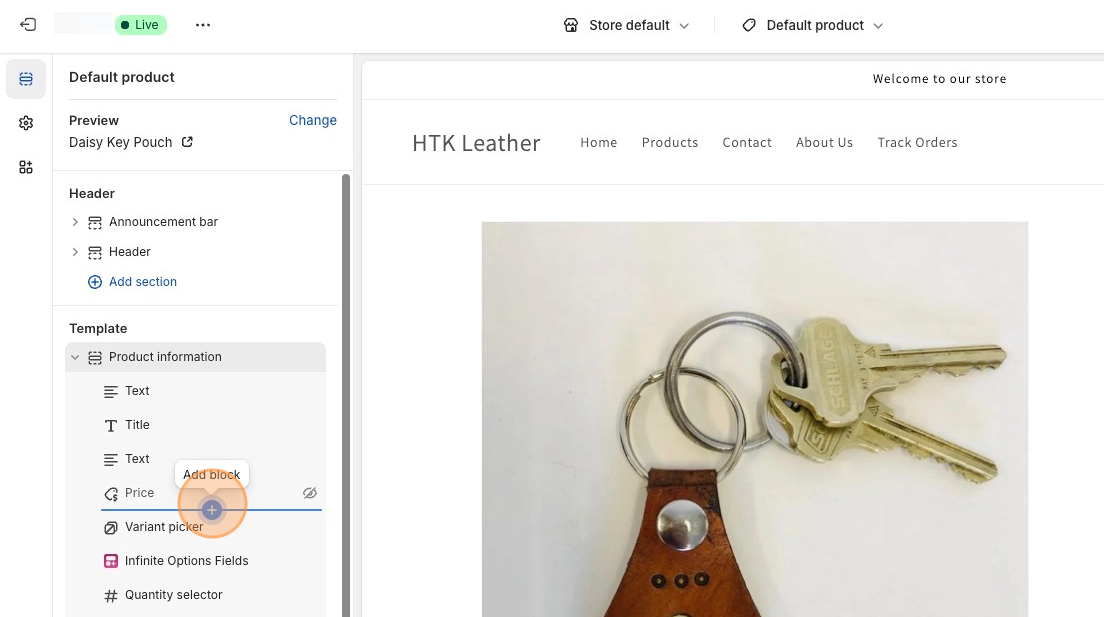
1. Click **Add block**
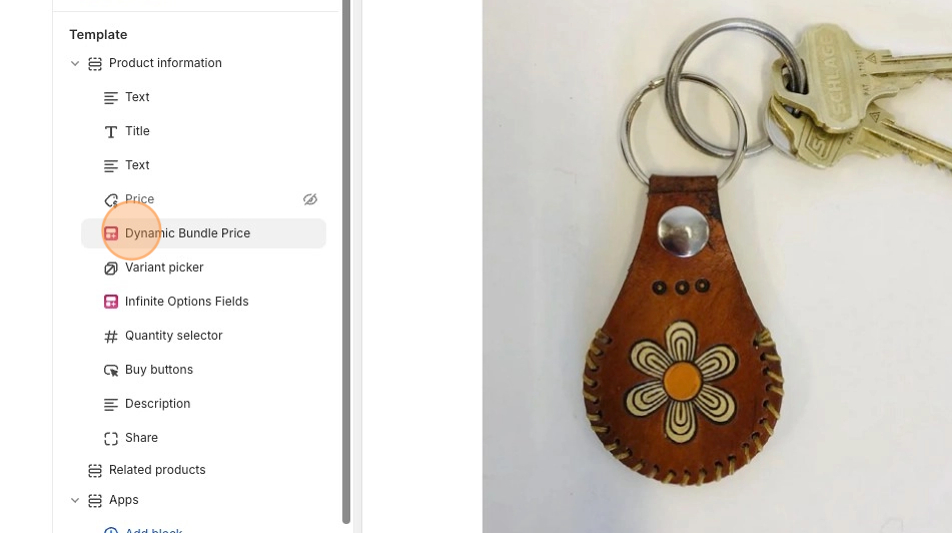
2. Select **Dynamic Bundle Price**
### Step 4: Adjust the Dynamic Bundle Price block settings
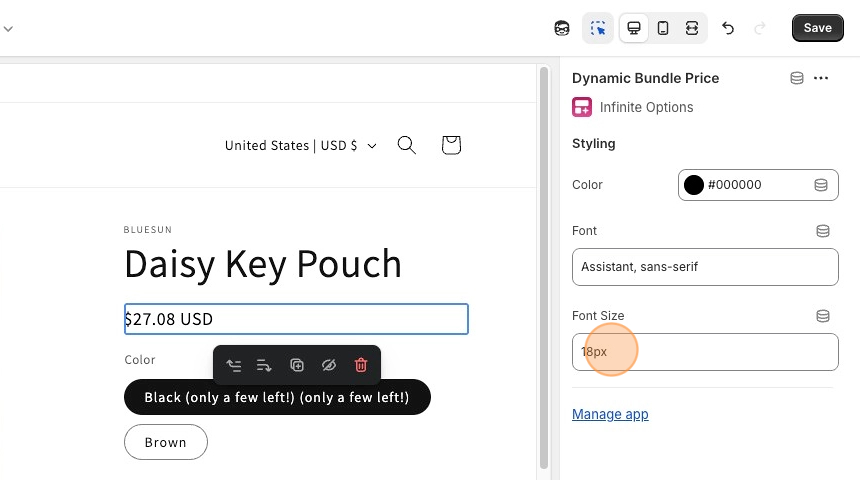
Click into the **Dynamic Bundle Price block** to adjust the styling settings.
You can use these settings to better match the price display to your theme.
### Step 5: Hide or remove the default price block
The Dynamic Bundle Price block replaces your theme’s default price display**.**
If the default price block remains visible, the price may not update correctly or two prices may appear on the page.
To prevent this:
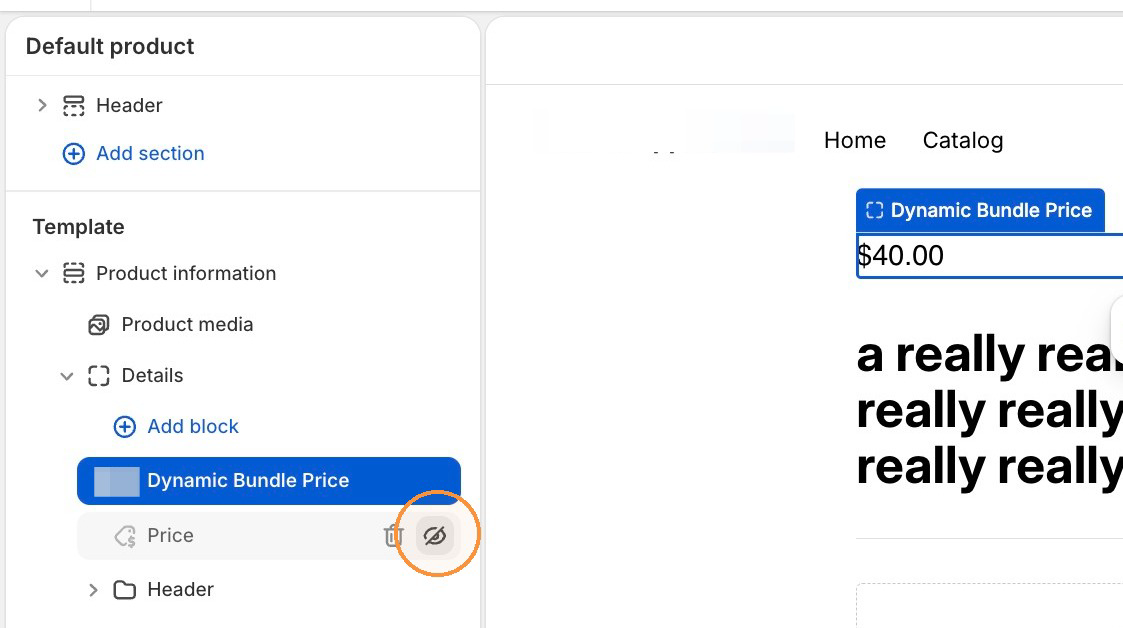
1. Locate your theme's default product price block (often named **Price**).
2. Hide or remove it
### Step 5: Save your theme changes
Save your theme changes.
Your product page will now display the updated price when shoppers select options that add a cost.
## Add the Dynamic Price Block from your option set
#### Step 1
Open an option set that uses add-on pricing.
#### Step 2
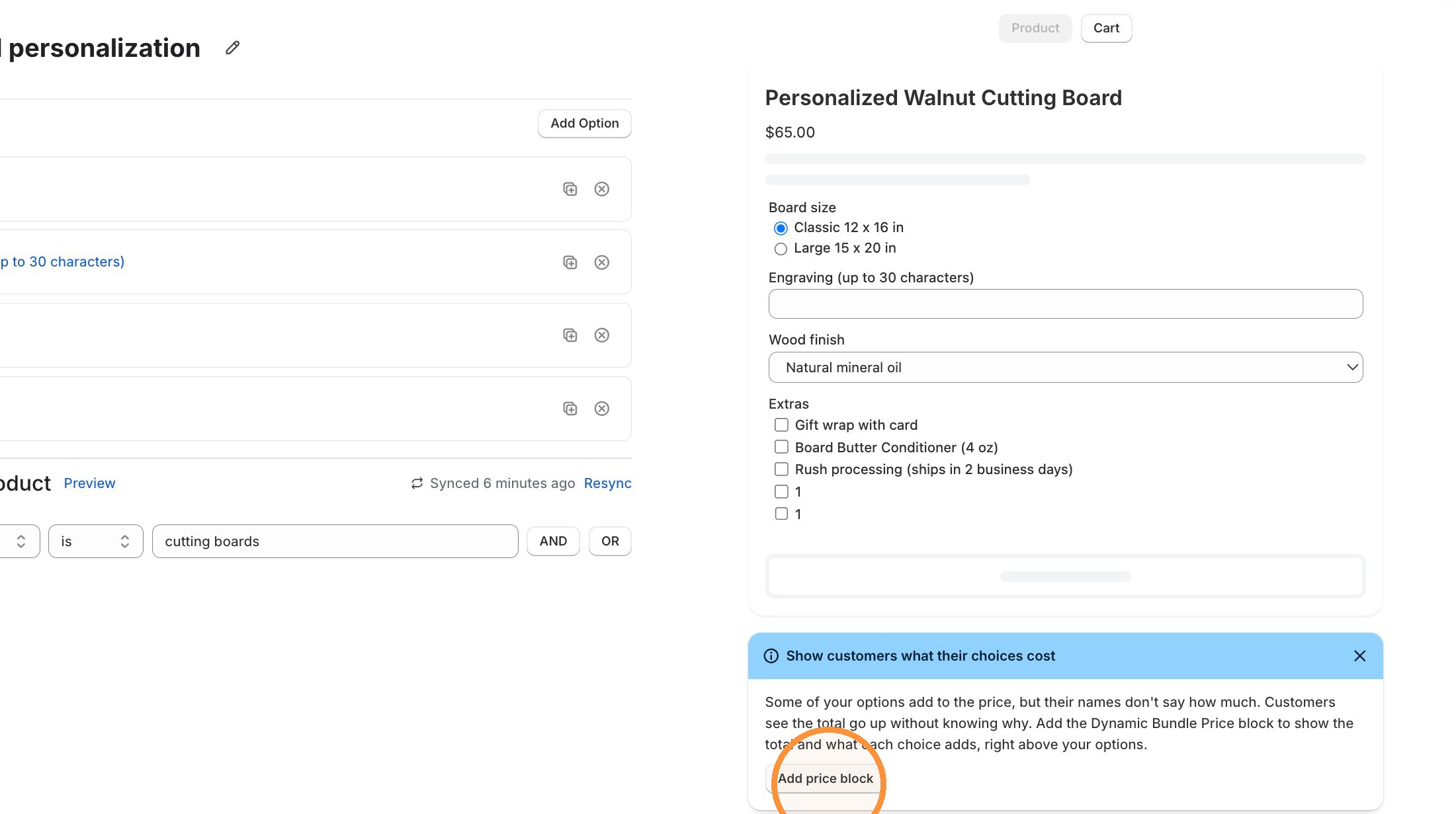
In the banner under the preview panel in the option, click **Add price block**.
:::note
If the banner does not show it means you've already added the price block, but you can follow the manual steps above to double-check you've added it for the correct product template.
:::
#### Step 3
Your theme editor opens. Confirm the Dynamic Bundle Price block appears on the product template you're using.
Drag the block to where you want it on the page.
#### Step 4
Click **Save** in the theme editor.
### Hide your theme's price
Once you add the Dynamic Bundle Price block, Infinite Options shows a price that updates as customers make choices.
Your theme also shows its own price, which doesn't change. Seeing two different prices can confuse customers, so we recommend hiding your theme's price on product pages that use add-on pricing.
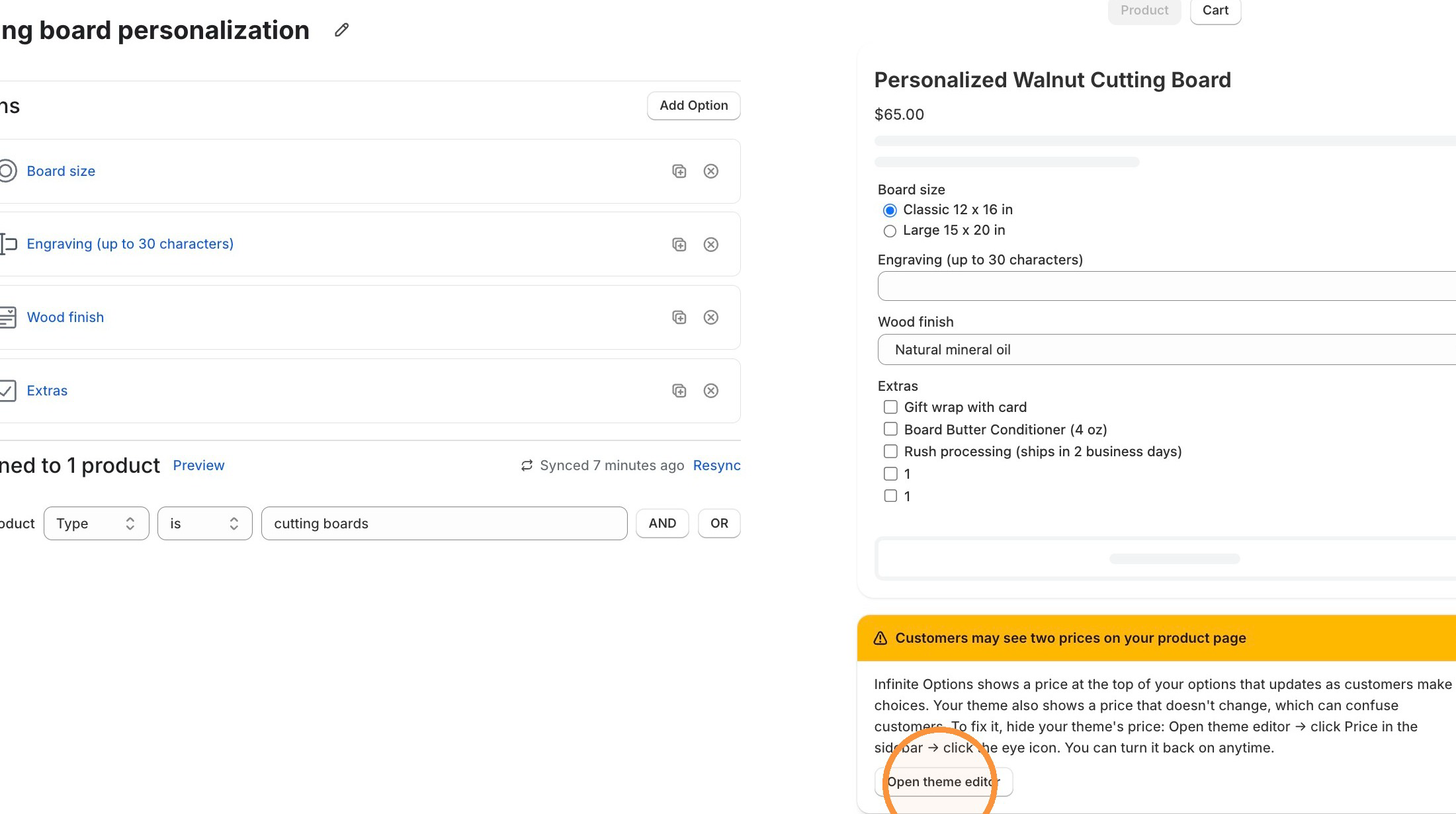
When Infinite Options finds both prices on a product page, the option set editor shows a banner under the option set preview: "Customers may see two prices on your product page".
Follow the steps below to hide your theme's price.
1. Open the option set showing the banner.
2. In the banner, click **Open theme editor**.
3. In the theme editor sidebar, click the **Price** block.
4. Click the eye icon to hide it.
5. Click **Save**.
You can turn your theme's price back on anytime by clicking the eye icon again.
### How this works
* The option value is priced, or linked to a Shopify product, using add-on pricing.
* The Dynamic Bundle Price block updates the displayed price on the product page.
### Limitations
When a customer selects a bundled add-on, the add-on product's weight is included in the order's total shipping weight.
If the add-on shouldn't affect shipping rates, set its weight to **0** in Shopify.
:::note
Note: If you use a third-party currency converter, we recommend testing this feature on your store to confirm it works correctly.
:::
#### What the Dynamic Bundle Price block doesn't do
The Dynamic Bundle Price block updates the total product price as shoppers select options. It doesn't display the additional cost beside individual option values.
For example, if you have a checkbox labeled "Gift wrap" that's linked to a $5 add-on, customers won't see "+$5" beside the checkbox.
Instead, they'll see the total product price update at the top of the page after selecting the option.
:::note
If you want customers to see the additional cost before selecting an option, include it in the option label. For example:
* Gift wrap (+$5)
* Rush processing (+$15)
:::
This helps customers understand the additional cost before making a selection, reducing confusion later in the purchase process.
### How to check if your theme supports this feature
1. From your Shopify admin, go to **Online Store → Themes**
2. Click **Customize**
3. Open a **product template**
4. Look for an **Add block** button
If the **Add block** option is available, your theme supports this feature.
If you do not see an **Add block** option, your theme is likely a vintage theme, and the Dynamic Bundle Price block will not be available.\
\
Watch the video below for a step-by-step demonstration of adding the Dynamic Bundle
[https://www.youtube-nocookie.com/embed/3zwHV6J58v0?rel=0](https://www.youtube-nocookie.com/embed/3zwHV6J58v0?rel=0)