> For the complete documentation index, see [llms.txt](https://docs.theshoppad.com/infinite-options/llms.txt). Markdown versions of documentation pages are available by appending `.md` to page URLs; this page is available as [Markdown](https://docs.theshoppad.com/infinite-options/inputs-and-field-settings/create-swatches.md).
# Create Color and Image Swatches
Create color and image swatches in Infinite Options for products that vary by color, pattern or material, with steps for adding values and images.
### Overview
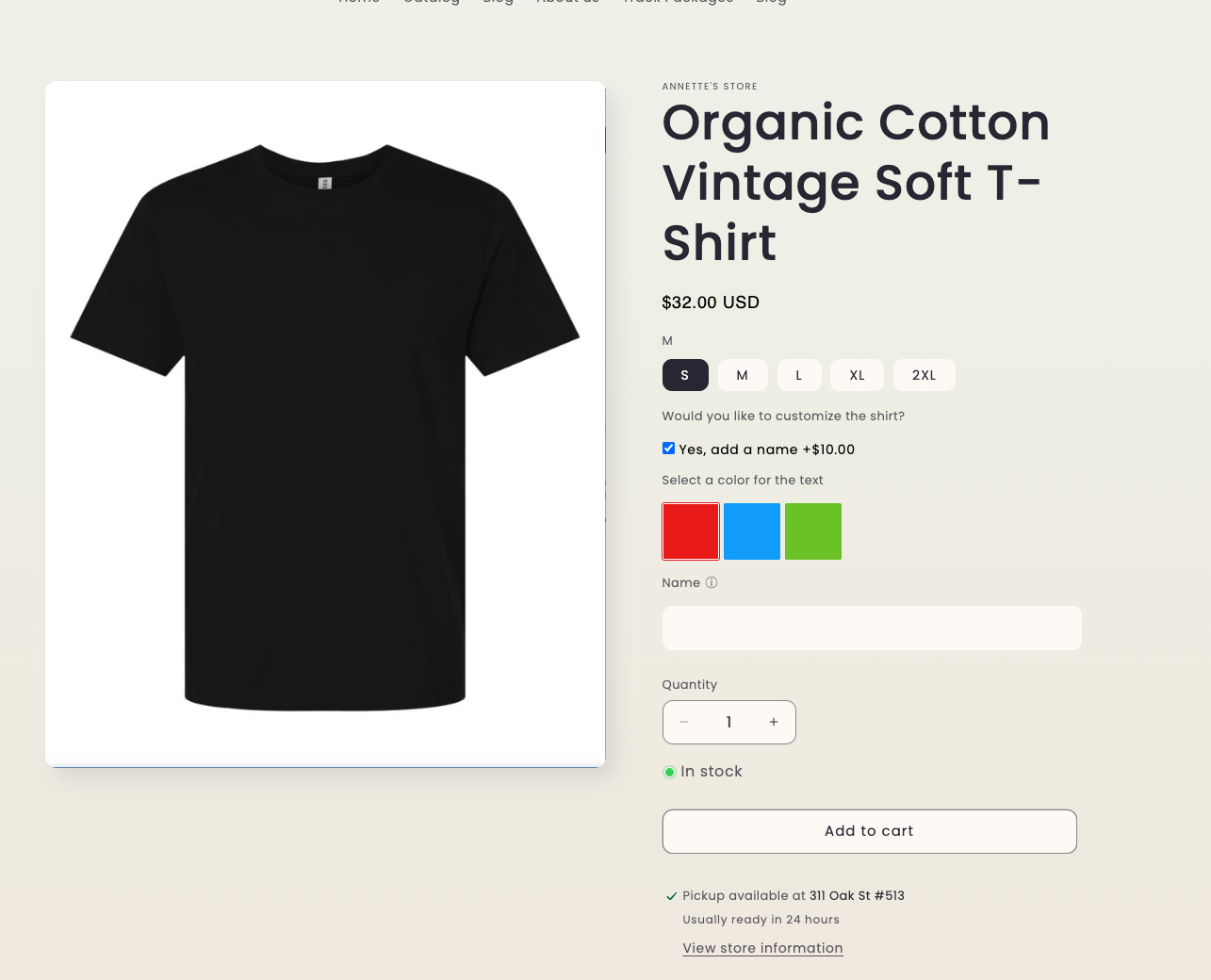
Swatches let customers choose an option by selecting a color or image instead of reading a text label.
They're a great choice for products available in different colors, patterns, materials, finishes, flavors, or other visual customizations
***
### Step 1: Create a Swatch Option
Open an existing Option Set or create a new one.
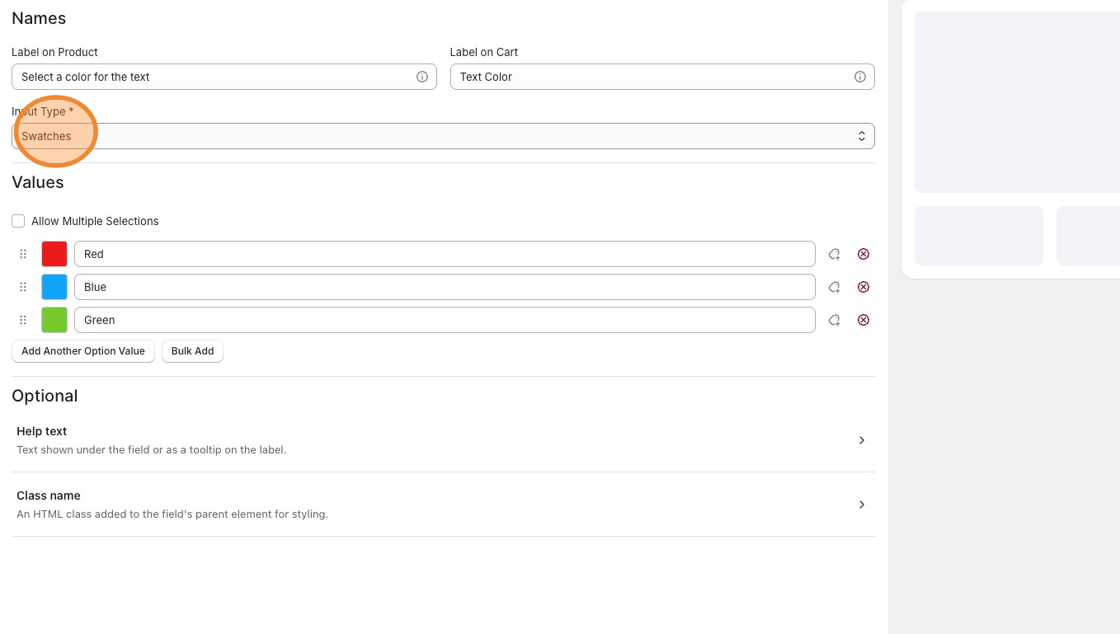
Add a new option and select **Swatches** as the input type.
***
### Step 2: Add Your Option Values
Enter the values you want customers to choose from.
For example:
* Red
* Blue
* Green
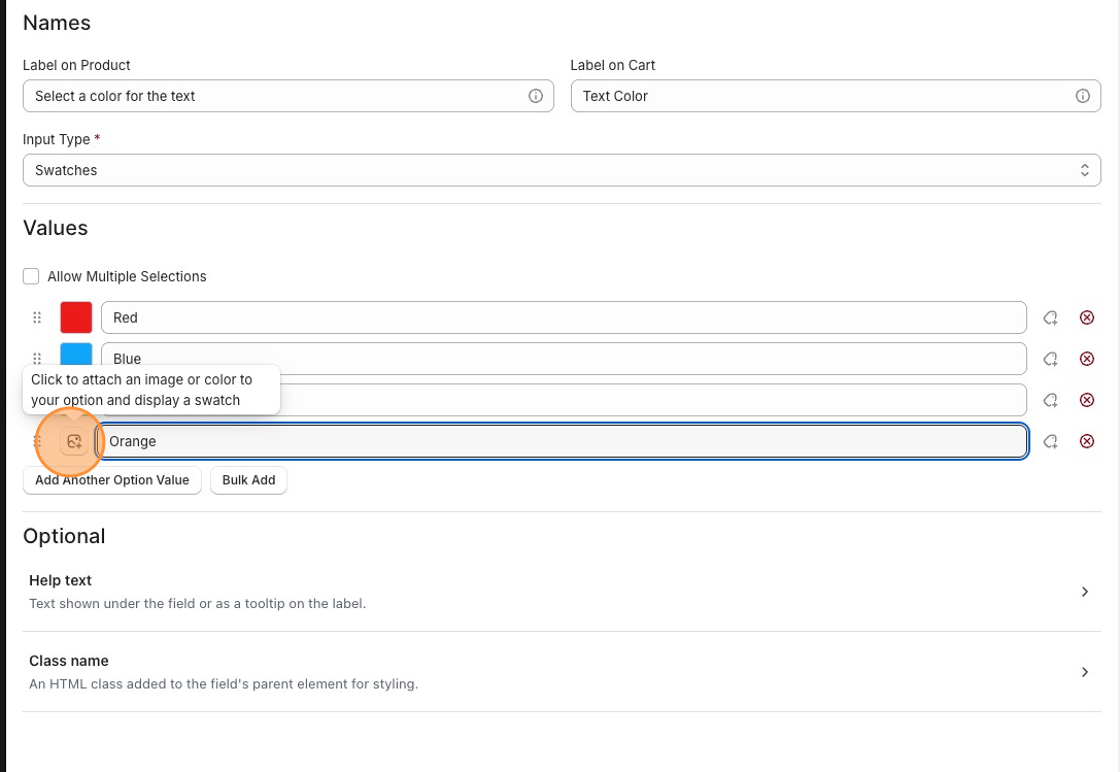
Each value can have its own color or image.
***
### Step 3: Add a Color or Image
Next to each option value, click the **swatch** icon.
Choose one of the following:
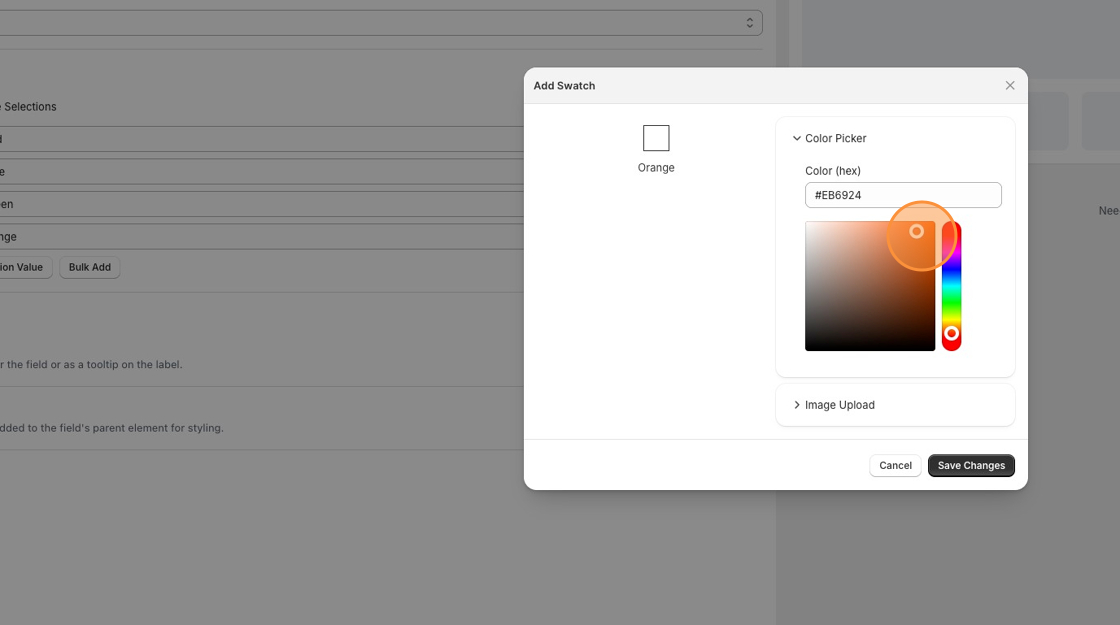
#### Color
Select a color using the color picker or enter a HEX color value.
Example: `#FFFFFF`
Click **Save** to apply the color.
***
#### Image
Upload an image to represent the option.
For best results:
* Use square images.
* Keep images under **1 MB**.
* GIF images aren't supported.
Click **Save** to apply the image.
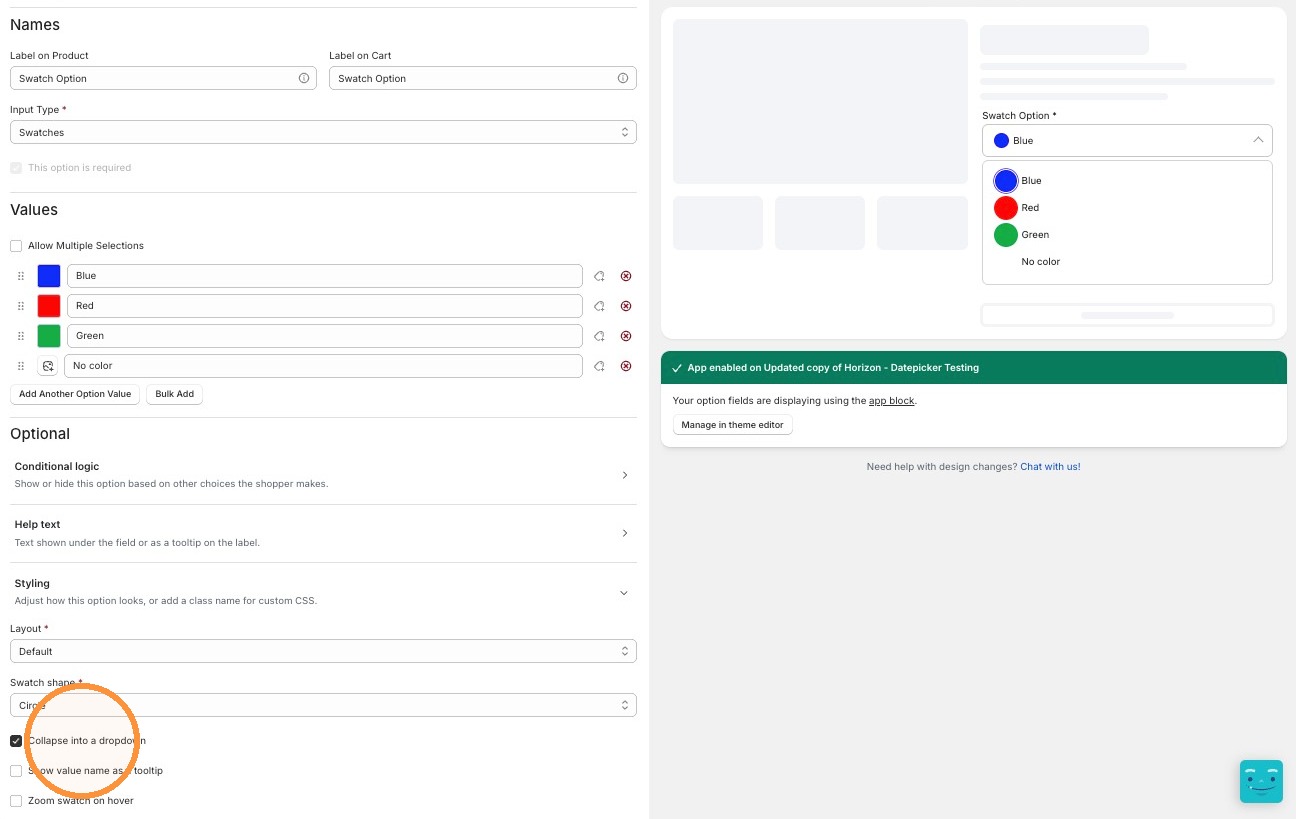
#### Style Your Swatches
Under the Styling section of the option editor, you can set:
* **Layout** — Inline or Stacked
* **Swatch shape** — Square, Rounded, or Circle
* **Collapse into a dropdown** — turns the swatch list into a dropdown once there are many values. The label stays above the control, and the dropdown summary shows the shopper's current selection.
* **Show value name as a tooltip** — displays each value's name on hover
* **Zoom swatch on hover** — enlarges a swatch when a shopper hovers over it
* **Class name** — for custom CSS targeting
:::note
Looking for the older custom-CSS layout snippets (large swatches, round swatches, column layouts)? Many of those are now available as built-in styling options above!
:::
***
### Step 4: Save Your Option Set
Click **Save** in Infinite Options.
Your swatches will now appear on every product assigned to the Option Set.
***
## Tips
* Use colors when customers are choosing between simple color options.
* Use images when the differences are visual, such as patterns, fabrics, wood finishes, or product styles.
* Keep image sizes consistent for the best-looking swatches.
***
## Related Guides
Looking to do more with swatches?
* [Make Swatches Required Before Adding to Cart](https://docs.theshoppad.com/infinite-options/inputs-and-field-settings/create-swatches/how-to-make-swatches-required/)
* [Style Your Swatch Options](https://docs.theshoppad.com/infinite-options/inputs-and-field-settings/create-swatches/customize-swatches-using-css/)
* [Use Native Bundling with Swatches](https://docs.theshoppad.com/infinite-options/broken/pages/dMNqfyywVN5r1WsZqkRH#how-to-add-pricing-to-an-option)
## In this section
- [Adjust Swatches - display the name once the swatch is hovered over](https://docs.theshoppad.com/infinite-options/inputs-and-field-settings/create-swatches/adjust-swatches-display-the-name-once-the-swatch-is-hovered-over.md)
- [Customize Swatches using CSS](https://docs.theshoppad.com/infinite-options/inputs-and-field-settings/create-swatches/customize-swatches-using-css.md)
- [How to make Swatches required](https://docs.theshoppad.com/infinite-options/inputs-and-field-settings/create-swatches/how-to-make-swatches-required.md)