> For the complete documentation index, see [llms.txt](https://docs.theshoppad.com/infinite-options/llms.txt). Markdown versions of documentation pages are available by appending `.md` to page URLs; this page is available as [Markdown](https://docs.theshoppad.com/infinite-options/troubleshooting/performance-and-optimization/display-option-selections-on-customer-account-page.md).
# Display option selections on customer account page
Edit your theme templates to show Infinite Options selections for each order on the customer account page, with step by step code changes.
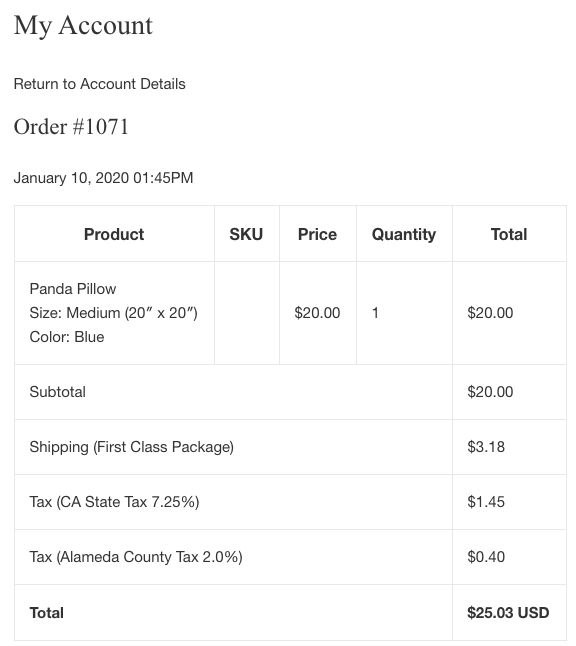
Follow the steps below on how to display option selections in each order on the customer account page.
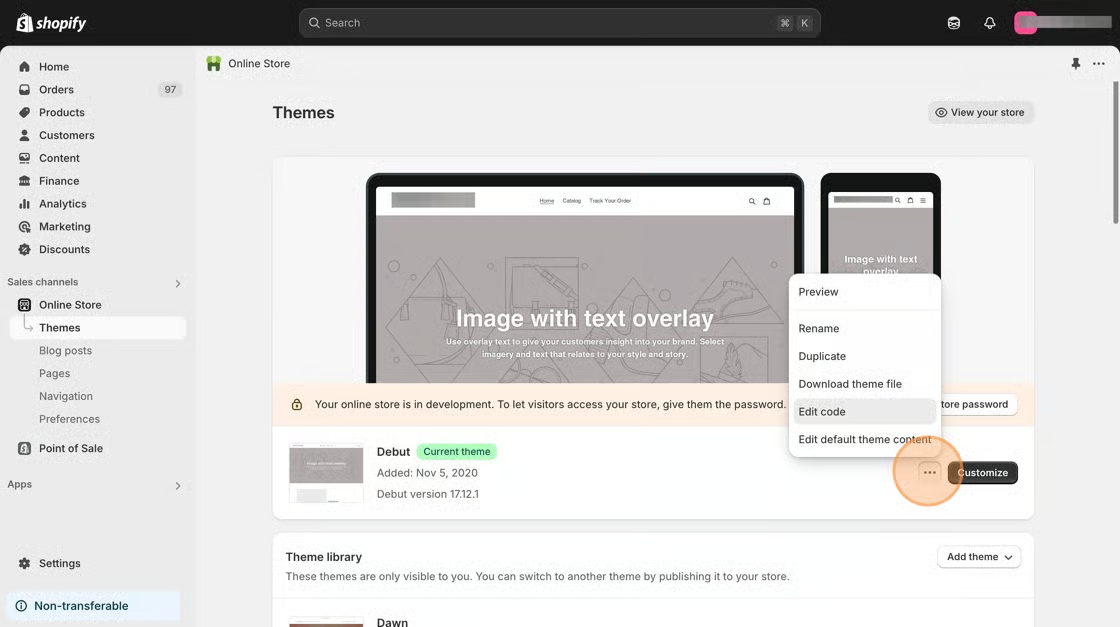
1\. From your Shopify admin, click Online Store, then click Themes.
2\. Find the theme you want to edit, click the **Actions** button, then click **Edit code**.
3\. Under the **Templates** folder, navigate into the **customers/order.liquid** file.
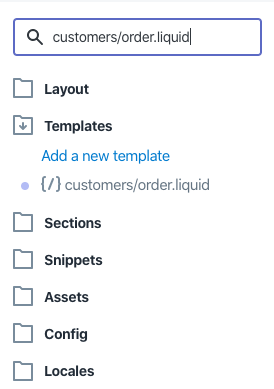
4\. In this file, locate the following line of code.
```liquid
{{ line_item.title | link_to: line_item.product.url }}
```
5\. Copy and paste the following snippet after the line of code.
```liquid
{% for p in line_item.properties %}
{% if p.first contains '_io_' %}
{% continue %}
{% endif %}
{% unless p.last == blank %}
{{p.first}}: {{ p.last }}
{% endunless %}
{% endfor %}
```
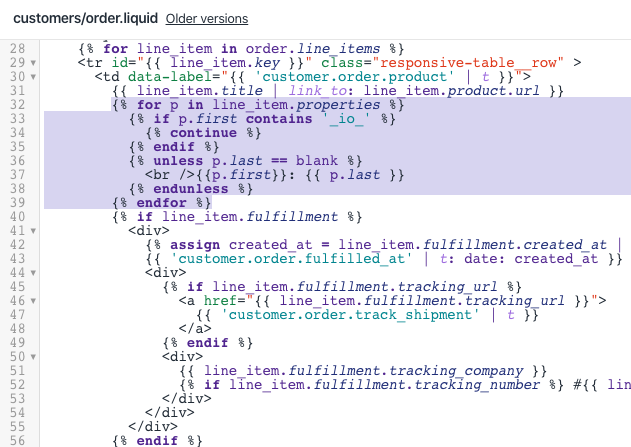
6\. Save your changes.