> For the complete documentation index, see [llms.txt](https://docs.theshoppad.com/infinite-options/llms.txt). Markdown versions of documentation pages are available by appending `.md` to page URLs; this page is available as [Markdown](https://docs.theshoppad.com/infinite-options/troubleshooting/resolving-cannot-find-variant-error.md).
# Resolving "Cannot Find Variant" Error
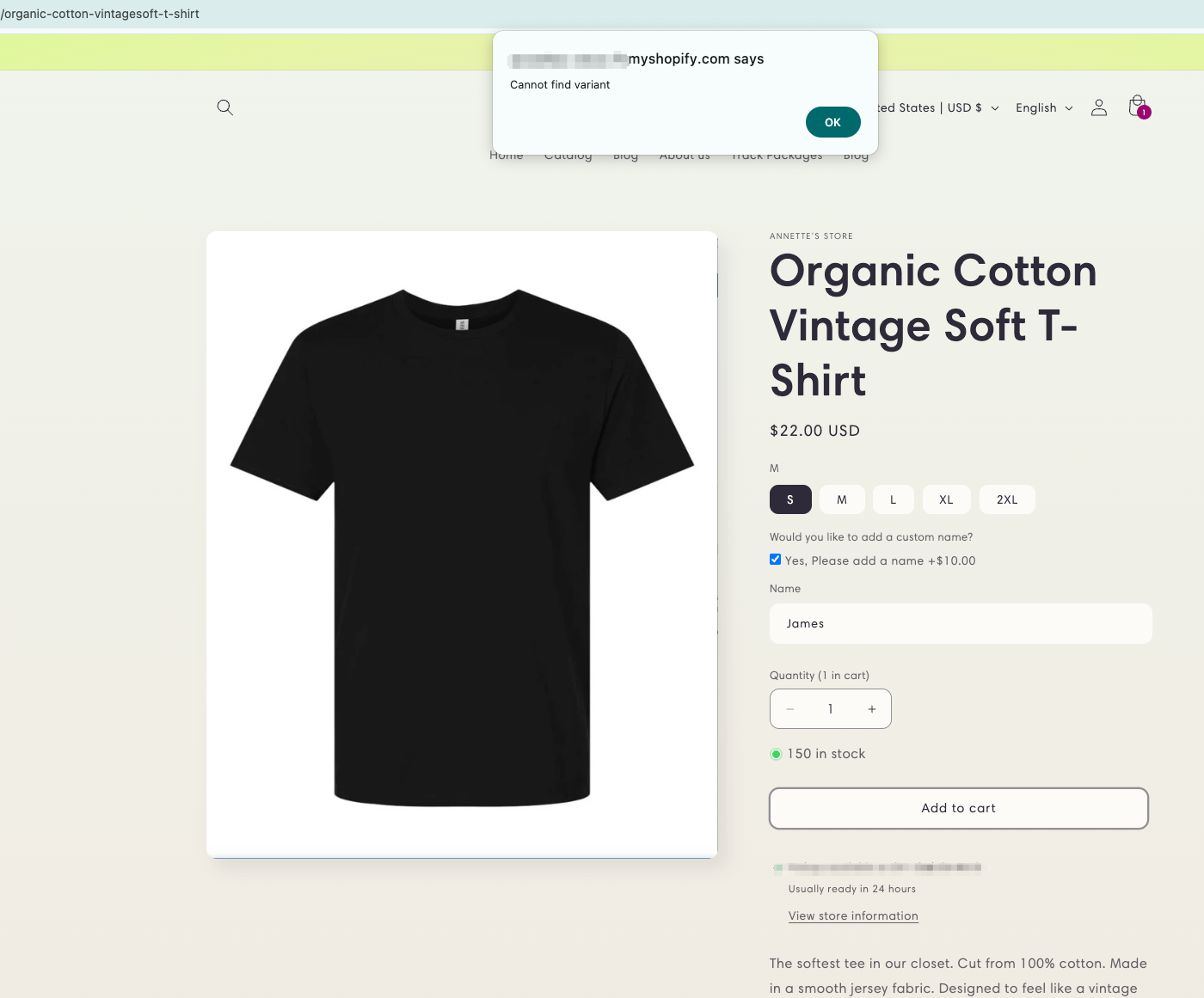
Resolve the Cannot Find Variant error in Infinite Options by making the add-on product active and available in the Online Store sales channel.
**If an add-on product isn't active or available in the Online Store channel,** Shopify won't be able to add it to the cart and will display the "cannot find variant" error.
### To Resolve the Error:
**Step 1: Locate the option set**
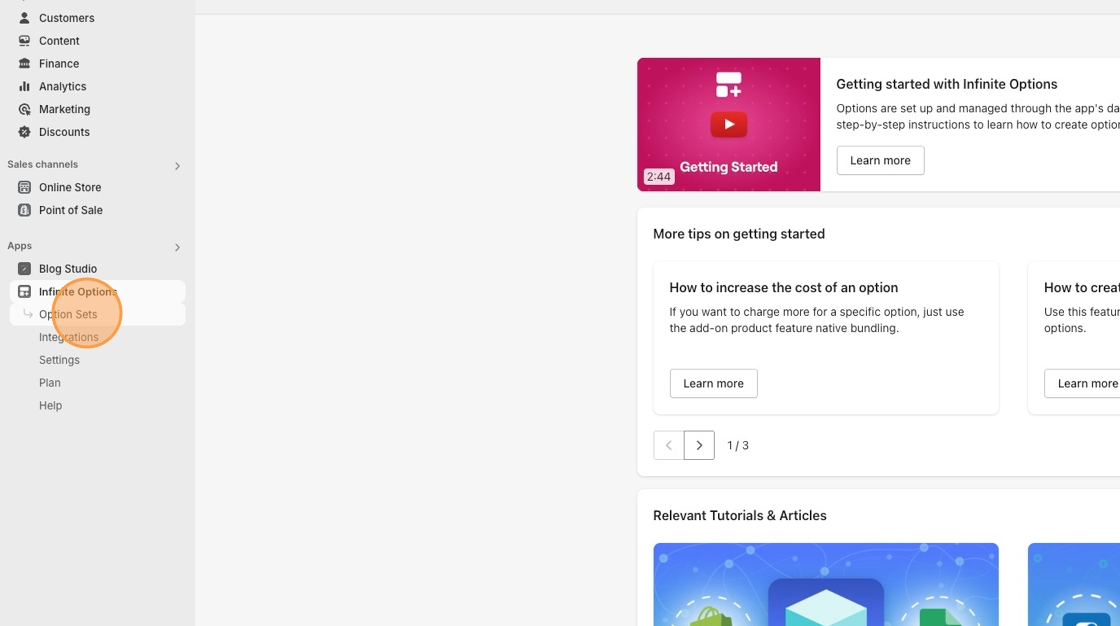
Navigate to your app dashboard and select Option Sets. Find the option set that contains the add-on product and click to examine it.
**Step 2: Check the bundled product**
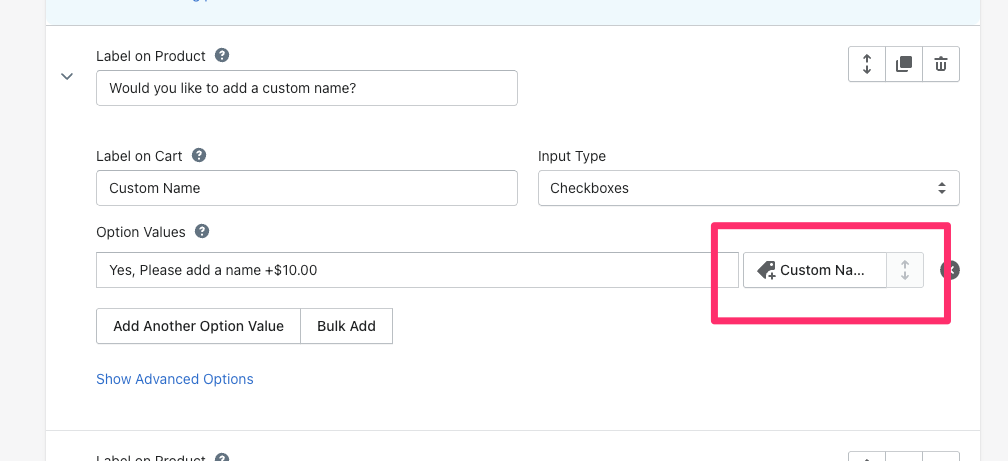
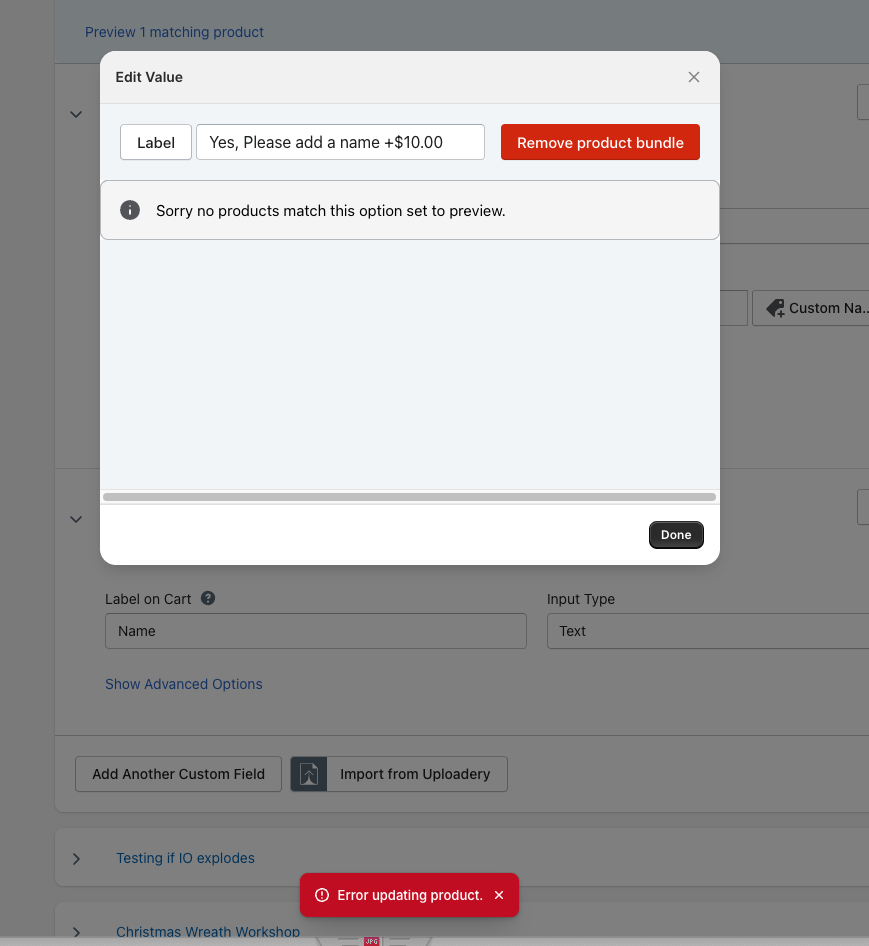
**If clicking the bundled product shows "Sorry, no products match this option set to preview."**
The original product has been deleted. You'll need to re-bundle the option to the current or replacement product.
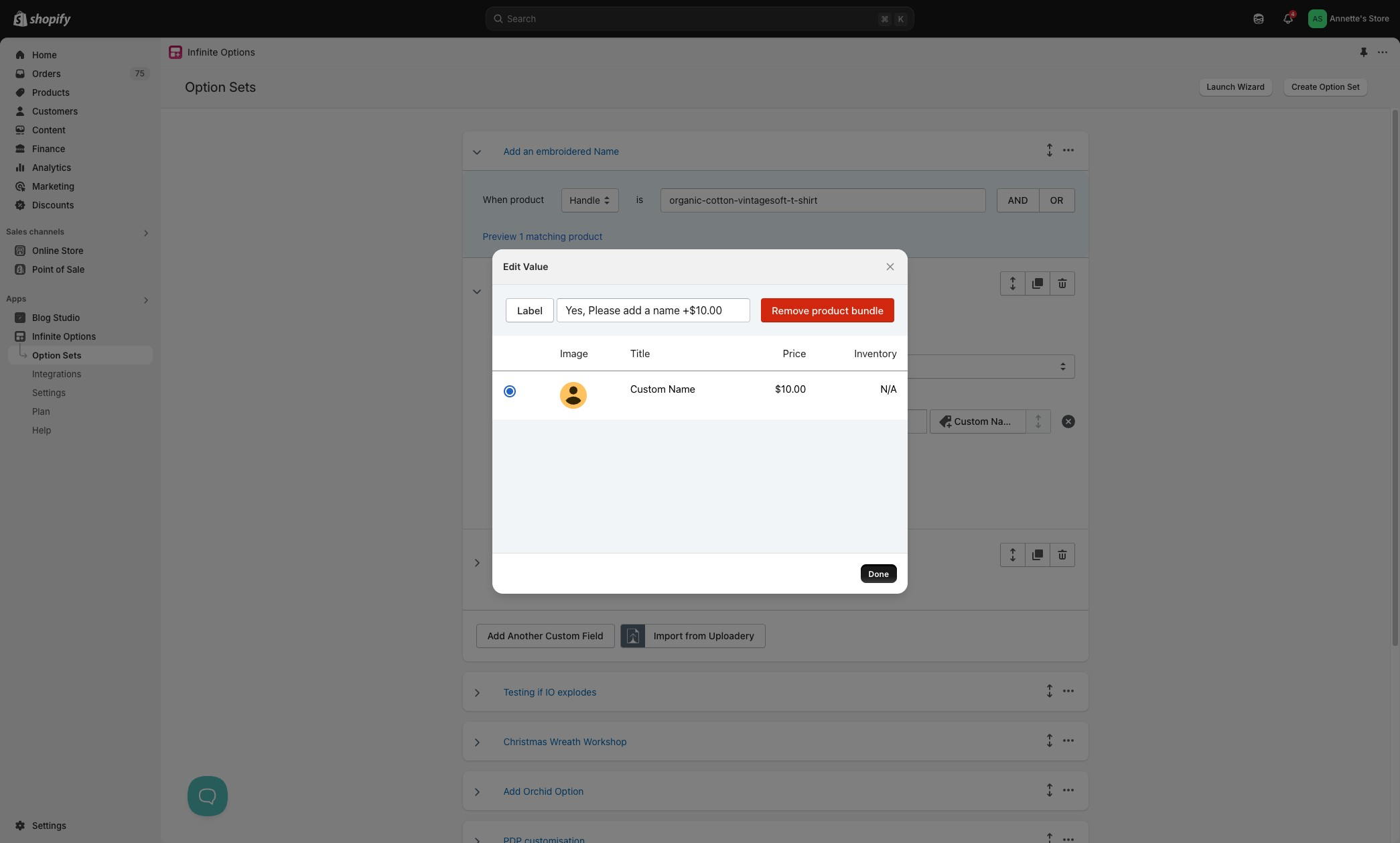
If the bundled product loads correctly in the editor **Continue to Step 3.**
**Step 3: Check the product in Shopify**
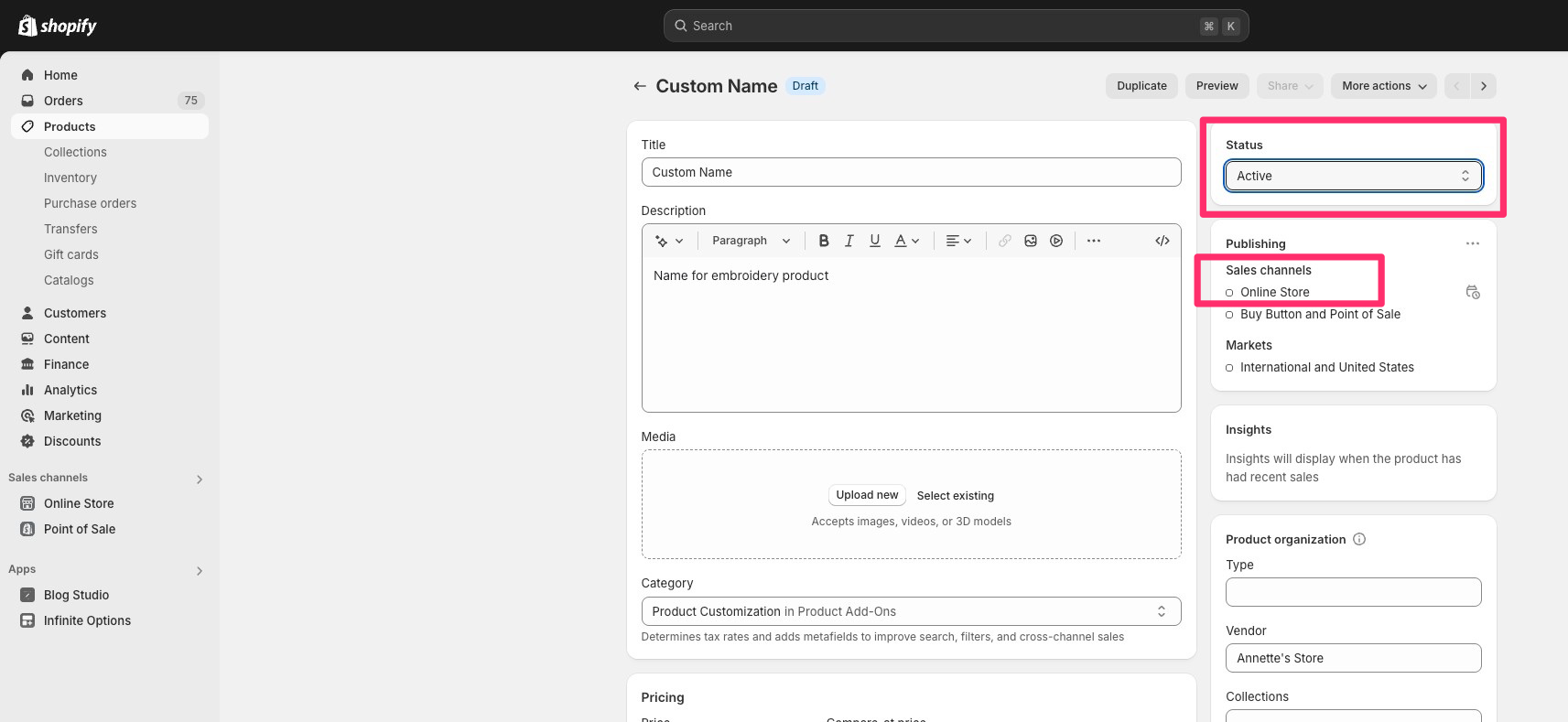
**Product status:** The status should be set to Active. If it shows Draft, change it to **Active** and save.
**Sales channel** -- Scroll down to the Sales channels and apps section. If Online Store is unchecked, check it and save.\
\
**Step 4: Test**
Once both are confirmed, go back to the product page where the error was appearing and test adding the product to the cart. The error should be resolved.
***
**Still seeing the error?**
If the product is active and assigned to Online Store but the error persists, reach out to our support team and include the name of the option set and the add-on product so we can take a closer look.
***