> For the complete documentation index, see [llms.txt](https://docs.theshoppad.com/kitkarts/llms.txt). Markdown versions of documentation pages are available by appending `.md` to page URLs; this page is available as [Markdown](https://docs.theshoppad.com/kitkarts/revert-recovery-email-to-shopify-default.md).
# Revert Recovery Email to Shopify Default
Reset the Kit Karts recovery email to the Shopify default style from the Recovery Email tab, and note that custom edits are removed.
Kit Karts now allows you to have a Shopify default-styled recovery email.
:::note
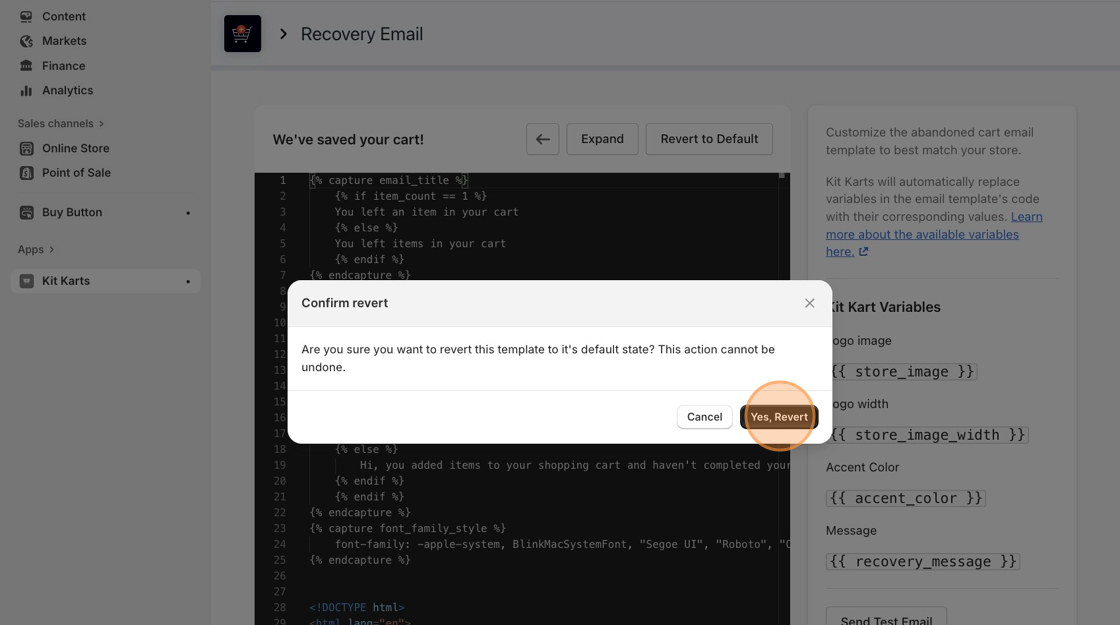
**Note:** If you decide to revert the recovery email template to Shopify's, this action will remove all customization/custom text that you may have added to the template before this action.
:::
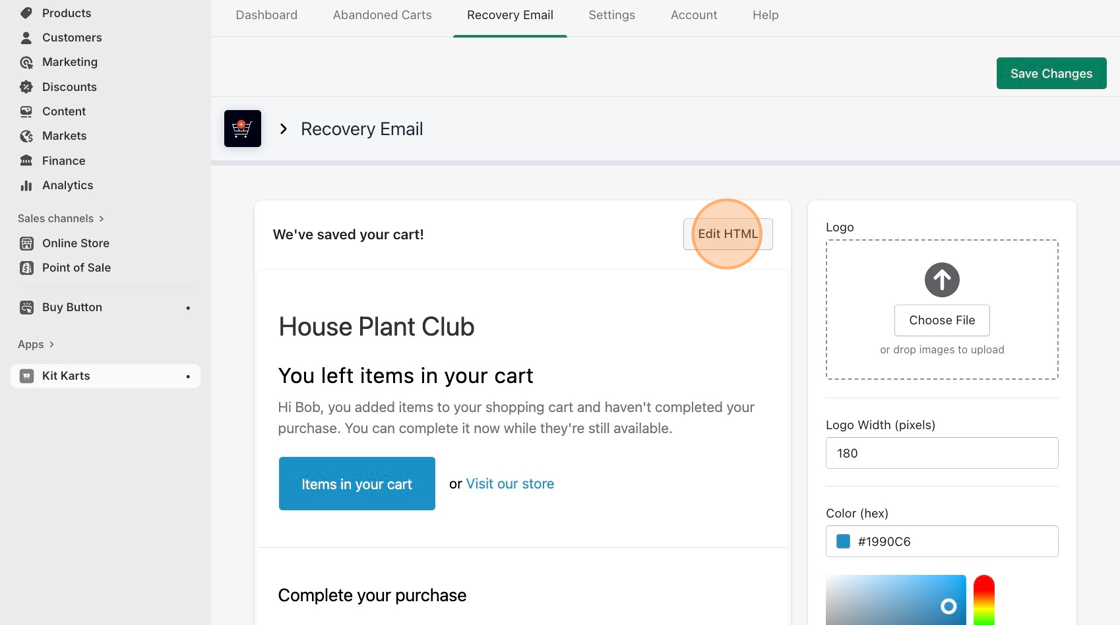
1. Navigate to the **Recovery Email** tab.
2. Click on **Edit HTML.**
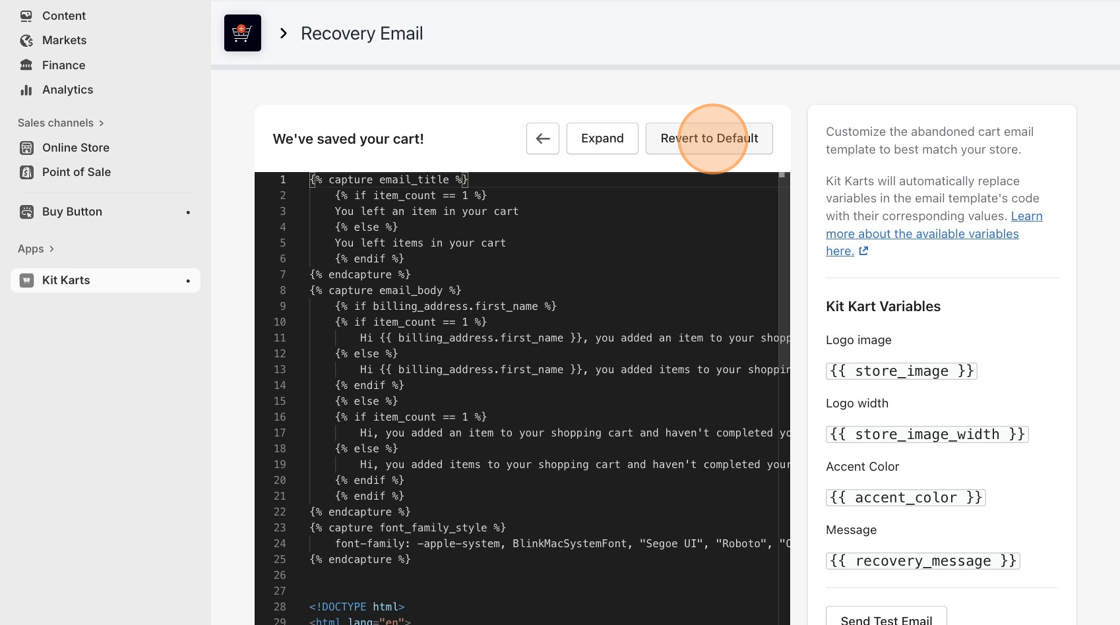
3. Click **Revert to Default,** then **Yes, Revert** after reading the important message.
4. Click on the green **Save Changes** button at the top-right corner of the page.
:::note
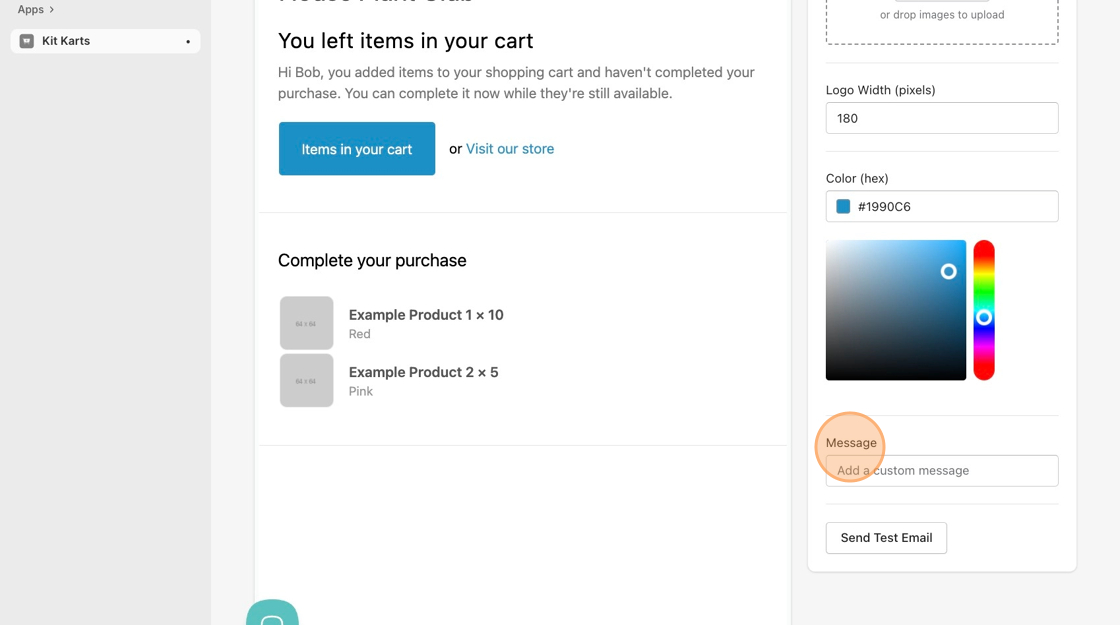
Changing the custom message or color of the Recovery Email requires you to revert your Recovery Email to the default Shopify version.
:::
5. To re-add lost promo codes, simply type the message into the **Message** section on the bottom right of the screen.