> For the complete documentation index, see [llms.txt](https://docs.theshoppad.com/pagestudio/llms.txt). Markdown versions of documentation pages are available by appending `.md` to page URLs; this page is available as [Markdown](https://docs.theshoppad.com/pagestudio/readme/preview-your-page-on-different-sized-screens.md).
# Preview your page on different sized screens
Check how a Page Studio page looks on mobile, tablet and desktop screens before you publish it.
Follow the steps below on how to preview your page on different-sized screens (like mobile).
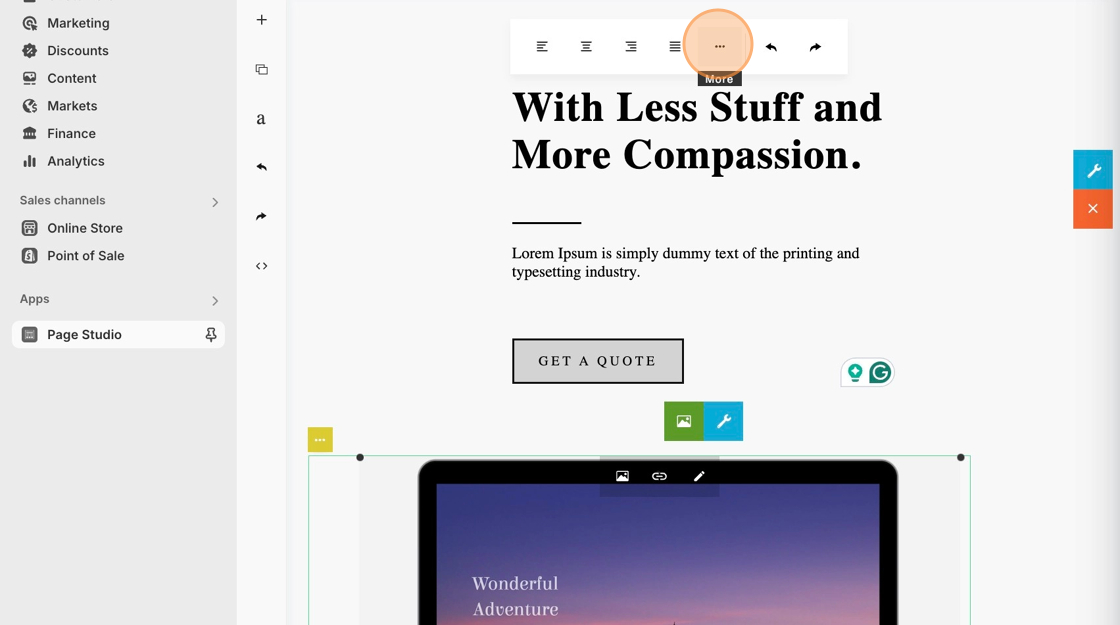
1. Starting from the Page Studio editor, click on a content block on your page to reveal the top text toolbar.
2. Click on the **three-dot icon** within the white menu bar at the top to reveal more advanced settings.
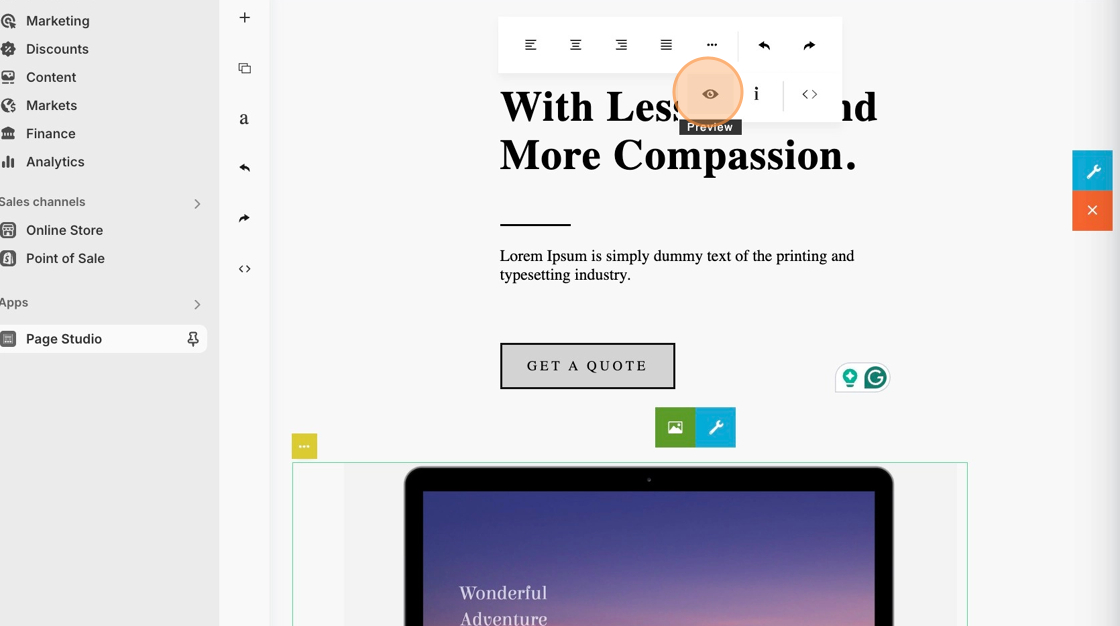
3. Then, click on the preview **eye icon**.
4\. Use the gray top bar to freely adjust the view from mobile view to desktop view.
:::note
If you would like to quit out of the preview mode, you can click on the **X icon** on the top right-hand corner.
:::