> For the complete documentation index, see [llms.txt](https://docs.theshoppad.com/tracktor/llms.txt). Markdown versions of documentation pages are available by appending `.md` to page URLs; this page is available as [Markdown](https://docs.theshoppad.com/tracktor/integrations/klaviyo.md).
# Klaviyo
Add Tracktor tracking links to your Klaviyo order confirmation and shipping confirmation emails with a few small template changes.
### Shipping Confirmation email
You can add tracking links to [Klaviyo](https://apps.shopify.com/klaviyo-email-marketing) emails with a bit of customization. Follow the instructions below on how to make these changes for your order confirmation and shipping confirmation emails.
### Order Confirmation email
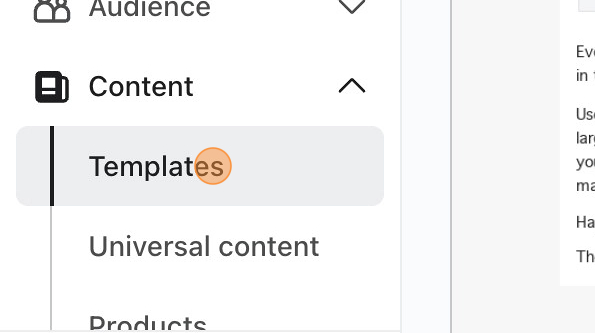
1\. Navigate to **Content** and then select _Templates_. Create a new one or edit an existing one.
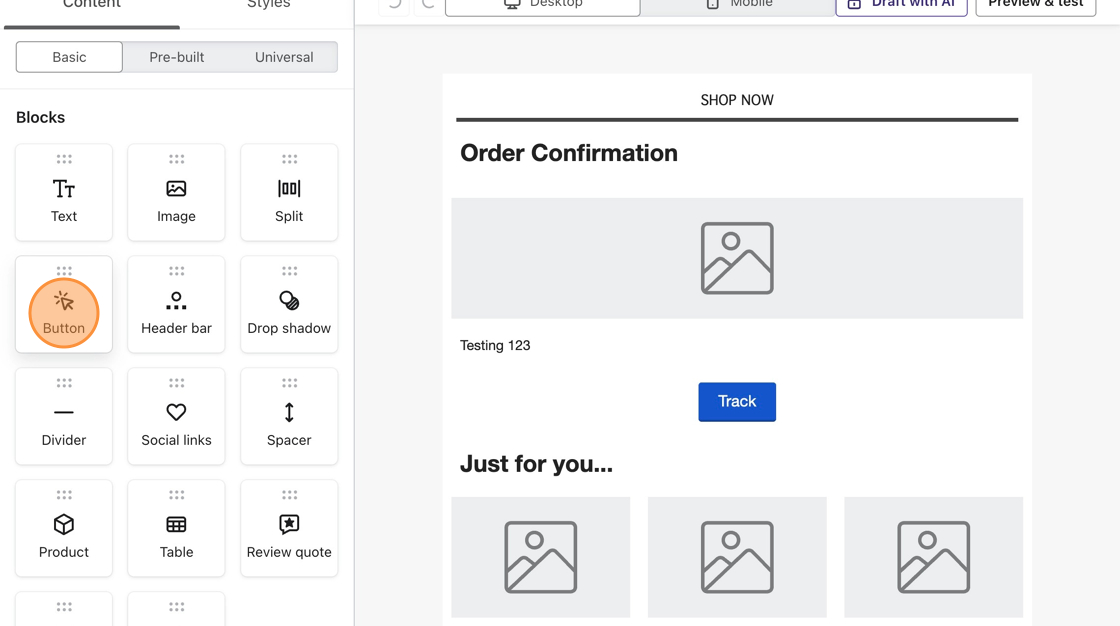
2\. Under **Content** you'll find a **Button** block (if there isn't already one in there). _In the case that there is already an existing button, simply select the button until you are taken to the button settings._
3\. Copy the following URL.
```
https://{{store-url}}.myshopify.com/apps/tracktor/track?order={{ order_number | urlencode }}&email={{ email | urlencode }}
```
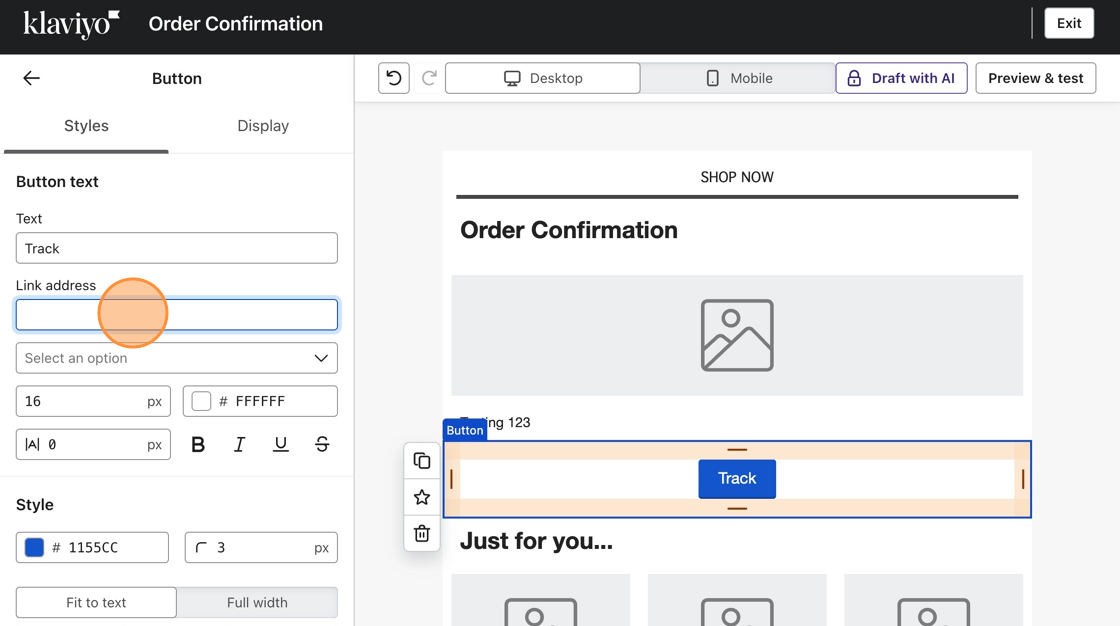
4\. Paste that URL into the **URL** text box of that button and change the text to _Track_ (if you haven't already).
5\. Change the **\{{store-url\}}** part of that URL to your store's URL.
6\. Save your changes.
**Note:** Because "email" is a part of the URL your Google Analytics will flag these emails so you will need to add a Google Analytics Filter to avoid any issues.