> For the complete documentation index, see [llms.txt](https://docs.theshoppad.com/uploadery/llms.txt). Markdown versions of documentation pages are available by appending `.md` to page URLs; this page is available as [Markdown](https://docs.theshoppad.com/uploadery/3rd-party-integrations/gempages.md).
# Add Uploadery to GemPages
Use the Uploadery install snippet inside a GemPages product page so your upload field shows up in pages built with the GemPages drag and drop builder.
If you wish to integrate Uploadery with GemPages, refer to the following instructions:
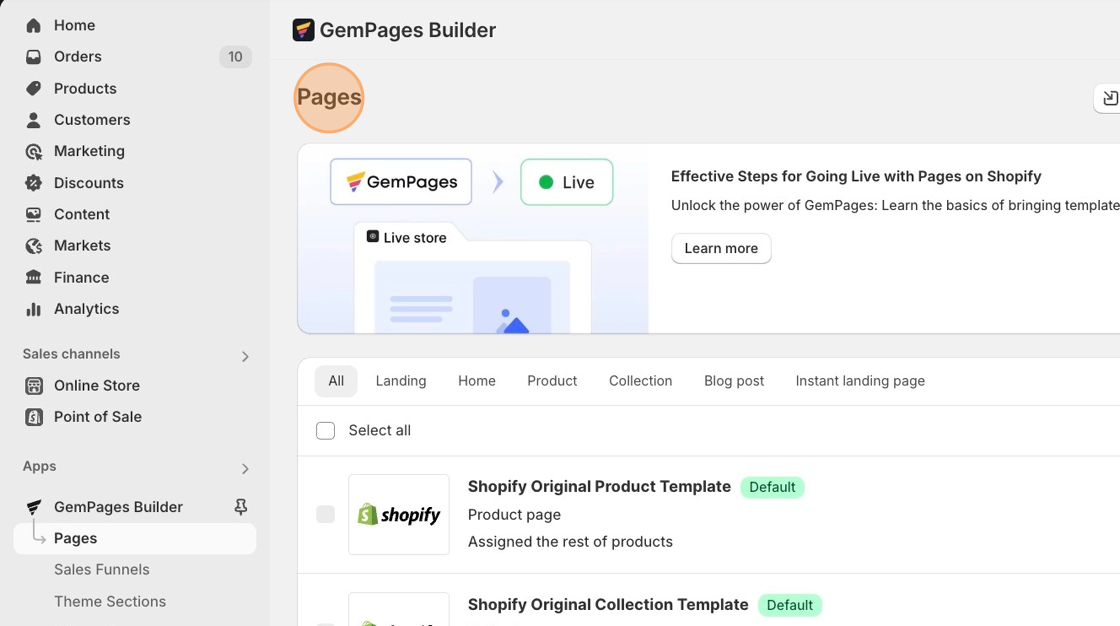
1\. Navigate to **Apps**. Click on the **GemPages Drag & Drop Page Builder** app.
2\. Navigate into **Product Pages** to reveal all product pages.
3\. Copy the Uploadery install snippet below.
```
```
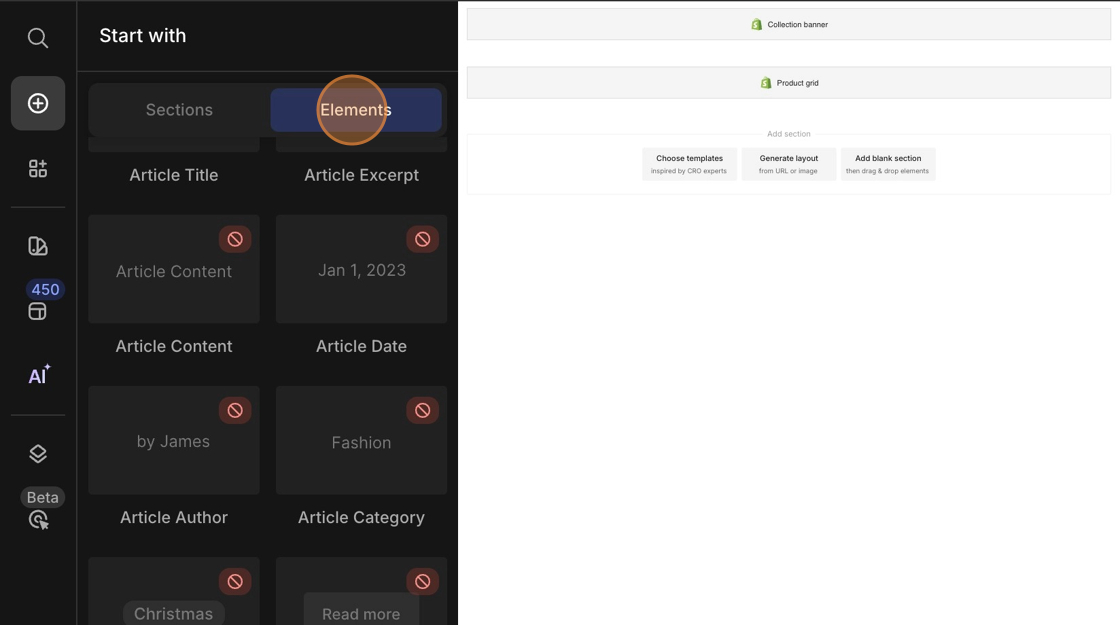
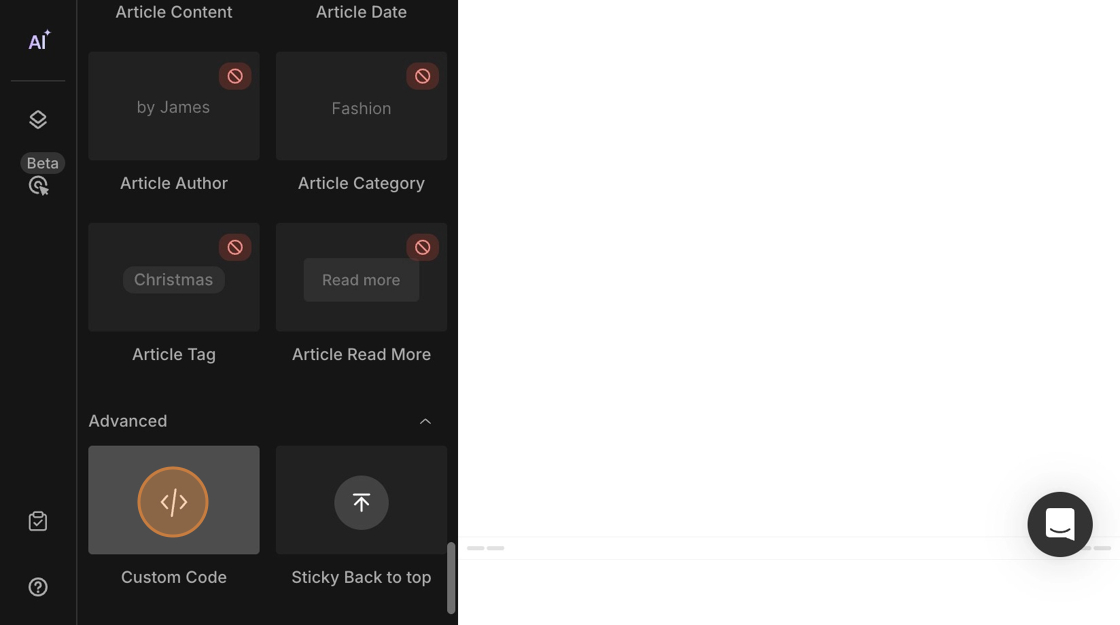
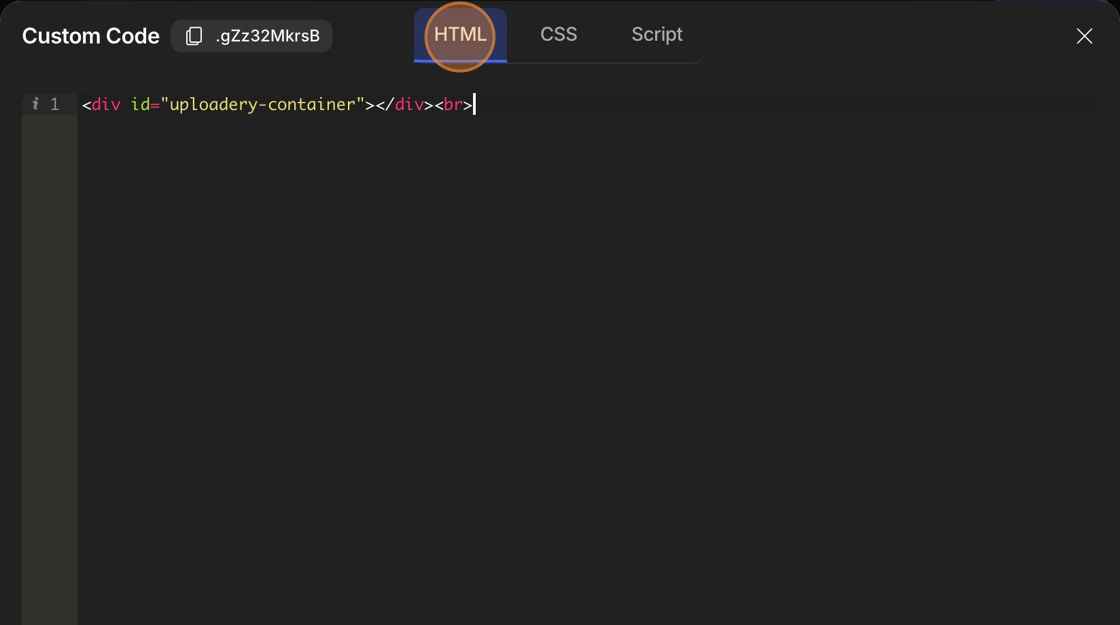
4. From the **Elements** tab, drag the _Liquid_ element from the left sidebar into the product page and place it above either the quantity selector or the add to cart button.
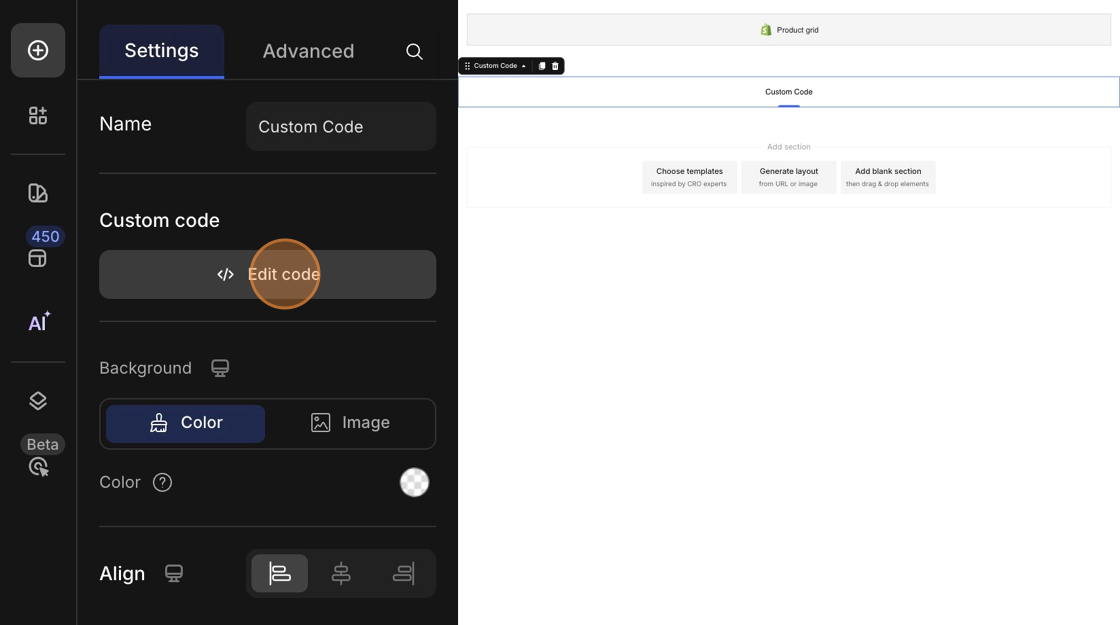
5\. Paste the install code snippet you copied in step #3 into the code editor and hit **Save**.
6\. **Publish** your changes.
:::note
Should you require any further assistance with the steps in the documentation, please contact the GemPages Support Team via [email](mailto:support@gempages.help) or live chat.
:::