> For the complete documentation index, see [llms.txt](https://docs.theshoppad.com/uploadery/llms.txt). Markdown versions of documentation pages are available by appending `.md` to page URLs; this page is available as [Markdown](https://docs.theshoppad.com/uploadery/get-started-with-the-uploadery-expert-install-service/approving-shoppad-collaborator-request.md).
# Approving ShopPad Collaborator Request
Approve a ShopPad collaborator request in Shopify so our team can install Uploadery for you, without using up a staff account on your store.
Collaborator permissions provide our team access to approved sections of your store. Please note that these accounts **don't count towards your store's** [**staff limit**](https://https/help.shopify.com/en/manual/your-account/staff-accounts)**.** Only the store owner or staff with "manage collaborator" requests permission can view collaborator access requests or grant collaborator access to a store. The request can be found as an email or a notification on your Shopify Home. Here is how to approve a collaborator request from our team:
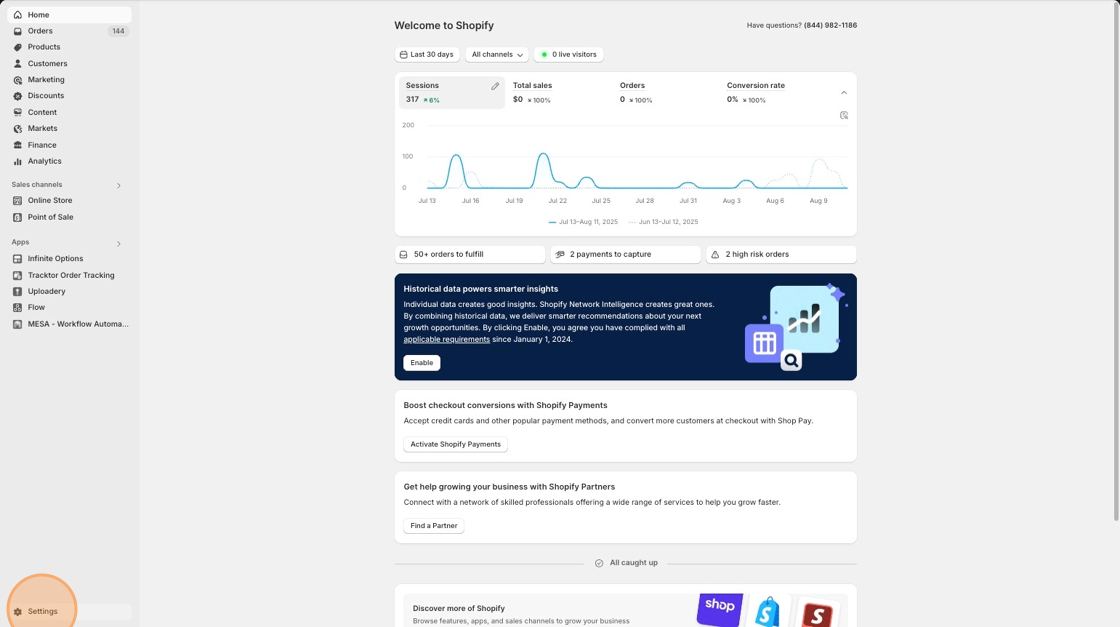
1\. Select **Settings** from your main Shopify home page.
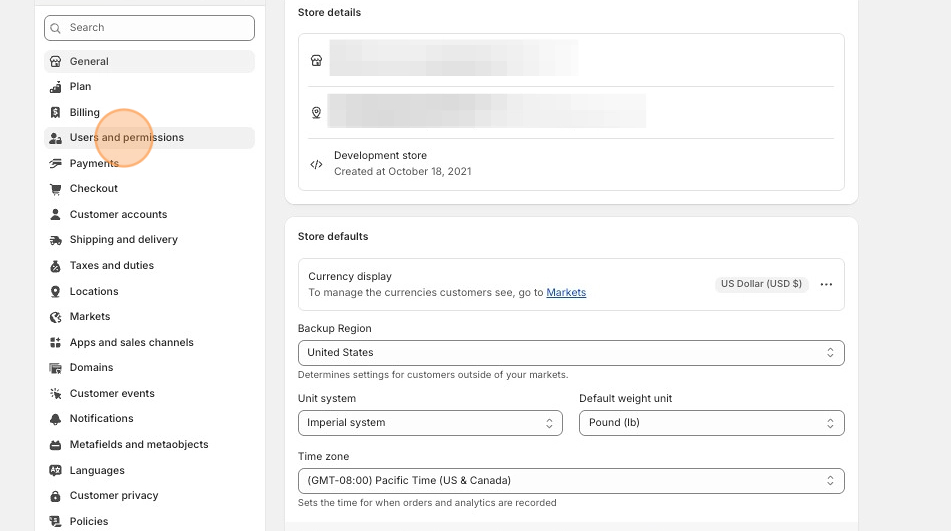
2\. Scroll down to the **Users and permissions** tab.
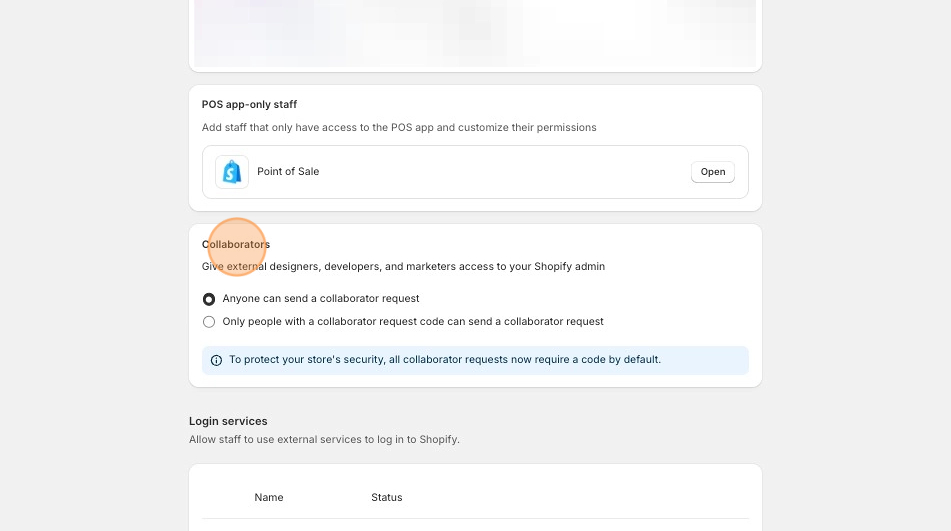
3\. Then, scroll down further to the **Collaborators** section to review and approve the request.