> For the complete documentation index, see [llms.txt](https://docs.theshoppad.com/uploadery/llms.txt). Markdown versions of documentation pages are available by appending `.md` to page URLs; this page is available as [Markdown](https://docs.theshoppad.com/uploadery/readme/upload-multiple-images.md).
# Upload multiple images
Add several upload fields to one product in Uploadery with the Add Another Custom Field button so customers can attach multiple images per order.
Uploadery allows you to add an unlimited number of upload fields to any of your products.
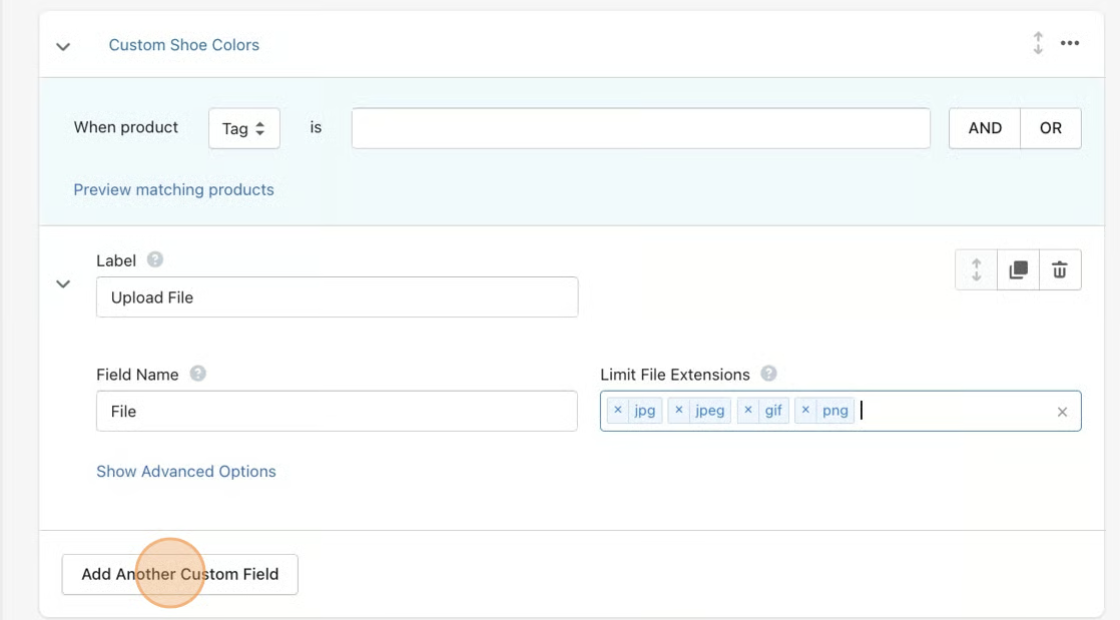
You can click on the **Add Another Custom Field** button to add another upload field to the product. Click here for a refresher on how to [create upload fields](https://docs.theshoppad.com/uploadery/readme/create-and-display-upload-fields/).
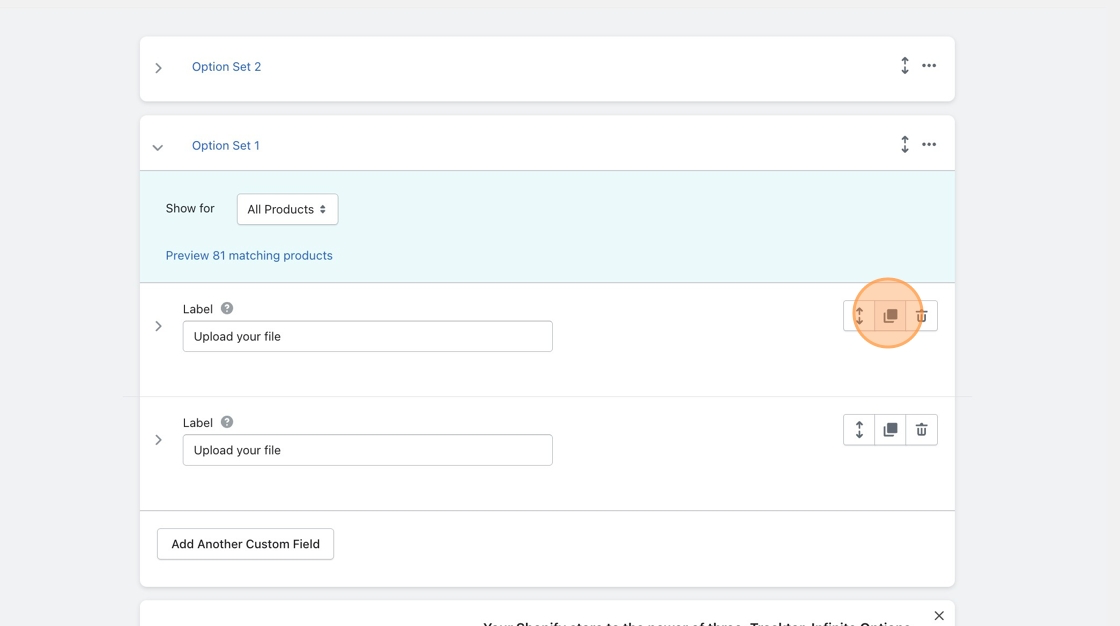
However, the easiest way to make multiples of the same upload field is to use the **Duplicate** button for your upload field within the option set.
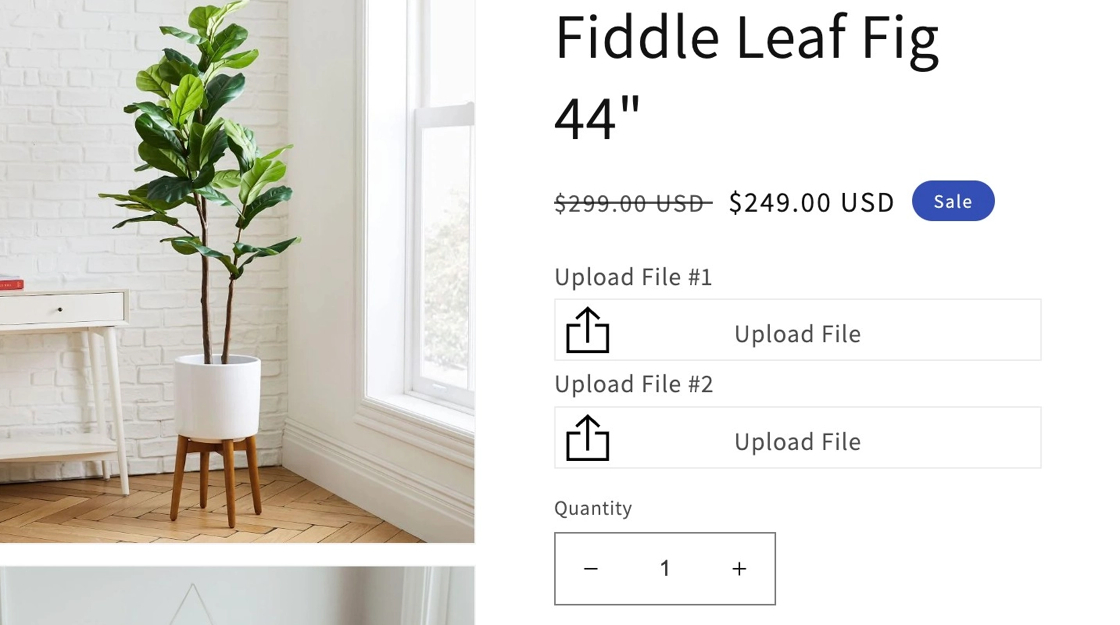
Don't forget to **save** your changes. Then, your product page will look like this:
:::note
**Note:** Don't forget to change the upload field's **Field Name**. This will be the text that appears at the cart summary screen, checkout, and the order details page, showing the file details.
:::
Lastly, you will want to make sure that your field names are all unique values to prevent any issues.