
Adjust colors on your article
Change text and button colors in a Blog Studio article with the color picker, choosing forecolor or backcolor and the extra options.
Follow the steps to adjust colors on your article.
1. Starting from the Blog Studio editor, click on the text or button on your article to reveal the top text toolbar.
2. Click on the color picker icon shown in the image below.
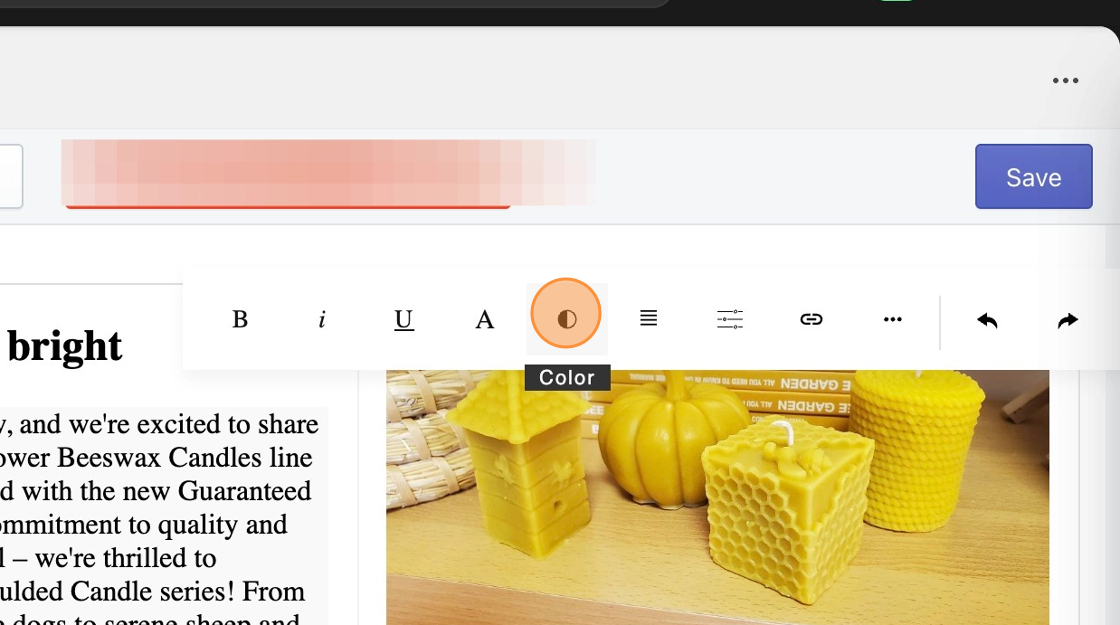
3. Select a color.
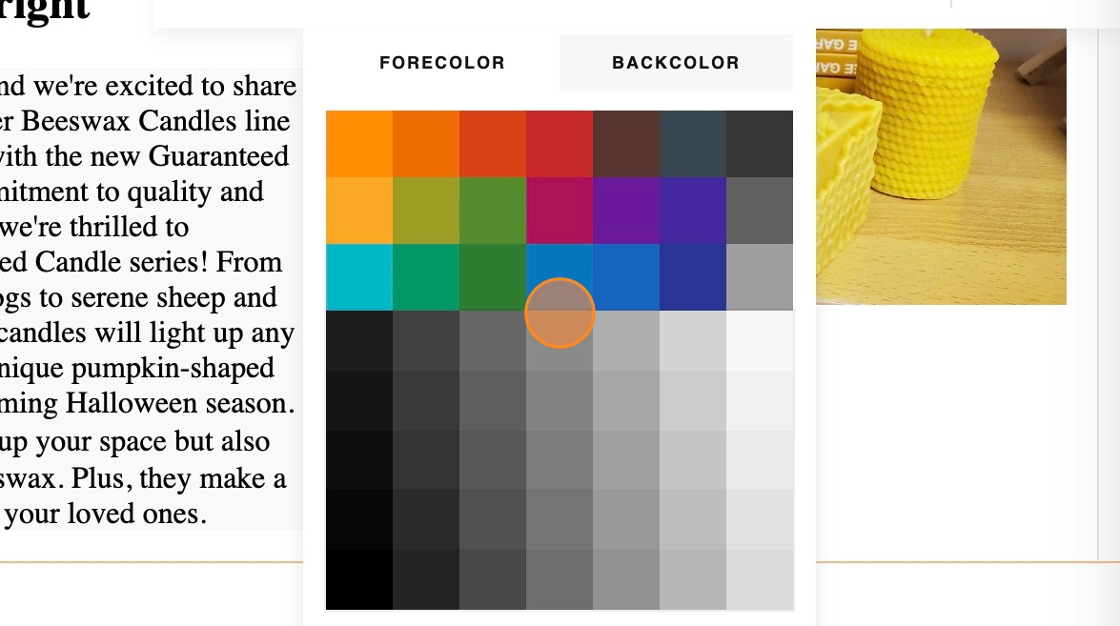
4. Designate the color’s target by selecting one of the following options: forecolor or backcolor
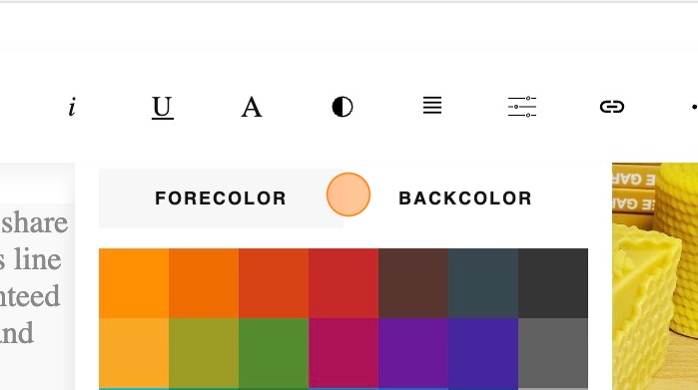
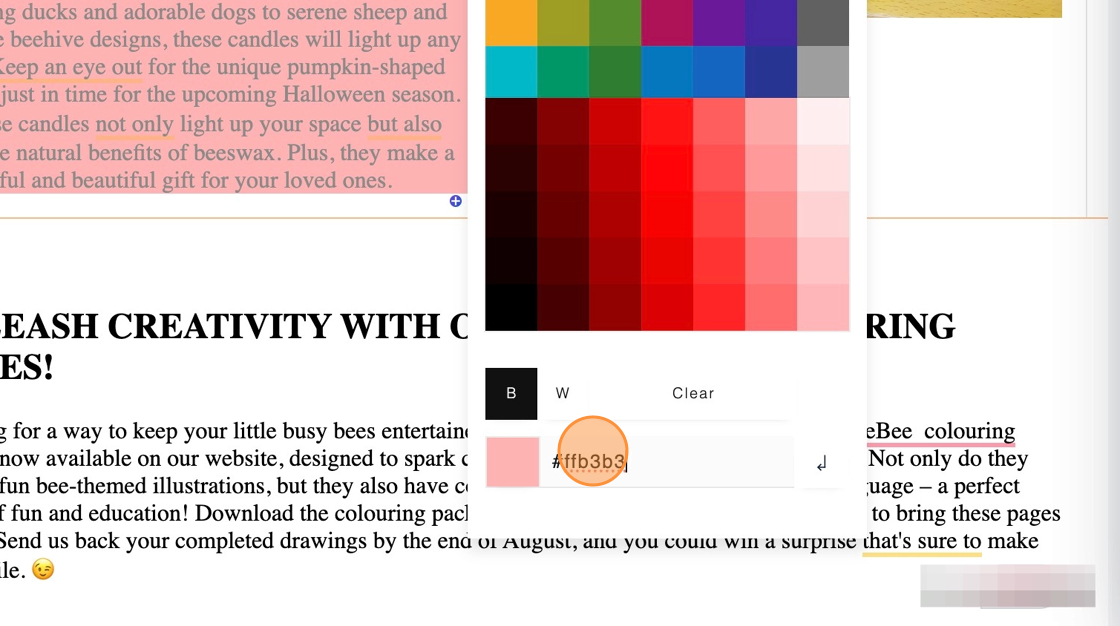
5. Additional Settings:
- B W icons: Allows you to select the colors black and white.
- Clear button: Clears your color selection.
- Last Box: Allows you to enter a HTML Color Hex Code. If you choose to use this setting, make sure to click enter on your keyboard or select the arrow icon next to the Hex Code field, to save the color.
6. Save your changes.