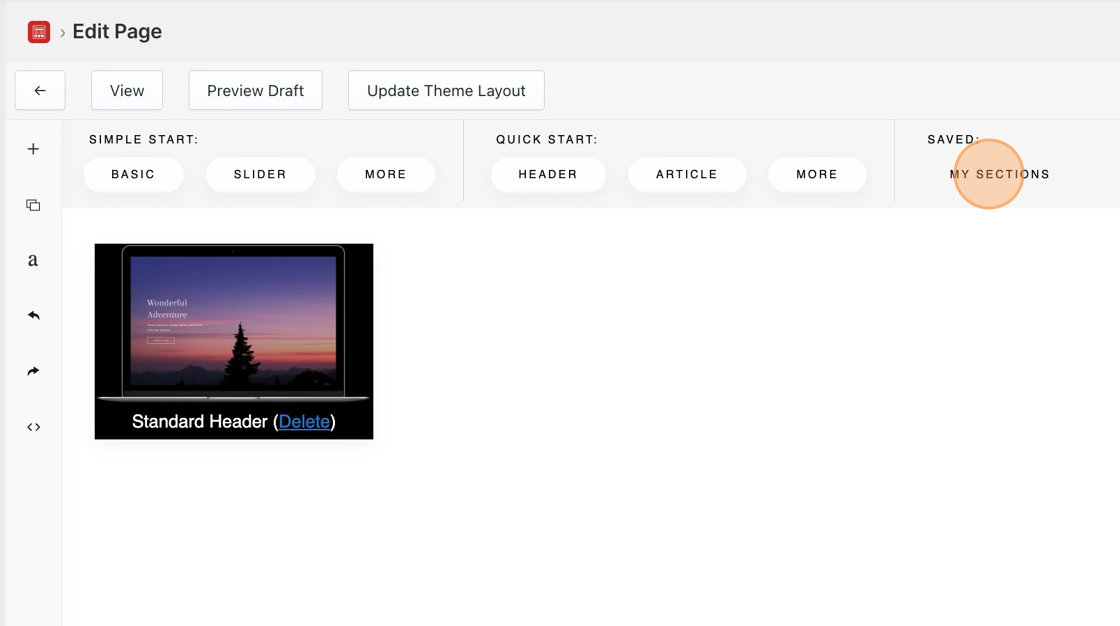
Save section templates
Save a section of your Blog Studio article as a reusable template with a title and image, and find it later under My Sections.
Blog Studio comes with a cool feature that allows you to save the sections for later use. Follow the steps below on how to save sections of your article.
1. In the Blog Studio editor, find the section you want to save.
2. Click the Section Settings icon on the right.
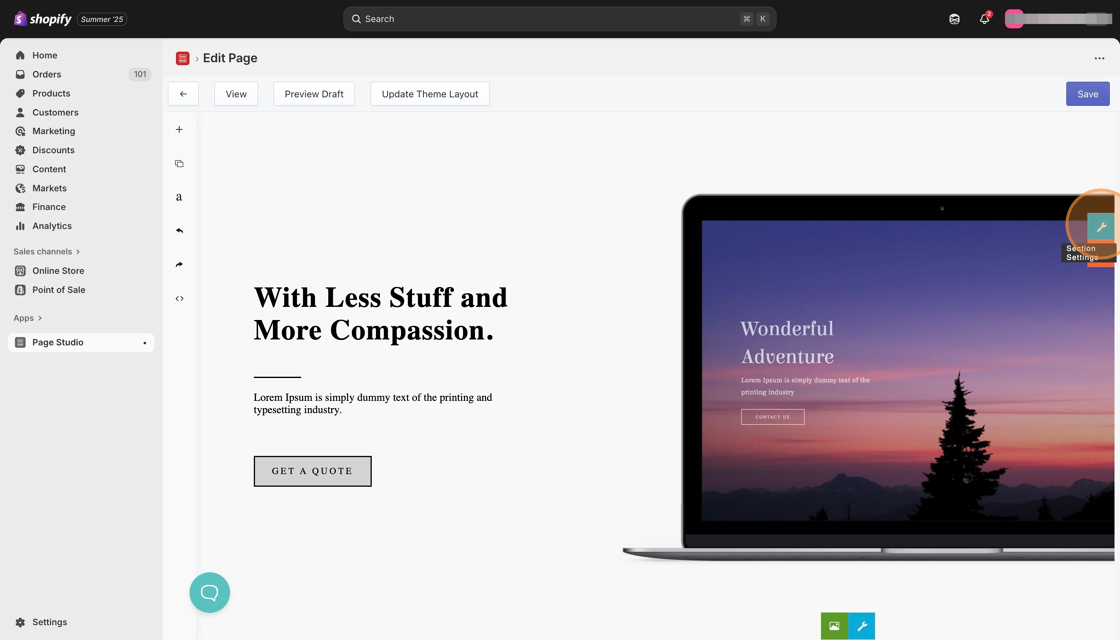
3. In the pop-up panel, click the Save Section button.
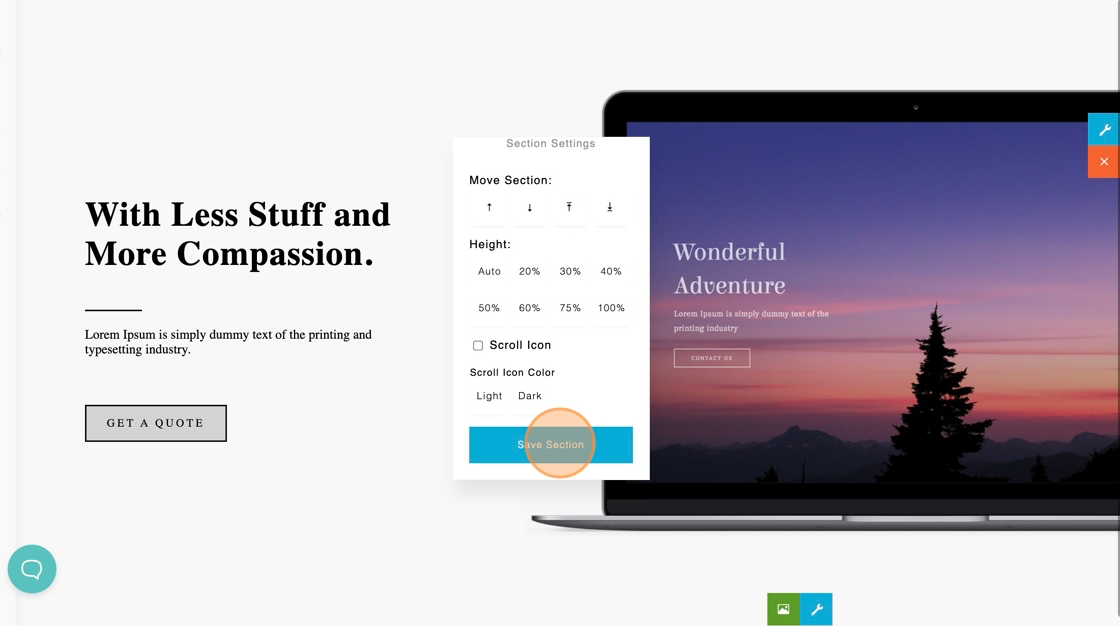
4. Apply a Section Title and click to upload an Image.
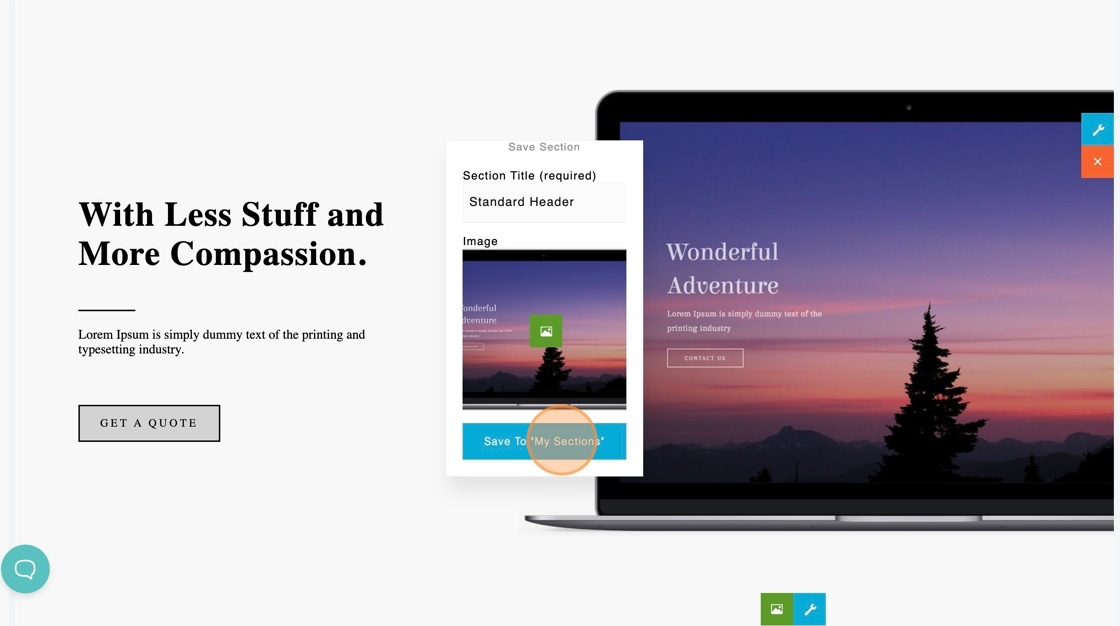
5. Click the Save to ‘My Sections’ button.
Voila, all done! The section template you just created will be saved in My Sections under the Sections menu.