
Frequently Asked Questions
Quick answers to common Tracktor questions about pricing plans, carrier support, tracking pages and getting set up on your Shopify store.
How much does Tracktor cost?
Section titled “How much does Tracktor cost?”Tracktor offers four pricing plans so you can choose the level of features that best fits your business. Each plan supports different stages of growth, ranging from new stores to high-volume brands.
See current pricing and what’s included: Tracktor Price Plans
Tracktor Price Plans
Tracktor is installed. What should I do next?
Section titled “Tracktor is installed. What should I do next?”Once Tracktor is installed, there are just a few final steps to make sure customers can track their orders.
You’ll want to:
- Add your Tracktor tracking page to your store navigation
- Make sure tracking is included in your Shopify customer email notifications
Helpful setup guides:
Add Tracktor to your store’s navigation
Help Customers Track Orders
If you’d rather not handle setup yourself, we’re happy to help. You can request our free installation service from your Tracktor dashboard.
My tracking number isn’t updating. What should I do?
Section titled “My tracking number isn’t updating. What should I do?”If a tracking number isn’t showing results, the most common cause is that the carrier assigned to the order in Shopify isn’t one Tracktor recognizes. This can happen when a fulfillment service inputs a carrier name incorrectly, or when you’re using a carrier that Shopify doesn’t natively support.
Tracktor’s carrier mapping feature lets you connect the carrier name Shopify has on file to the actual carrier so tracking displays correctly.
Set up carrier mapping here: Carrier Mapping
If you’ve set up carrier mapping and tracking still isn’t updating, our team is happy to take a look contact us from the Yedric beacon or the Help section.
How do I fulfill orders so Tracktor can track them?
Section titled “How do I fulfill orders so Tracktor can track them?”Tracktor uses your Shopify fulfillment details to display real-time tracking. Once an order is fulfilled with a shipping carrier and a valid tracking number, Tracktor takes care of the rest.
If you need help fulfilling orders:Fulfill Orders for Tracktor
How do I fulfill an order with multiple tracking numbers?
Section titled “How do I fulfill an order with multiple tracking numbers?”If an order ships in multiple packages, Tracktor supports multiple tracking numbers. Shopify allows you to add multiple fulfillments, and Tracktor displays each shipment clearly on the tracking page.
Learn how here: Fulfilling an Order with Multiple Tracking Numbers
What statuses does Tracktor track?
Section titled “What statuses does Tracktor track?”Tracktor follows shipments through key fulfillment stages so customers always understand where their package is.
Statuses include:
- Ordered
- Order Ready
- In Transit
- Out for Delivery
- Delivered
Learn more about fulfillment events:Tracktor Fulfillment Events
What do alerts like “Shipping Exception” or “Tracking Expired” mean?
Section titled “What do alerts like “Shipping Exception” or “Tracking Expired” mean?”Sometimes shipments need extra attention. Tracktor provides helpful alerts when something may need review, such as delays or missing carrier updates.
This guide explains what each alert means and how to resolve it Order Alerts: Troubleshooting Statuses
Which carriers does Tracktor support?
Section titled “Which carriers does Tracktor support?”Tracktor supports over 1,200 carriers worldwide, including major regional and international providers.
Browse the full supported list: Supported Carrier List
Will Tracktor work with third-party fulfillment services, shipping platforms, or dropshipping providers?
Section titled “Will Tracktor work with third-party fulfillment services, shipping platforms, or dropshipping providers?”Yes. Tracktor works well with most third-party fulfillment services, logistics platforms, and dropshipping providers. If your fulfillment tool does not automatically assign a recognizable carrier in Shopify, Tracktor’s carrier mapping feature helps connect those tracking numbers so tracking displays properly to customers.
Configure it here:Carrier Mapping
Can I hide the origin country on my tracking page?
Section titled “Can I hide the origin country on my tracking page?”Yes. If you prefer not to show certain shipping locations (such as fulfillment origin countries like China), Tracktor’s blacklist routing feature allows you to hide those locations and display a custom message instead.
This can be especially helpful for certain fulfillment workflows.
Why are my past orders not appearing in the Tracktor dashboard?
Section titled “Why are my past orders not appearing in the Tracktor dashboard?”When Tracktor is installed, we automatically import your 100 most recent Shopify orders to get you started quickly. Orders older than that won’t appear in your dashboard automatically, but you can still track any order from the Tracktor admin or your public-facing tracking page by entering the order number and email address.
If newer orders are missing or something does not look right, our team is happy to help.
Can customers look up orders using a phone number?
Section titled “Can customers look up orders using a phone number?”Yes. Depending on your Shopify checkout settings, customers can look up orders using:
- Phone number
- Tracking number
- Email address
How do I center or style my tracking page?
Section titled “How do I center or style my tracking page?”You can customize your Tracktor tracking page to better match your brand and layout.
Center and Style Your Tracking Page
If customers can look up orders using phone number, we also recommend updating your translatable strings: Look Up Orders by Phone Number
How can I manually update order status?
Section titled “How can I manually update order status?”If your shipments use a local delivery service or if you want more control over what customers see, Tracktor supports custom statuses.
You can:
- Create your own order milestones
- Manually update statuses
- Bulk update multiple orders
Learn how to set this up: Custom Order Status
Can Tracktor display an Estimated Delivery Date?
Section titled “Can Tracktor display an Estimated Delivery Date?”Yes. Tracktor can display Estimated Delivery Dates when supported carriers provide this information. When available, Tracktor automatically displays the ETA on your tracking page.
This feature is available on the Starter plan and higher and is currently supported for:
- USPS
- UPS
- DHL
- FedEx
What is the Tracking URL feature?
Section titled “What is the Tracking URL feature?”The Tracking URL feature, located on the “tracking page” section, helps keep customers on your website instead of directing them to a carrier tracking page. When enabled, Tracktor replaces carrier tracking links with your Tracktor tracking page URL.
When this feature is turned on, Shopify will:
- Send an email when tracking is first added
- Send another email when the shipment updates
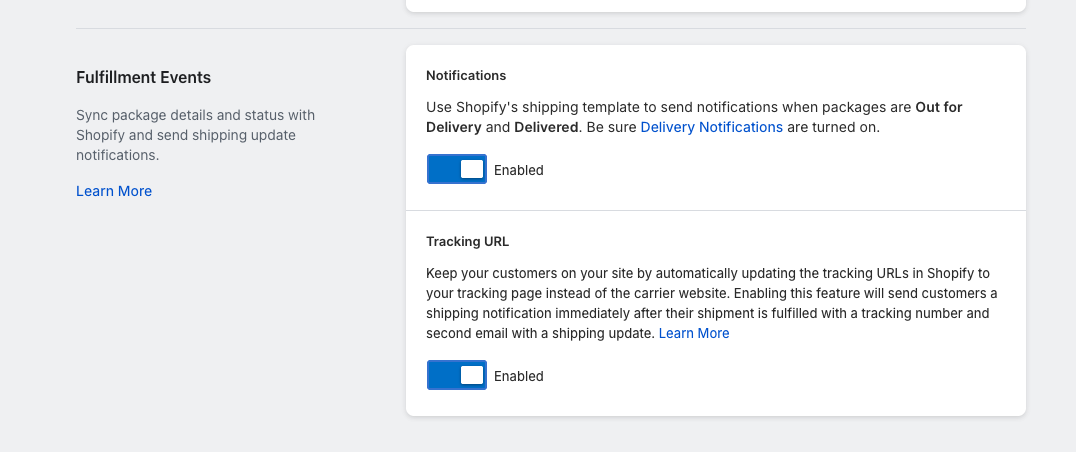
Automatically Update Tracking Links to Tracktor URL
If duplicate emails are causing confusion, this article explores some ways to make them more unique.
Solutions for Duplicate Tracking Emails
Do I pay per tracking lookup?
Section titled “Do I pay per tracking lookup?”No. Tracktor does not charge per lookup. Plans are based on order volume, and customers can check tracking as often as needed.
What orders count as billable?
Section titled “What orders count as billable?”Most Shopify orders count toward usage. These orders are not billed:
- Shopify POS orders
- Test orders placed using Shopify’s bogus gateway
- Digital-only orders without shipping
Can I change my Tracktor plan mid-billing cycle?
Section titled “Can I change my Tracktor plan mid-billing cycle?”Yes. You can change plans anytime as your business needs evolve. Shopify automatically prorates billing.
I uninstalled Tracktor. Why do my tracking links go to a 404 page?
Section titled “I uninstalled Tracktor. Why do my tracking links go to a 404 page?”If Tracktor is removed before cleanup steps are completed, existing tracking links may continue pointing to your Tracktor page, which no longer exists.
Follow this guide to safely uninstall: Steps for Uninstalling Tracktor
How long is order data stored in Tracktor?
Section titled “How long is order data stored in Tracktor?”By default, Tracktor stores and actively tracks orders for 90 days. After 90 days, those orders are automatically deleted to help protect customer privacy and reduce long-term data storage.
In summary:
- Standard plans store orders for 90 days
- Orders are automatically deleted after 90 days