
New Order
Get Uploadery file uploads to show in the Shopify New Order notification template by making line item properties compatible, or ask support to do it.
Want your customers’ file uploads to show up in the New Order template? This requires ensuring line item properties are compatible with your template. Contact support and we’ll set it up for you.
Manual Process (not recommended)
Section titled “Manual Process (not recommended)”Follow the steps below on how to display upload details in the new order emails.
1. Make sure that you have notifications enabled. Please see this article to see how to enable that.
2. Starting from your Shopify admin dashboard, navigate to the Settings tab, then click on Notifications.
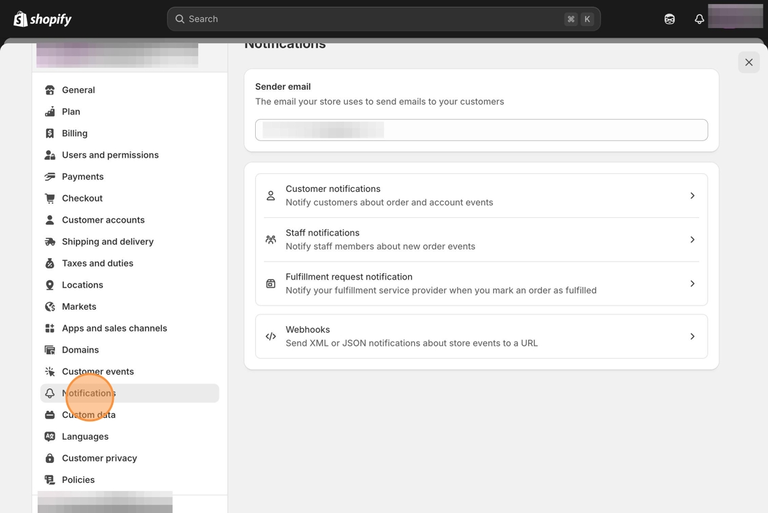
3. Select Staff Notifications.
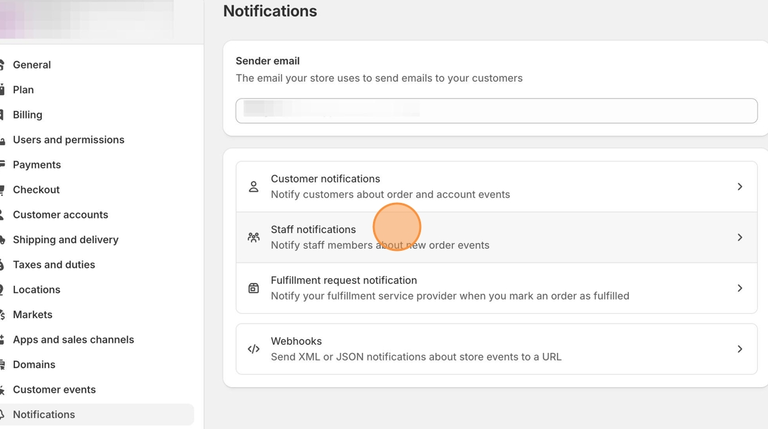
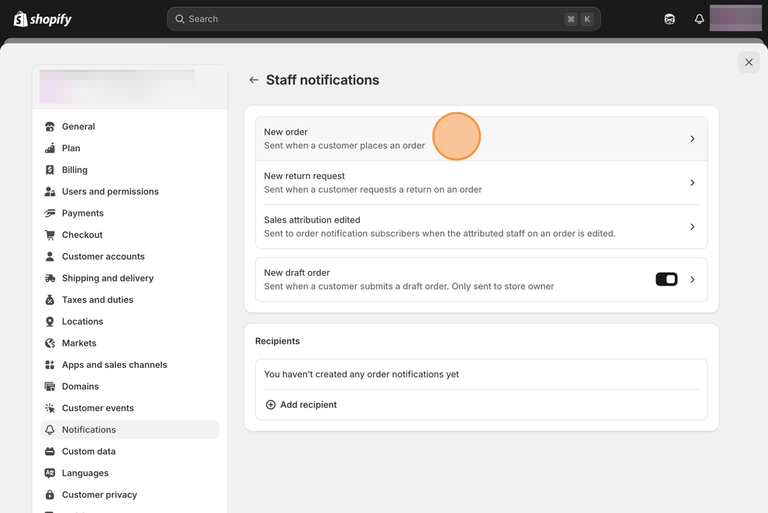
4. Click on the New Order email template.
5. Locate the following line of code.
<span class="order-list__item-variant">• </span>6. Copy and paste the following snippet after the second {% endif %} in the section of code.
{% for p in line.properties %} {% if p.first contains '_io_' %} {% continue %} {% endif %} {% if p.last %} {% assign name = p.first %} {% assign value = p.last %} {% else %} {% assign name = p.name %} {% assign value = p.value %} {% endif %} {% unless value == blank %} <p style='margin-top: 0px; margin-bottom: 0px; font-size: 14px; color: #6d7175;'> {{ name }}: {% if p.last contains '/uploadery.s3' %} <a style='font-size: 14px;' href="{{ value }}">Link to your file</a> {% else %} {{ value }} {% endif %} </p> {% endunless %}{% endfor %}<br>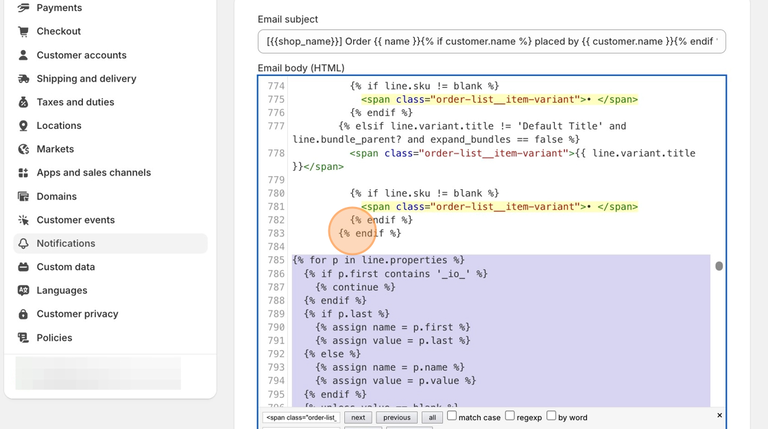
7. Click the Save button at the top of the page.