
Reorder Option Sets/Upload Fields
Change the order of option sets and upload fields in the Uploadery dashboard so fields from different sets appear in the sequence you want.
Reorder Option Sets
Section titled “Reorder Option Sets”Follow the steps below on how to reorder different option sets in the Uploadery dashboard so that certain upload fields from different option sets display in a correct manner.
1. Scroll until you see the Option Set that you wish to reorder positions.
2. Click on the Up and Down Arrow, located on the top right hand corner of each option set.
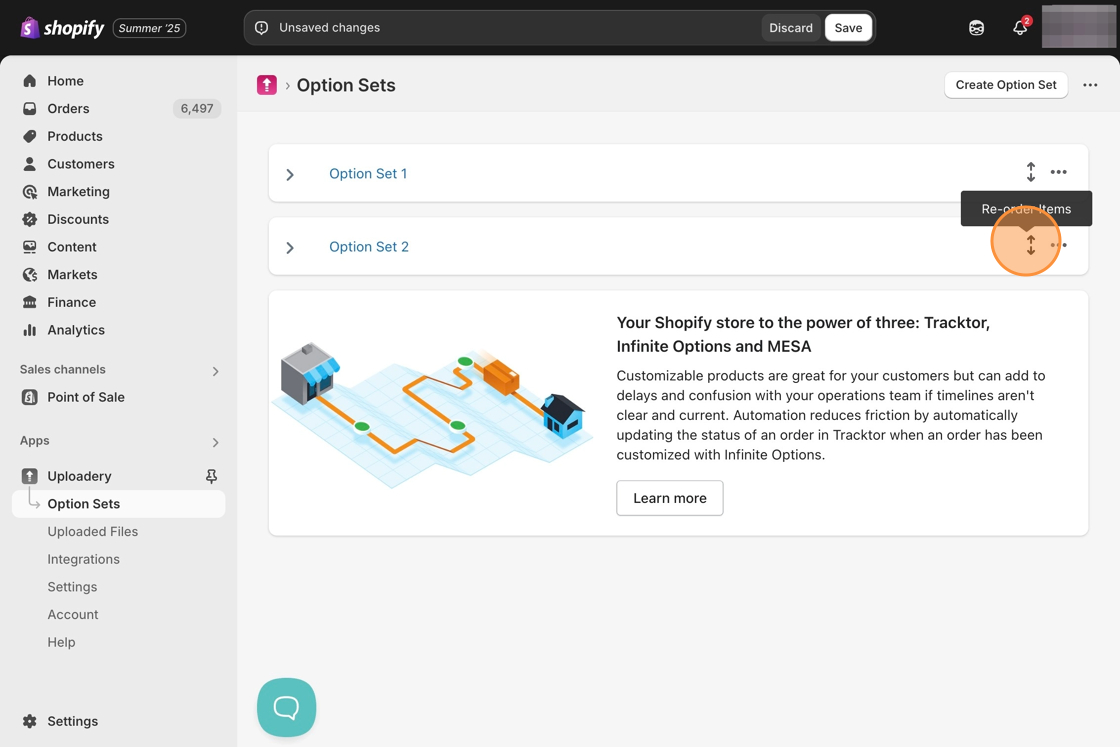
3. Use your mouse or cursor and hold down on the arrow. Then, move the cursor or mouse up or down depending on your preference.
4. Once you are satisfied with your option set’s new location, release your cursor or mouse.
5. Save your changes!
Reorder Upload Fields in an Option Set
Section titled “Reorder Upload Fields in an Option Set”Follow the steps below on how to reorder your upload fields within a single upload set so that certain upload fields from the same upload set display in a correct manner.
1. Scroll until you see the Option Set that you wish to reorder upload fields for.
2. Click on the Up and Down Arrow, located on the right hand side of each upload field that you created.
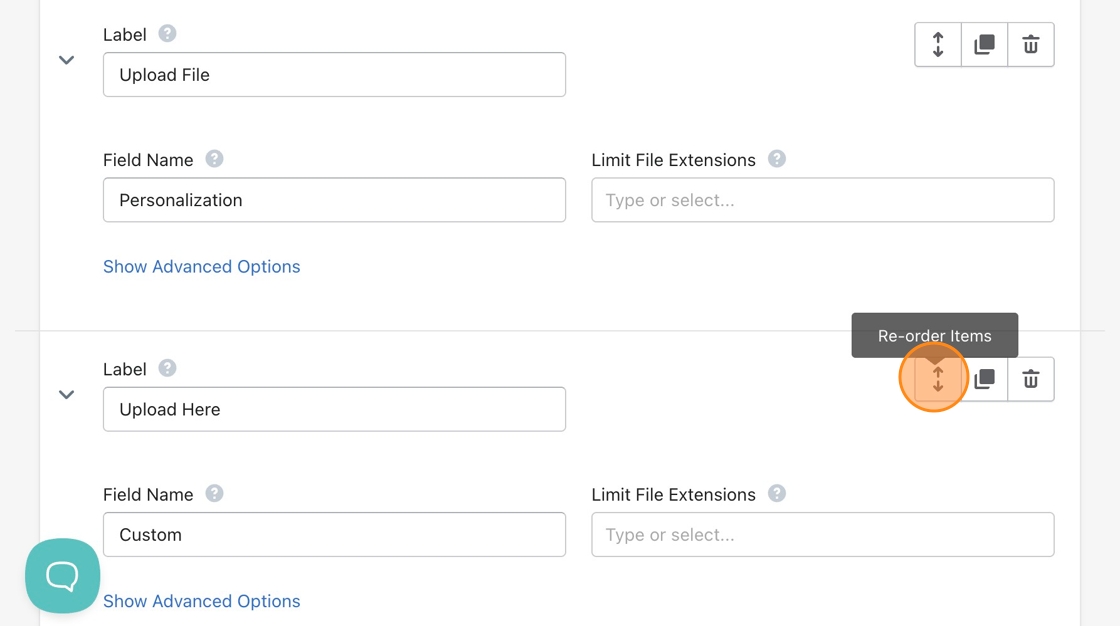
3. Use your mouse or cursor and hold down on the arrow. Then, move the cursor or mouse up or down depending on your preference.
4. Once you are satisfied with your upload fields’ new location, release your cursor or mouse.
5. Save your changes!