Add a Buy Button to your page
Add a Buy Button to a Page Studio page that sends customers straight to checkout for one of your products.
You can create a page that includes a Buy Button linking to a product from your store that leads customers directly to the checkout page. Follow the steps below on how to add this Buy Button.
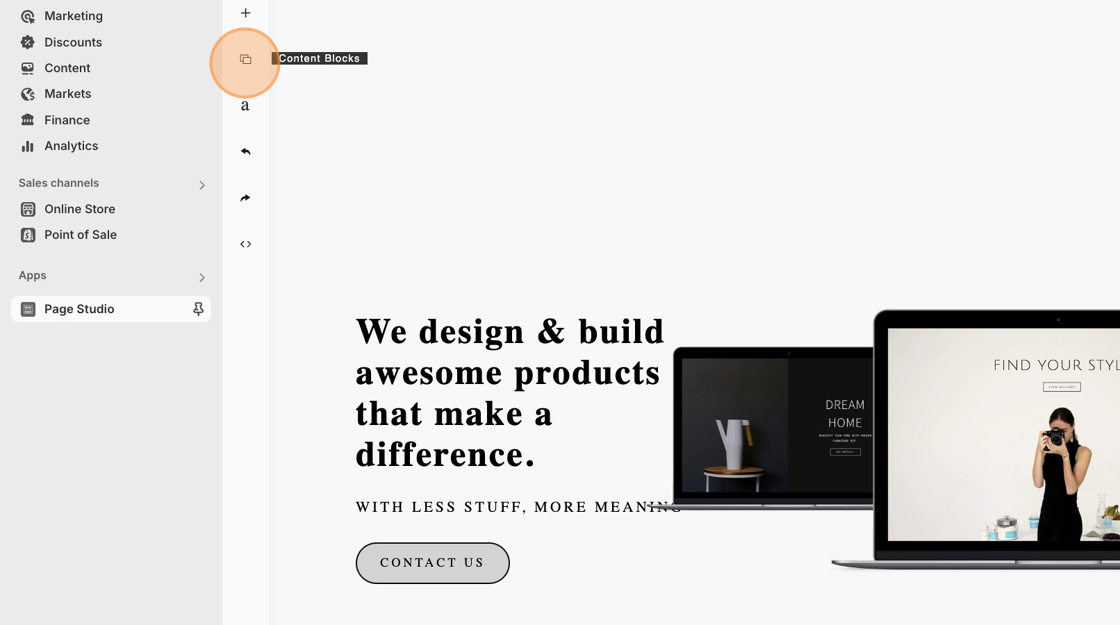
- Starting from the Page Studio editor, click the Content Blocks icon.
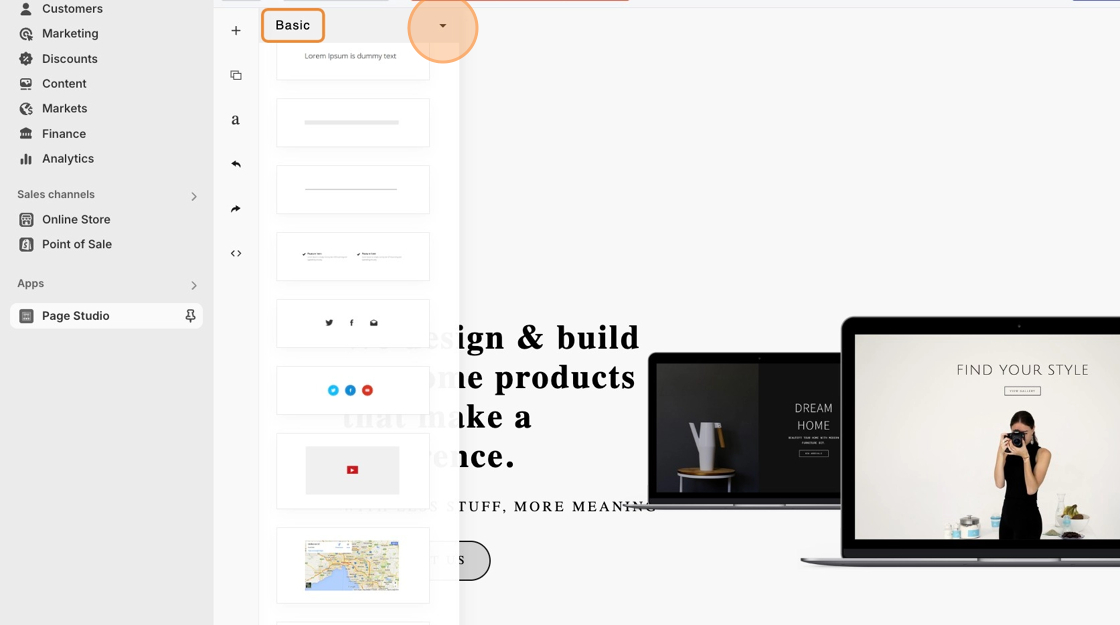
- Navigate into the Basic section by clicking the arrow icon, and select the Buttons menu.
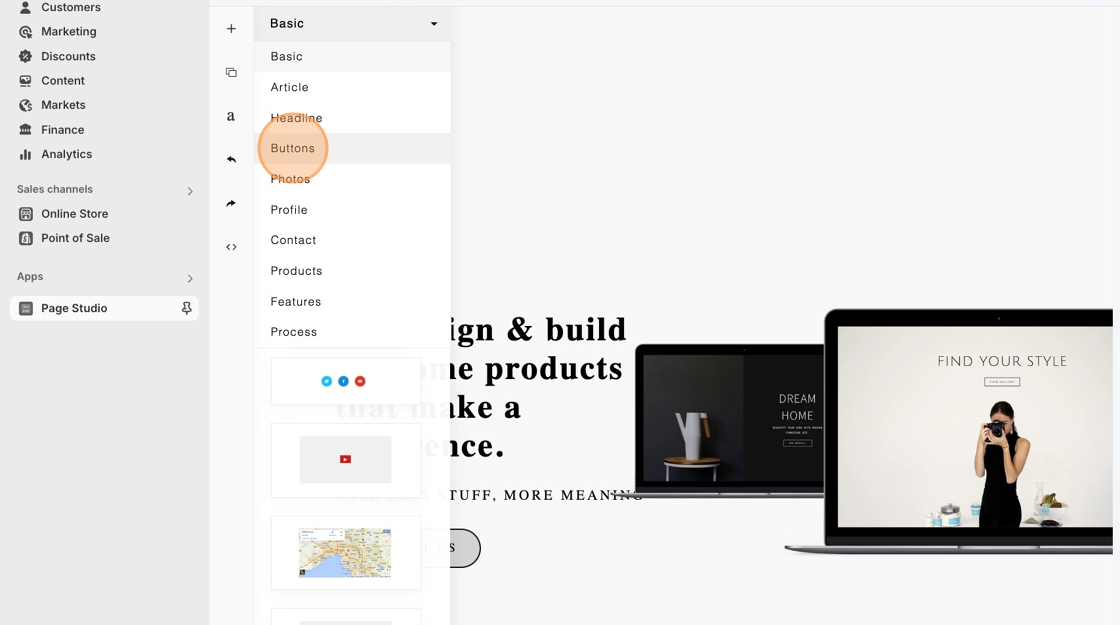
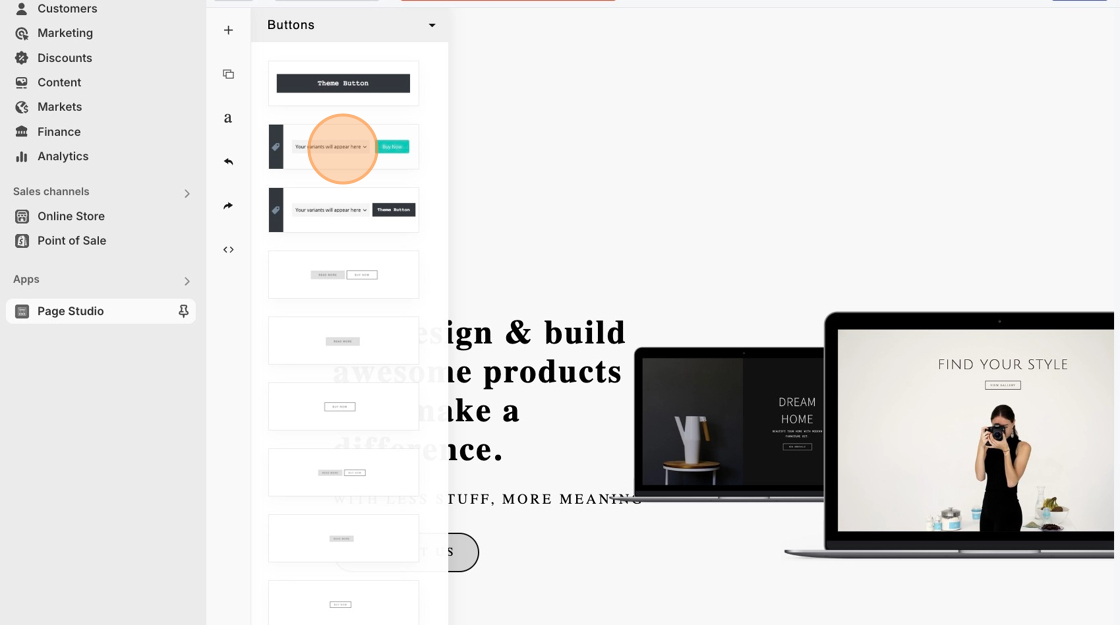
- Under the Buttons menu, drag and drop the Buy Now Button block into your article.
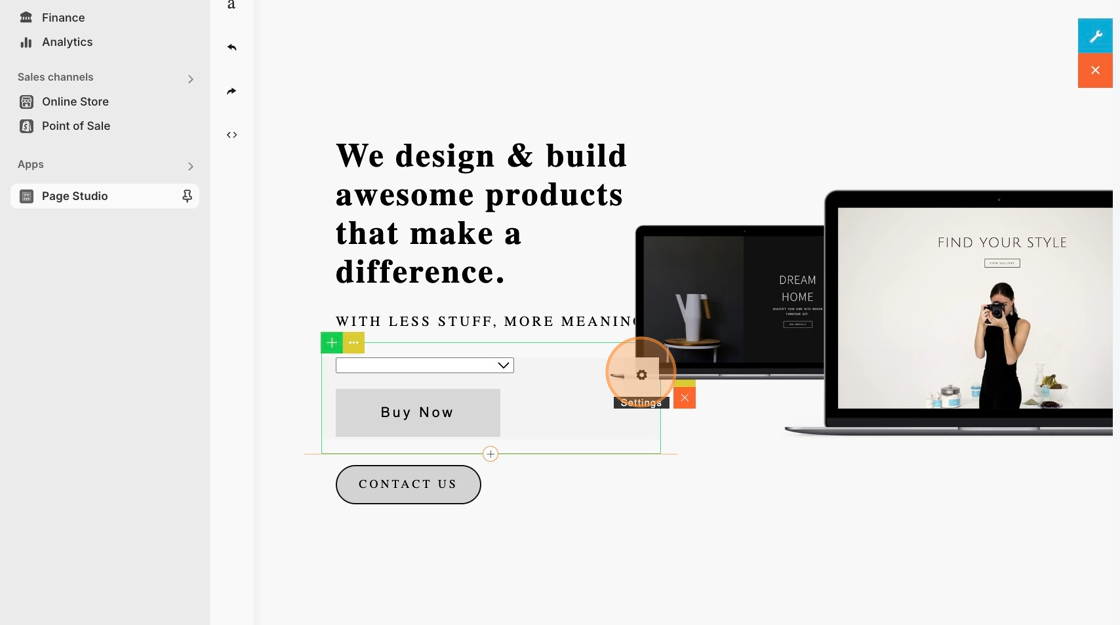
- Click on the Buy Now Button Block, then hit the Gear icon. This will open the Buy Button’s configuration menu.
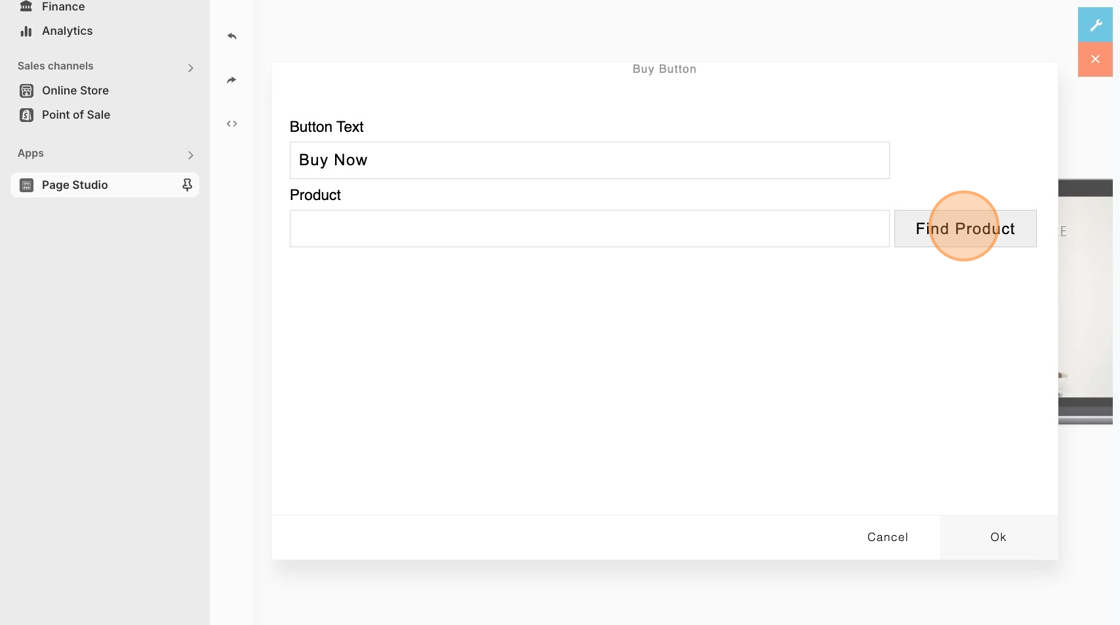
- Click the Find Product button.
6. Select a product from your store.
7. After selecting a product, hit the Add button.
8. Feel free to change the text of the button. Once you’re done, click Ok.