Change the location of the map content block
Show a different Google Maps location in Page Studio's Map content block.
Page Studio’s Map content block allows you to display a location via Google Maps. Follow the steps below on how to change the displayed location.
Grab the location’s embed code from Google Maps
Section titled “Grab the location’s embed code from Google Maps”1. Navigate to the website google.com/maps and search for the location you’d like to display.
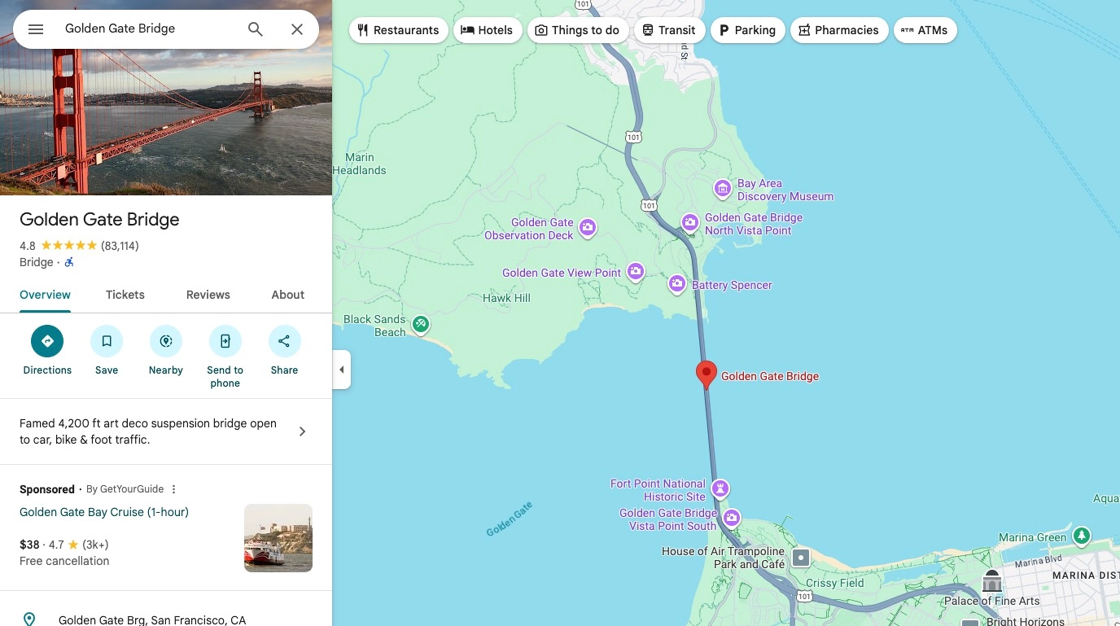
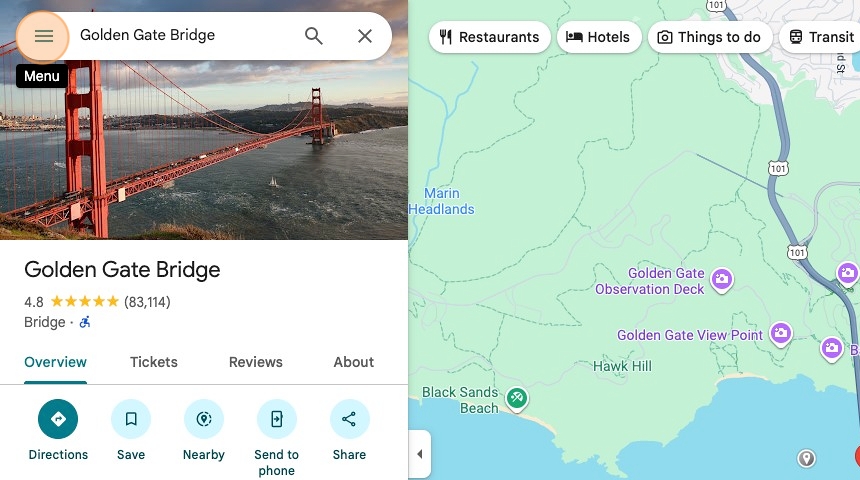
2. Click on the Menu icon located next to the search bar.
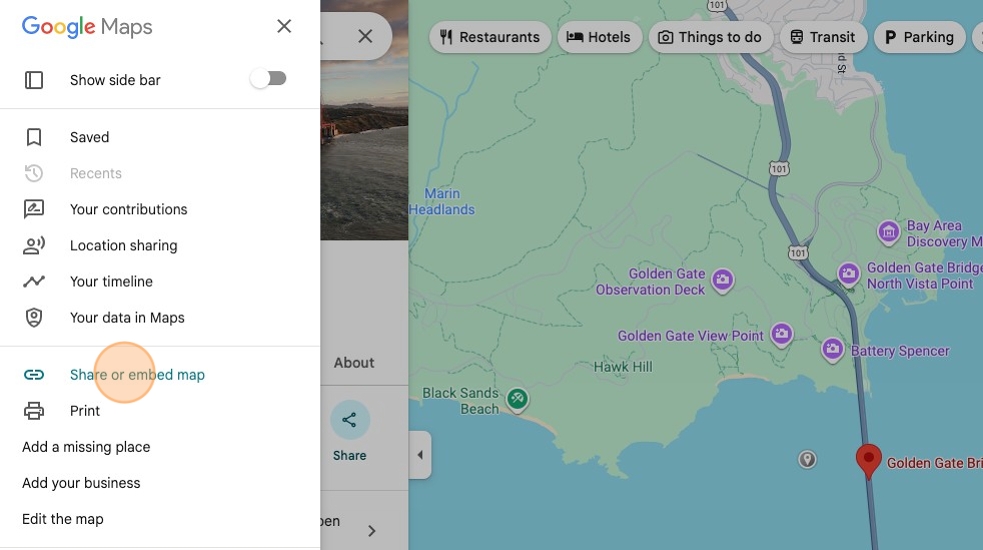
3. Click on Share or embed map.
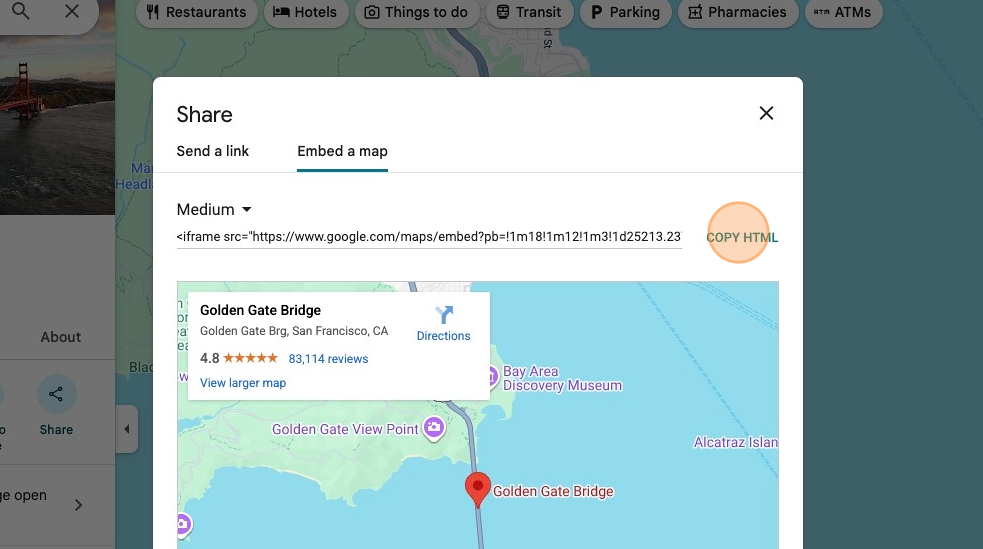
4. Navigate to the Embed a map tab, then click the COPY HTML link.
Add embed code to Map content block
Section titled “Add embed code to Map content block”- From your Shopify admin dashboard, navigate to Apps, and head into the Page Studio dashboard.
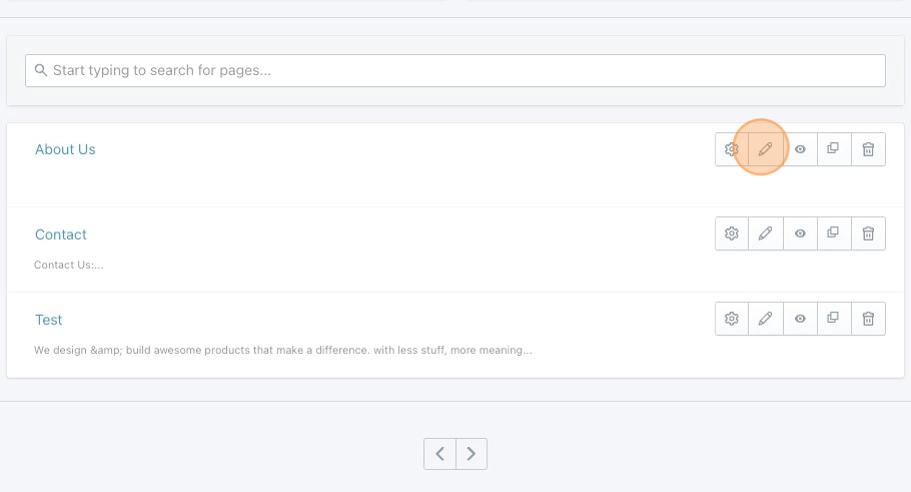
- Edit your page clicking the pencil icon.
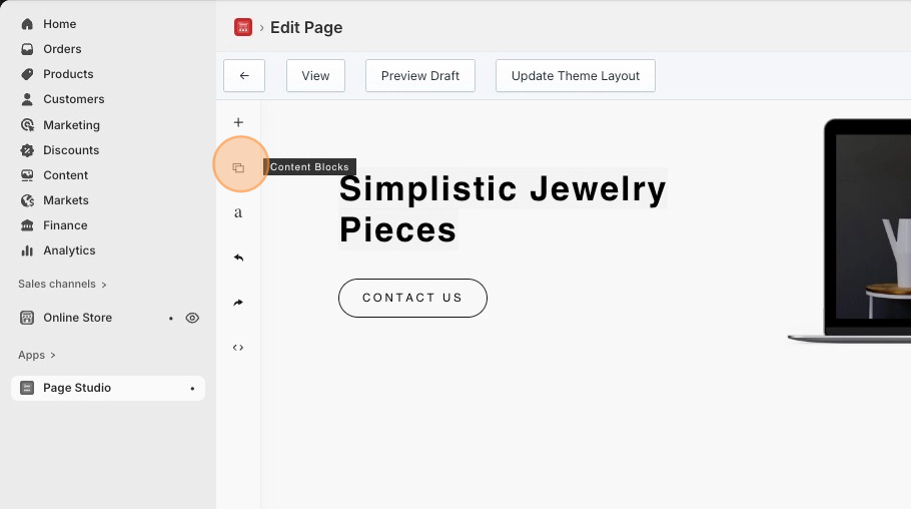
- Select the icon for Content Blocks.
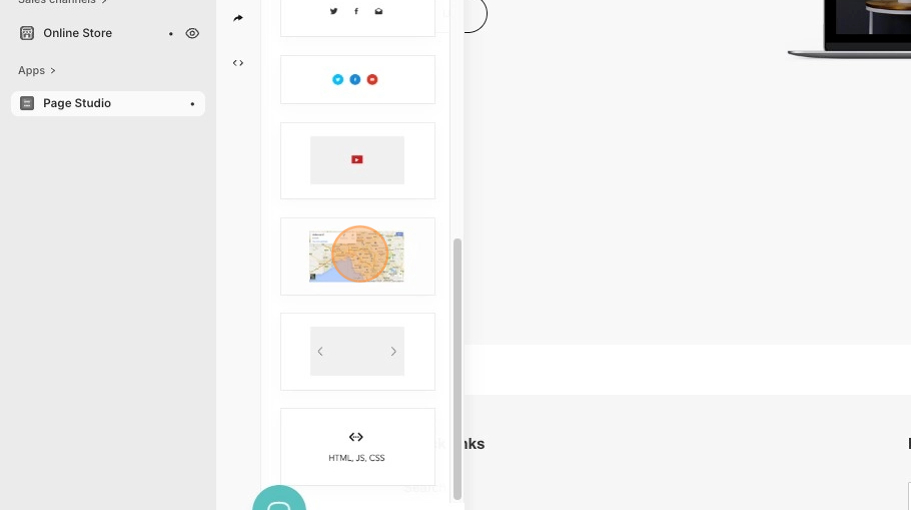
- Click on the map content block and drag it where you’d like it to display on your page.
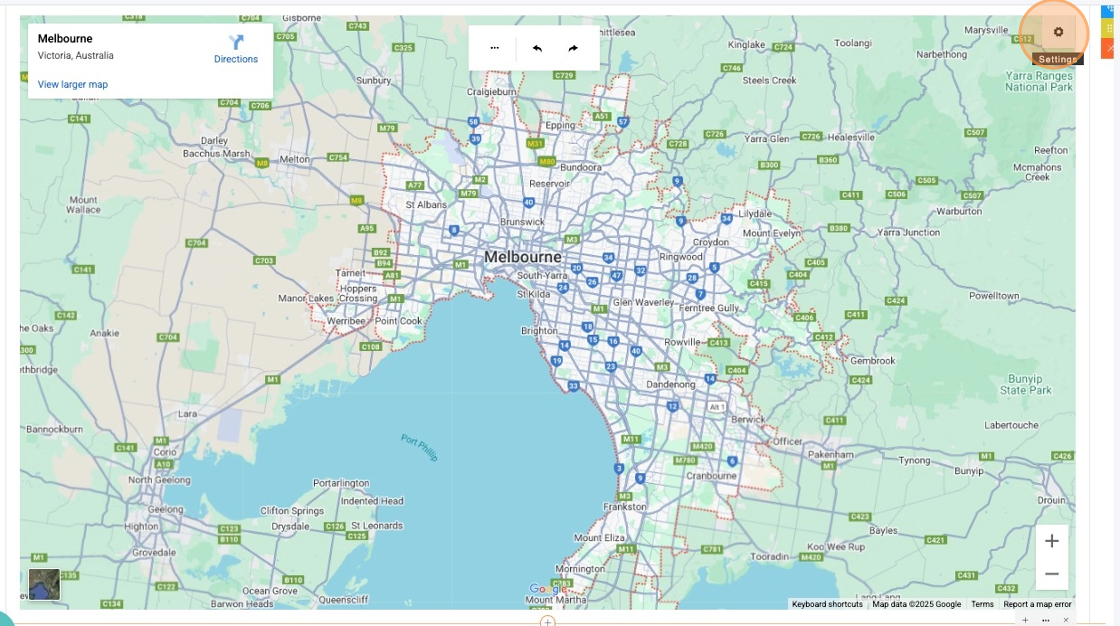
- Click on the map, then select the gear icon at the top right to reveal the default embed code.
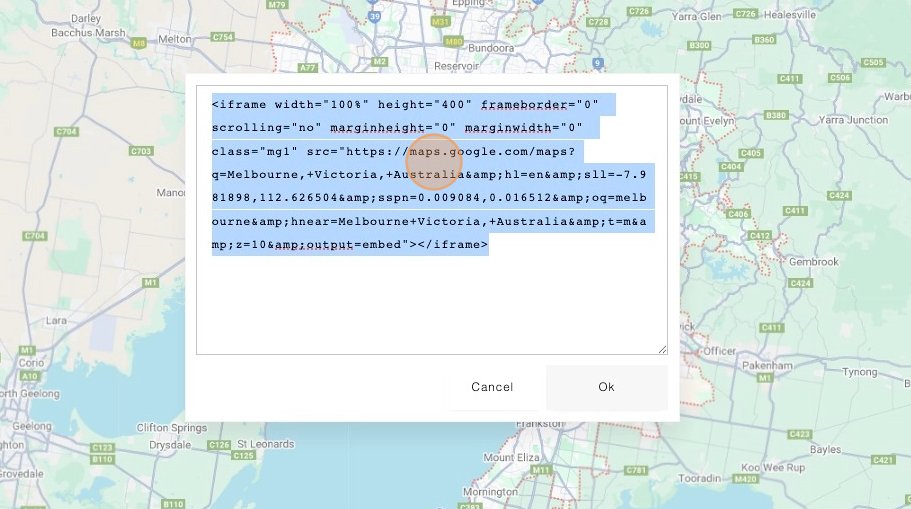
- Highlight the default embed code and replace with the new version.
- Change the width to 100%.
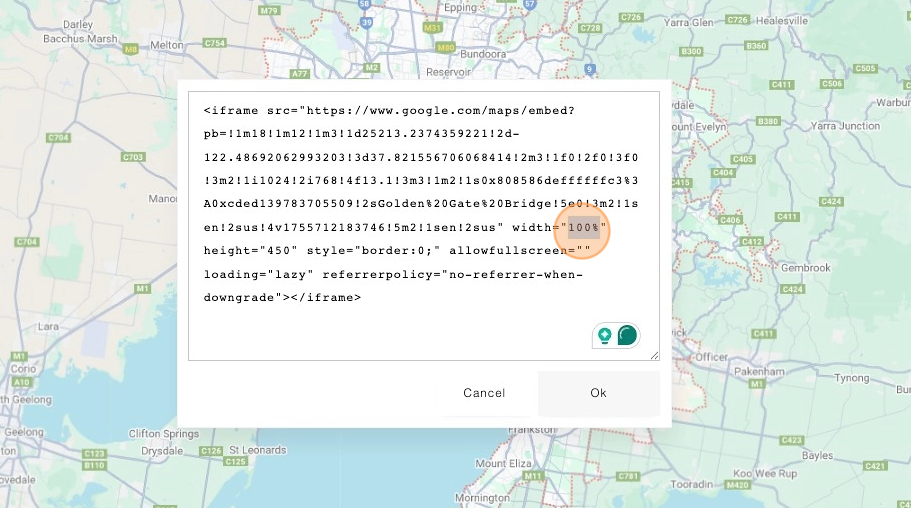
7. Click the Ok button.
8. Save your changes at the top right of the page.