
Customize the date picker
Customize the Infinite Options date picker by editing theme code, for example to block certain dates or days of the week, after adding it to your store.
Follow the instructions below to customize the date picker’s functionality.
Note: You will need to add the date picker to your store before enabling these changes. Follow the instructions in this article to get started.
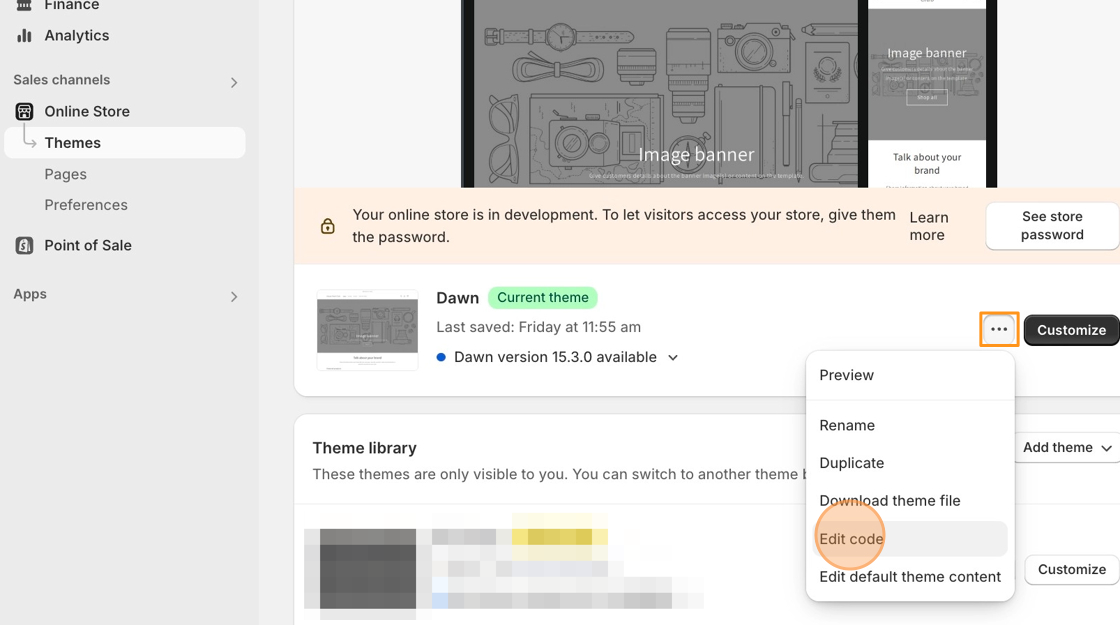
- From your Shopify admin, click Online Store to arrive at the Themes page.
- Find the theme you want to edit, click the Actions ▼ button, then click Edit Code.
- On the left side, under the Layout heading, click on the theme.liquid file.
- Copy one of the customization snippets located at the bottom of this document.
- Navigate to the date picker code, as seen in this article, then locate the following section of code:
inline: true,6. Paste the copied snippet directly after it.
7. Save your changes.
Customization Snippets
Section titled “Customization Snippets”- Change the date format
- Prevent selecting days in the past before the current day
- Block out weekends
- Block out specific days of the week & specific dates
- Block out specific days of the week
- Block out specific dates
- Start the week on Monday
- Enable Year or Month dropdown
- Set up Minimum and Maximum Year
- Change “Prev” and “Next” text
- Change Month Names
- Change Day Abbreviations
- Highlight Today’s Date with CSS
Change the date format
Section titled “Change the date format”Below are examples of different ways to customize the date format.
- Change the date format to 2026-04-30:
altFormat: "yy-mm-dd",- Change the date format to 30-04-2026:
altFormat: "dd-mm-yy",- Change the date format to Sunday, April 3 2026:
altFormat: "DD, MM d yy",For a full list of formats, navigate here: http://api.jqueryui.com/datepicker/#utility-formatDate
Prevent selecting days in the past before the current day
Section titled “Prevent selecting days in the past before the current day”The snippet below prevents users from selecting dates before the current day. You can adjust the minimum selectable date by changing the number value, where -1 is yesterday, and 2 is two days in the future.
minDate: 0,Block out a certain number of days after the current day
Section titled “Block out a certain number of days after the current day”Below is an example that only allows users to select 3 days after today.
maxDate: "3",Block out weekends
Section titled “Block out weekends”Below is a snippet that prevents weekends from being selected.
beforeShowDay: $.datepicker.noWeekends,If you need to block out weekends and specific dates, it is best to use the customization snippet below this instead of this one.
Block out specific days of the week & specific dates
Section titled “Block out specific days of the week & specific dates”Use this snippet when you need to block both recurring days of the week and specific calendar dates at the same time — for example, blocking Sundays and also closing for a specific holiday.
There are two lines to edit:
The dates line controls which specific calendar dates are blocked. Dates must be in MM-DD-YYYY format. Add or remove dates from this list as needed:
var array = ["04-08-2020", "04-09-2020", "04-10-2020"];To add April 11th, update the line to:
var array = ["04-08-2020", "04-09-2020", "04-10-2020", "04-11-2020"];The days line controls which recurring days of the week are blocked. Replace the numbers with the days you want to block using the day number reference in the “Block out specific days of the week” section below:
return [(day != 1 && day != 2) && array.indexOf(string) == -1];To block more than two days, add additional && day != X conditions:
return [(day != 0 && day != 1 && day != 2 && day != 3 && day != 4 && day != 5 && day != 6) && array.indexOf(string) == -1];Full snippet:
beforeShowDay: function(date) { var day = date.getDay(); var array = ["04-08-2020", "04-09-2020", "04-10-2020"]; var string = jQ.datepicker.formatDate('mm-dd-yy', date); return [(day != 1 && day != 2) && array.indexOf(string) == -1];},Block out specific days of the week
Section titled “Block out specific days of the week”Use this snippet to prevent customers from selecting certain days of the week. This is useful if you don’t offer delivery or pickup on specific days.
Each day of the week is represented by a number:
| Day | Number |
|---|---|
| Sunday | 0 |
| Monday | 1 |
| Tuesday | 2 |
| Wednesday | 3 |
| Thursday | 4 |
| Friday | 5 |
| Saturday | 6 |
In the snippet, find the line that contains the day numbers. To block a day, add its number to that line. To unblock a day, remove its number.
beforeShowDay: function(date) { var day = date.getDay(); return [(day != 1 && day != 2)];},Example: Block Sunday only
Section titled “Example: Block Sunday only”return [(day != 0)];Example: Block Saturday and Sunday
Section titled “Example: Block Saturday and Sunday”return [(day != 0 && day != 6)];Example: Block Monday through Friday
Section titled “Example: Block Monday through Friday”return [(day != 1 && day != 2 && day != 3 && day != 4 && day != 5)];To add more days, include additional && day != X conditions within the parenthesis:
beforeShowDay: function(date) { var day = date.getDay(); return [(day != 0 && day != 1 && day != 2 && day != 3 && day != 4 && day != 5)];},To allow all days — remove the entire beforeShowDay function from your date picker code.
Block out specific dates
Section titled “Block out specific dates”Below is a snippet that blocks out certain dates.
In this example, April 8th, April 9th, and April 10th are blocked out.
You can change the blocked out dates by adding more dates to the second line.
beforeShowDay: function(date) { var array = ["04-08-2020", "04-09-2020", "04-10-2020"]; var string = jQ.datepicker.formatDate('mm-dd-yy', date); return [array.indexOf(string) == -1];},To add April 11th, update the second line to:
var array = ["04-08-2020", "04-09-2020", "04-10-2020", "04-11-2020"];Start the week on Monday
Section titled “Start the week on Monday”Below is a snippet that formats the calendar so Monday appears as the first day of the week. You can change the first day of the week by adjusting the number value, with Sunday being 0 and Saturday being 6.
firstDay: 1,Enable Year or Month dropdown
Section titled “Enable Year or Month dropdown”The snippet below will replace the Year text with a Year Dropdown button so users can select a year quickly.
changeYear: true,The snippet below will replace the Month text with a Month Dropdown button so users can select a month quickly.
changeMonth: true,Use this CSS snippet to better style the month and year drop-down menus:
#infiniteoptions-container .ui-datepicker-month {  margin-bottom: 15px;}
#infiniteoptions-container .ui-datepicker-year {  margin-bottom: 5px;}
Set up Minimum and Maximum Year
Section titled “Set up Minimum and Maximum Year”This snippet formats the calendar so that the year ranges from 1920 to 2020.
yearRange: "1920:2020",This snippet formats the calendar so that the year ranges from 10 years ago to 10 years in the future based on the current year.
yearRange: "-10:+10",This snippet formats the calendar so that the year ranges from 10 years ago to 10 years in the future based on the selected year.
yearRange: "c-10:c+10",Change “Prev” and “Next” text
Section titled “Change “Prev” and “Next” text”Below is a snippet that will allow you to change the default “Prev” and “Next” text that switches months.
prevText: "Prev",nextText: "Next",Change Month Names
Section titled “Change Month Names”Below is a snippet that will allow you to change the default month names.
monthNames: ["January", "February", "March", "April", "May", "June", "July", "August", "September", "October", "November", "December"],Change Day Abbreviations
Section titled “Change Day Abbreviations”This snippet will allow you to change the default day abbreviations.
dayNamesMin: ["Su", "Mo", "Tu", "We", "Th", "Fr", "Sa"],
Highlight Today’s Date with CSS
Section titled “Highlight Today’s Date with CSS”- On the left side, click on the Assets folder to reveal its contents.

- Open your main CSS file (usually named theme.scss.liquid, timber.scss.liquid, or styles.scss.liquid), then scroll to the bottom of the document.
- Copy and paste the code snippet below at the bottom of that file.
/* * * * * * * * * * * * * * * * * * * * * * * * * * *ShopPad App: Infinite Options Date Pickerhttps://apps.shopify.com/custom-options* * * * * * * * * * * * * * * * * * * * * * * * * * */.ui-datepicker-today > a { background-color: #FFF200 !important;}- Save your changes.