
Install Infinite Options on a Shopify 1.0 Theme
Add the Infinite Options snippet to the product template of a Shopify 1.0 theme, which does not support app blocks, to display your fields.
Shopify 1.0 themes don’t support app blocks. Instead, you’ll add a small snippet of code to your product template to tell your theme where your Infinite Options fields should appear.
If you are editing code for the first time, we recommend duplicating your theme before making any changes.
Step 1: Open your theme code editor
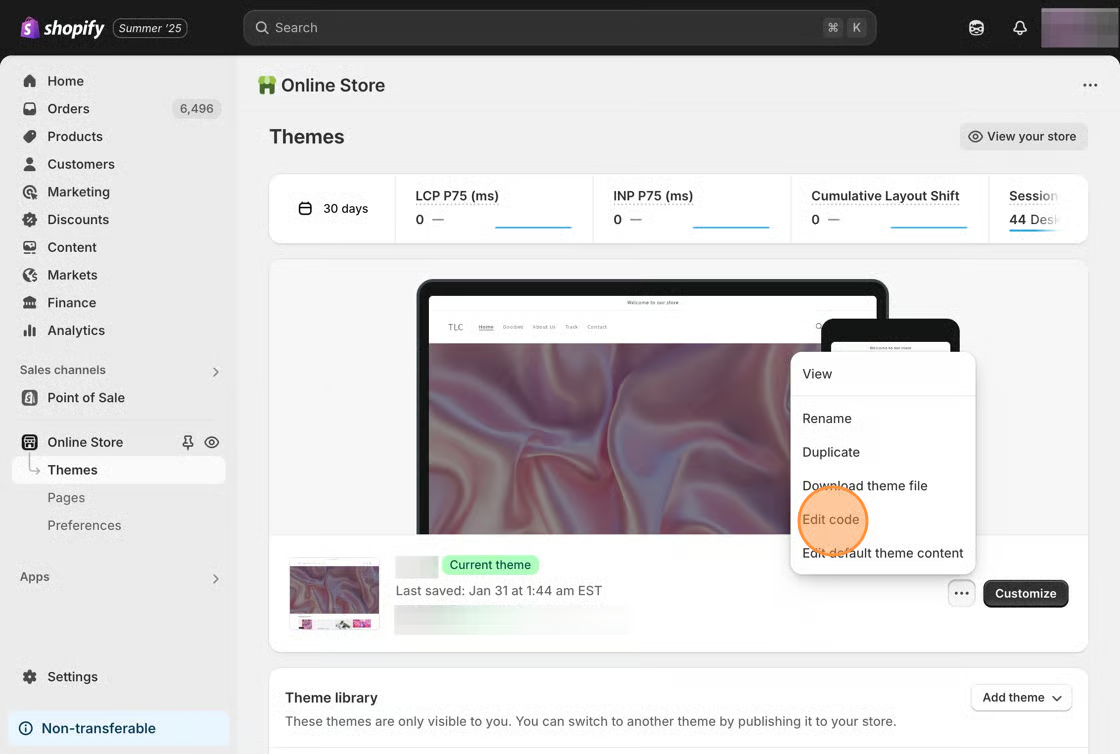
Section titled “Step 1: Open your theme code editor”- From your Shopify admin, go to Online Store, then Themes.
- Find your current theme.
- Click Actions, then Edit code.
Step 2: Locate your product template
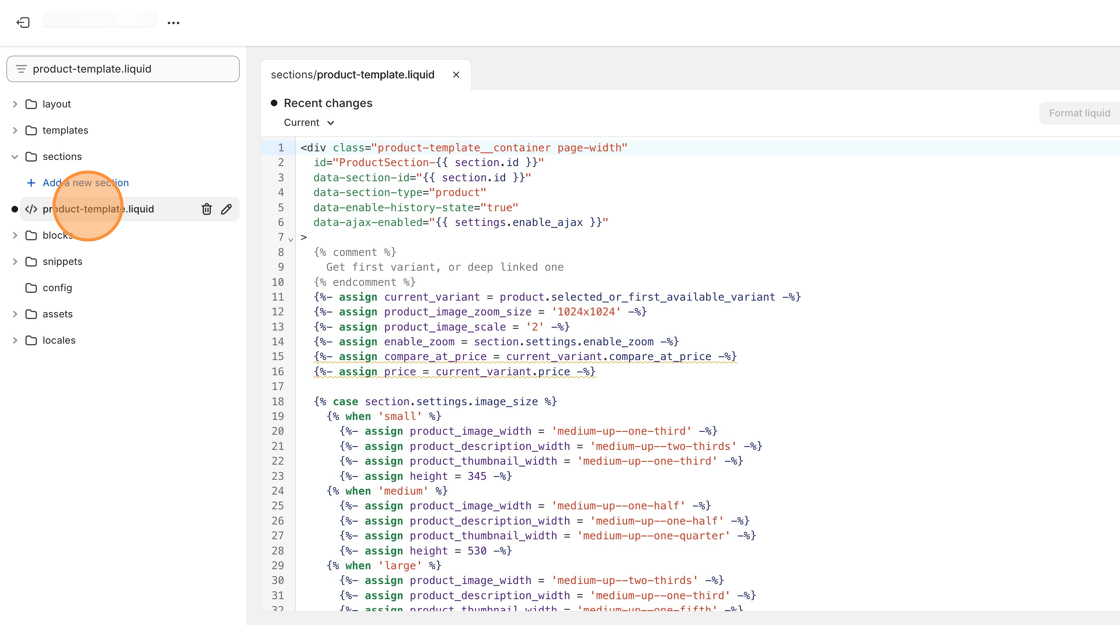
Section titled “Step 2: Locate your product template”Different Shopify 1.0 themes use different file names for product templates. Look for one of the following:
• main-product.liquid
• product-template.liquid
• product.liquid
These files are usually located in:
• The Sections folder
• The Templates folder
Open the file that contains your product information, including the product form and Add to Cart button.
Step 3: Find the product form
Section titled “Step 3: Find the product form”Use the search bar at the top of the code editor to search for:
{% formThis helps you locate the product form, where Shopify displays the product price, variants, quantity selector, and Add to Cart button.
{% form 'product'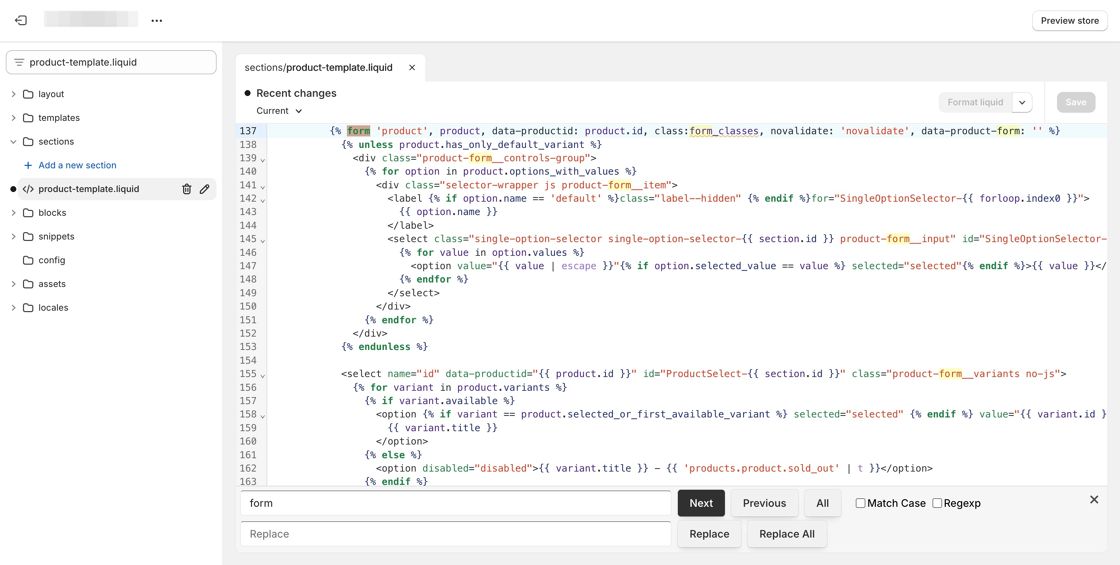
Step 4: Locate the quantity selector
Section titled “Step 4: Locate the quantity selector”Locate the quantity selector inside the product form. In many Shopify themes, you’ll see code similar to:
{% if section.settings.show_quantity_selector %}If your theme uses different code, look for the quantity input or quantity selector instead.
Step 5: Insert the Infinite Options snippet
Section titled “Step 5: Insert the Infinite Options snippet”Create a new line above the quantity selector and paste the following snippet:
<div id="infiniteoptions-container"></div>Paste the following snippet on a new line immediately above the quantity selector.
This tells your theme where to display your option fields on the product page.
Step 6: Save your changes
Section titled “Step 6: Save your changes”Click Save in the upper right corner of the code editor.
Your installation is now complete.
Step 7: Create and assign your options
Section titled “Step 7: Create and assign your options”Once you’ve saved your changes, any Option Sets you create and assign in Infinite Options will appear on your product pages.
You can now begin creating and assigning Option Sets from the Infinite Options app.
Troubleshooting
Section titled “Troubleshooting”I cannot find my product template file
Try searching for these filenames: main-product.liquid, product-template.liquid, or product.liquid. Themes vary.
I pasted the snippet but the options are not showing
Check the following:
• The snippet is inside the product form
• The snippet is above the quantity selector
• You saved your changes
• The correct product template is being used for the product you are testing
My theme has multiple product templates
Open the product in Shopify and check its assigned template under the Theme template setting. Edit that specific file.
I am uncomfortable editing code
Consider duplicating your theme first or reaching out to our support team for help.