
Set Min, Max, and Allowed Numbers on a Number Option
Control what shoppers can type into an Infinite Options Number field by setting whole or decimal values and minimum and maximum limits.
Number options let shoppers type in a value, like a custom size or quantity. Use the Min, Max, and Allowed numbers settings to control which numbers shoppers can enter and add to the cart.
Choose Whole or Decimal Numbers
Section titled “Choose Whole or Decimal Numbers”The Allowed numbers setting controls whether shoppers can enter decimals:
- Open your Number option in your option set.
- Under Optional, click Default and placeholder.
- Under Allowed numbers, select Whole numbers only or Whole and decimal numbers.
- Click Save.
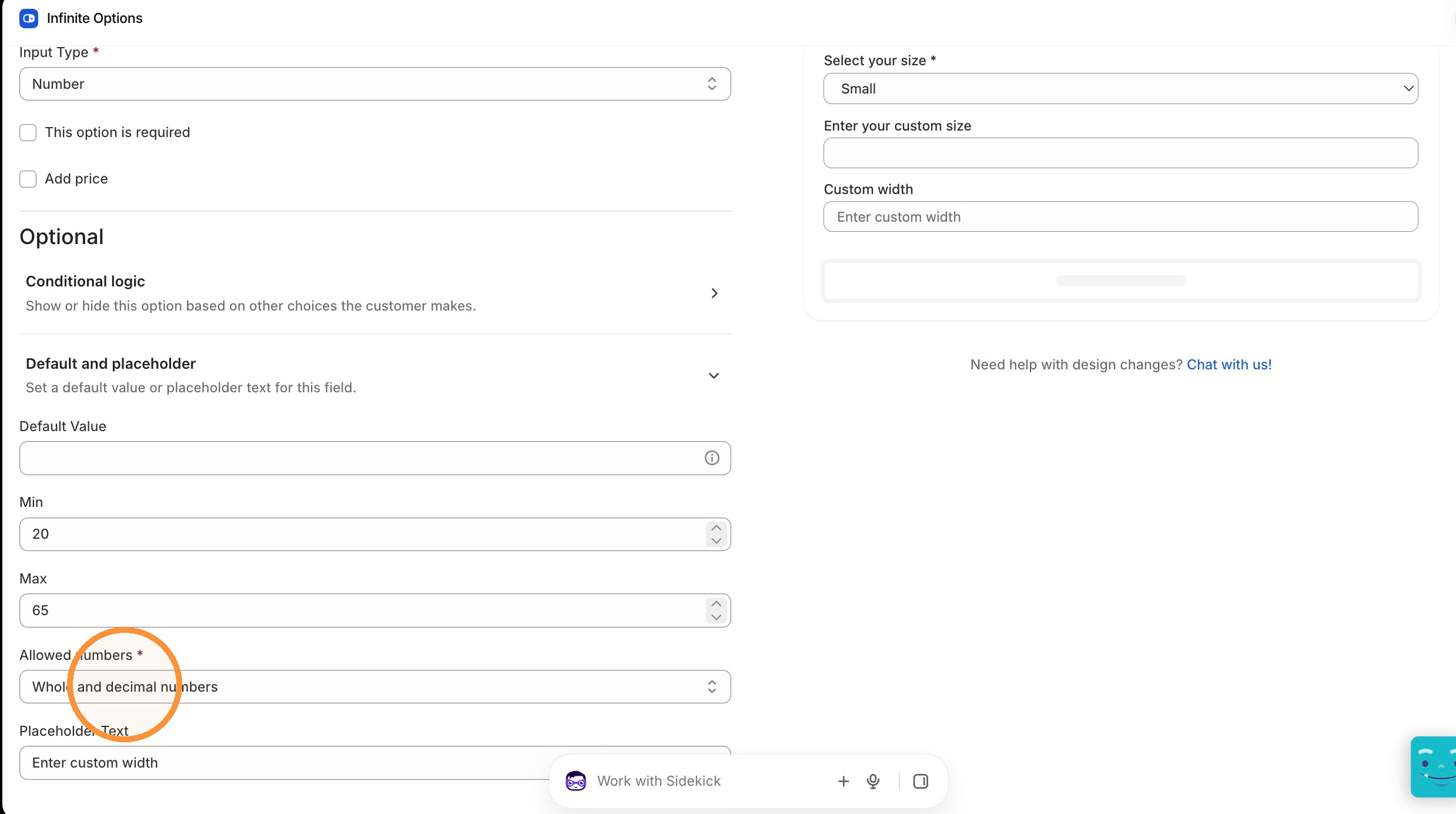
New Number options use Whole numbers only by default.
Set a Minimum and Maximum
Section titled “Set a Minimum and Maximum”Min and Max set the lowest and highest number a shopper can enter.
For example, a Min of 30 and a Max of 300 lets shoppers enter any number from 30 to 300.
- Open your Number option in your option set.
- Under Optional, click Default and placeholder.
- Enter a value in Min.
- Enter a value in Max.
- Click Save.
If Allowed numbers is set to Whole numbers only, Min and Max must be whole numbers too.
How It Works on Your Product Page
Section titled “How It Works on Your Product Page”- If a shopper types a number outside your Min and Max and clicks away from the field, the field is cleared.
- If the option is set to Whole numbers only, shoppers can’t type a decimal point. If they paste a decimal like 30.5, the field is cleared when they click away.
- When a shopper clicks Add to Cart, Infinite Options checks the value one more time. Numbers that aren’t allowed are never added to the cart.
If the Number option is required and its value gets cleared, shoppers see the usual required message: “Please enter a number before adding this item to cart.”