
Header
Use the display-only Header field in Infinite Options to add a heading and description that labels a group of related options.
A Header field adds a heading and optional description to your Option Set, useful for labeling a group of related options.
It’s display-only so it never collects an answer, never has a cart name, and never submits anything to the cart or order.
Step 1: Add a Header Field
Section titled “Step 1: Add a Header Field”Open an existing Option Set or create a new one. Add a new option and select Header as the input type.
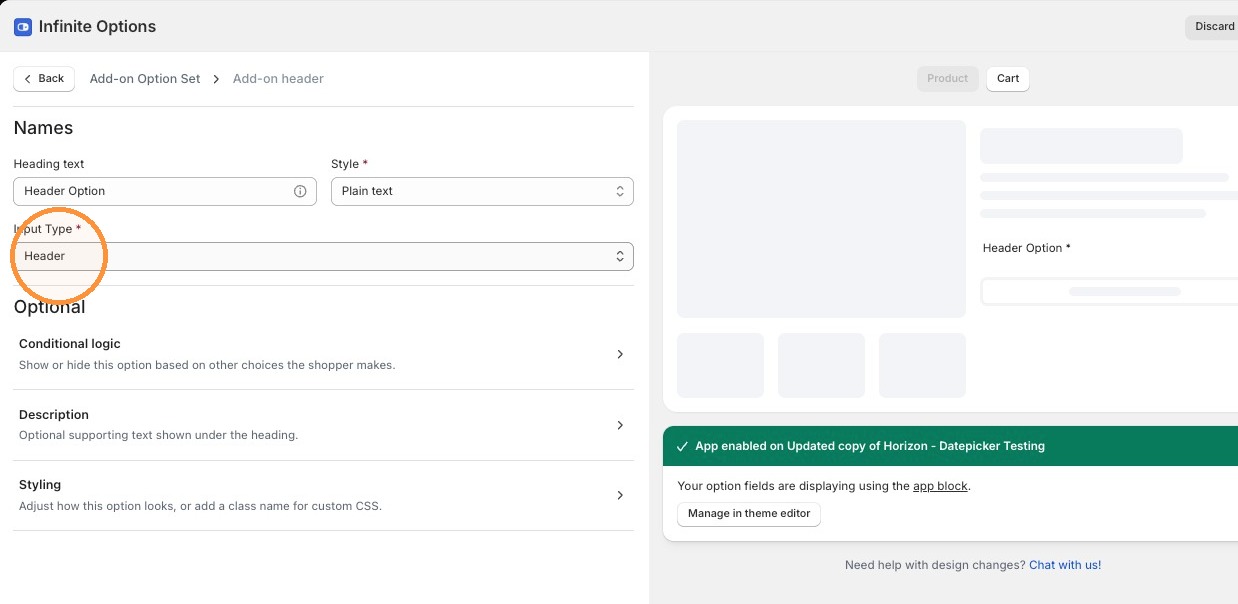
Step 2: Configure the Header
Section titled “Step 2: Configure the Header”Enter your heading text, then choose a Style:
- Plain text
- Bold text
- Heading 1 - Heading 6
Style sits next to the heading text field rather than under Styling, since it changes the text itself. Plain text is the default.
Add an optional Description for supporting text that appears below the heading.
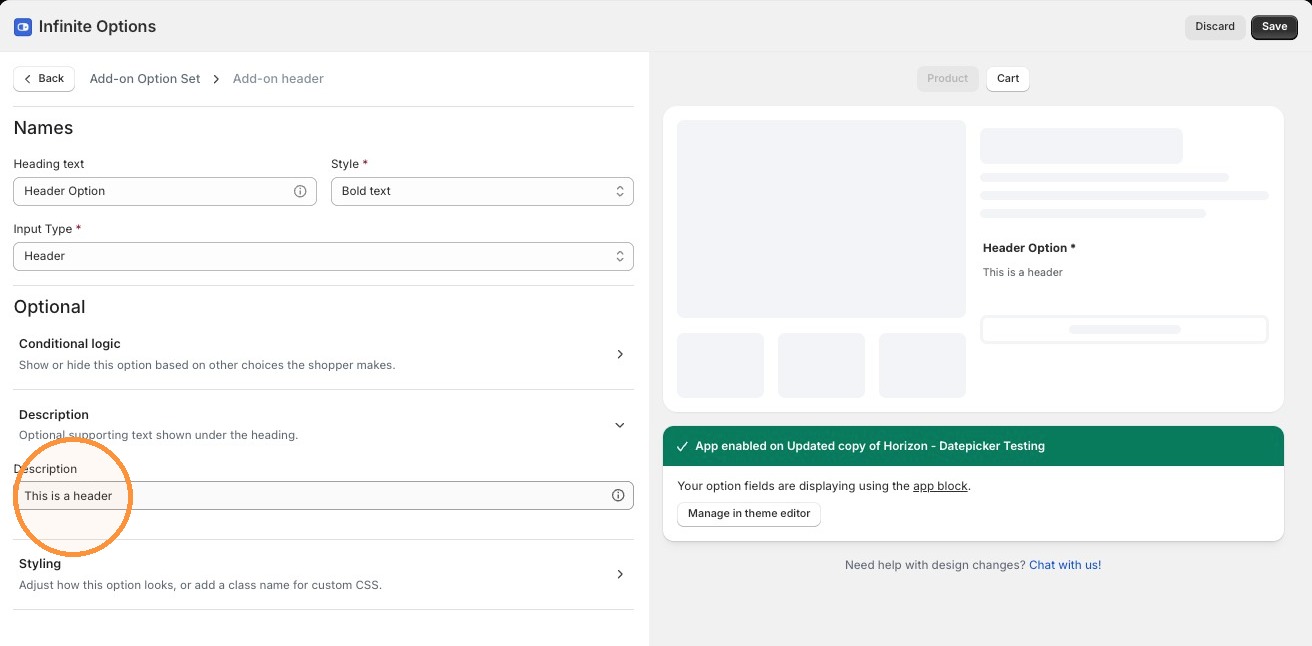
Step 3: Save Your Option Set
Section titled “Step 3: Save Your Option Set”Click Save to save your changes.
- Use a Header to break a long Option Set into labeled sections, like “Engraving Details” or “Gift Options.”
- A Header has no Required setting and no values, since shoppers don’t answer it.
- A Header can be shown or hidden by another field’s conditional logic, but it can never be the trigger for a rule itself.