
My options are not showing
Work through the common reasons Infinite Options fields do not appear on a product page, from assignment rules to the theme app embed.
If your custom options aren’t appearing on your product page, don’t worry. The steps below will help you identify the most common causes.
Before You Begin
Section titled “Before You Begin”Before troubleshooting, make sure you’re checking the page where customers buy your product.
Infinite Options won’t appear:
- while editing products in Shopify
- inside the Shopify product editor
- inside the Infinite Options app
Your custom options appear on your customer-facing product page, usually below your Shopify variants and above the Add to cart button.
If you’re not sure you’re looking at the right page, follow the steps in our Install Infinite Options on Online Store 2.0 Themes guide to preview your product.
Step 1: Is your option set assigned?
Section titled “Step 1: Is your option set assigned?”Open your option set and verify it’s assigned to the correct product(s).
Infinite Options supports assigning option sets by:
- Product
- Product tag
- Product type
- URL
- Variant
- Vendor
- All products
If you’re assigning by tag, the product tag must match exactly.
For example:
❌ Cookie-box-4
✅ Cookie Box (4 Pack)
As you type, Infinite Options will suggest matching tags. Once you’ve selected the correct tag, you’ll also see a Preview link. This is a quick way to confirm your option set is assigned to the intended product.
If you do not see a product count for matching products that you know should be appearing, try a resync.
Step 2: Does your option set contain any fields?
Section titled “Step 2: Does your option set contain any fields?”An option set must contain at least one field or value before anything can appear on your product page.
For example:
- Text field
- Dropdown
- Checkbox
- Radio buttons
If the option set is empty, there won’t be anything to display.
Step 3: Is the app embed enabled?
Section titled “Step 3: Is the app embed enabled?”If you’ve changed themes, you will need to re-enable the Infinite Options app embed.
Open your theme editor and confirm that the Infinite Options app embed has been turned on in your theme you’re using.
In the Shopify admin, go to Online Store > Themes > Edit Theme on the live theme, then click the App embeds icon in the left of the header menu and make sure Infinite Options is switched on (click Save if you changed it).
Step 4: Confirm you’re viewing the live product page
Section titled “Step 4: Confirm you’re viewing the live product page”Options will not appear inside the theme editor preview.
Make sure you are viewing
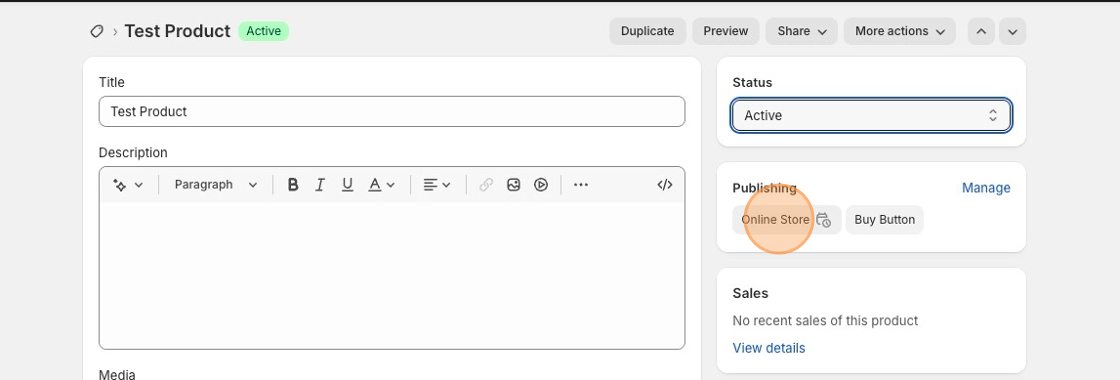
- Published product- draft products won’t display options
- Viewing the actual product URL on your storefront
- Not viewing the theme editor or preview mode
Step 5: Check Conditional Logic (if used)
Section titled “Step 5: Check Conditional Logic (if used)”If you’re using Conditional Logic, options may be hidden until a specific selection is made.
Confirm that:
• The condition is set up correctly
• The trigger value matches exactly
• Both fields are in the same Option Set
Helpful guides:
• Conditional Logic
• Conditional Logic with Swatches
Options are not showing on orders in Shopify admin
Section titled “Options are not showing on orders in Shopify admin”If shoppers can see the options on the product page, but the options don’t appear in orders in Shopify Admin, check the following:
1. Confirm the app is installed correctly
Section titled “1. Confirm the app is installed correctly”If the app isn’t installed properly on the theme, option data may not be passed through to the order.
Use this guide to double-check installation:
Install Infinite Options
2. Confirm bundling setup (if applicable)
Section titled “2. Confirm bundling setup (if applicable)”If you’re using bundling to add products or costs, make sure:
• The product is correctly bundled to the option value
• All bundled products appear at checkout
If bundling isn’t set up correctly, option data may not appear on the order.
Still stuck?
Section titled “Still stuck?”If you’ve gone through the steps above and your options still aren’t showing, reach out to our Customer Success team and include:
- A link to the product
- The name of your option set
We’ll be happy to take a closer look and help.