
Switch
Add a Switch field in Infinite Options for a simple on or off choice, such as an optional gift wrapping add-on on a product page.
A Switch field is a single on/off toggle, useful for a simple yes/no add-on like gift wrapping.
Step 1: Add a Switch Field
Section titled “Step 1: Add a Switch Field”Open an existing Option Set or create a new one. Add a new option and select Switch as the input type.
Step 2: Configure the Switch
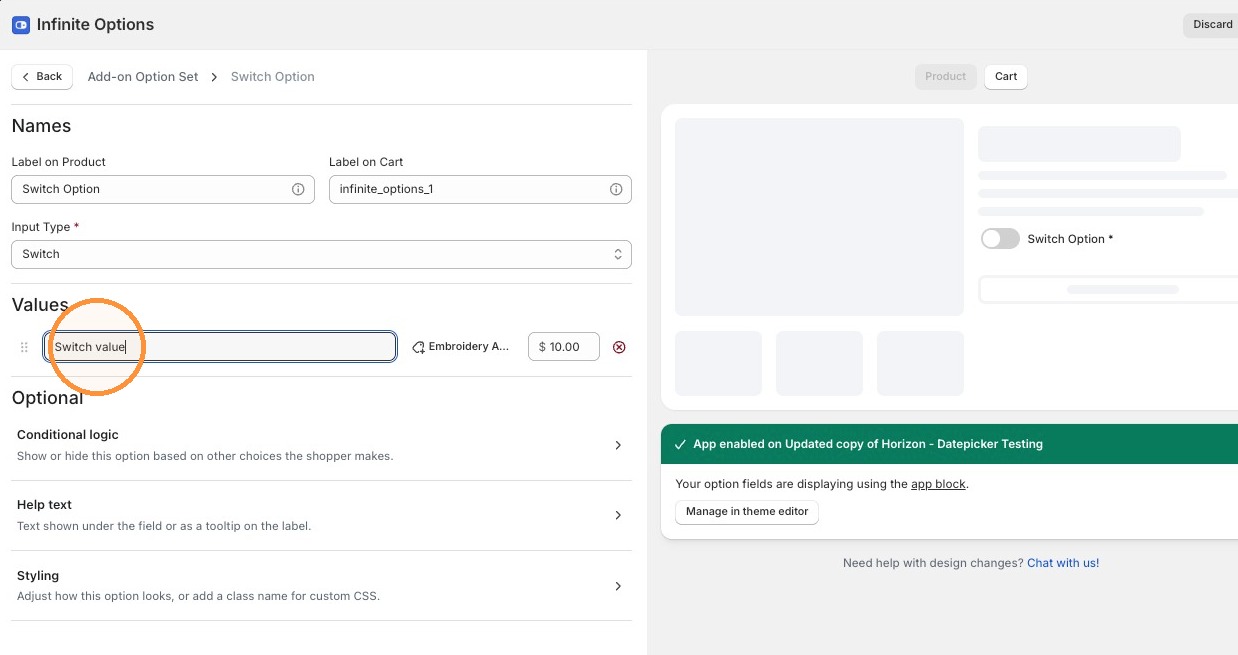
Section titled “Step 2: Configure the Switch”A Switch has one value row, and that row’s cart text is what’s sent to the cart when the switch is on.
You can add a cost to the value using the price icon, and it displays on the product page.
Step 3: Style the Switch
Section titled “Step 3: Style the Switch”Under Styling, choose a Shape (Pill, Rounded, or Square), an Enabled color, a Disabled color, and optionally a Class name.
Step 4: Save Your Option Set
Section titled “Step 4: Save Your Option Set”Click Save to save your changes.
- When a switch is off, nothing is submitted for that field.
- Conditional logic treats an off switch as empty, so you can build a rule that reacts to it being off, for example showing a different option only when the switch is off.