
Font Selector
Add a Font Selector field in Infinite Options so shoppers choose a typeface from a list you curate, ideal for signs, invitations, or engravings.
A Font selector field lets shoppers choose from a list of fonts you curate, useful for products like personalized signs, invitations, or engravings where the shopper picks a typeface.
Step 1: Add a Font Selector Field
Section titled “Step 1: Add a Font Selector Field”Open an existing Option Set or create a new one. Add a new option and select Font selector as the input type.
Step 2: Choose Your Fonts
Section titled “Step 2: Choose Your Fonts”Search the full Google Fonts library, grouped by category, with each name shown in its own typeface.
Add the fonts you want shoppers to choose from, then drag them into the order you want, that’s exactly the order shoppers will see.
A new Font selector field starts with no fonts selected, so add at least one before assigning it to products.
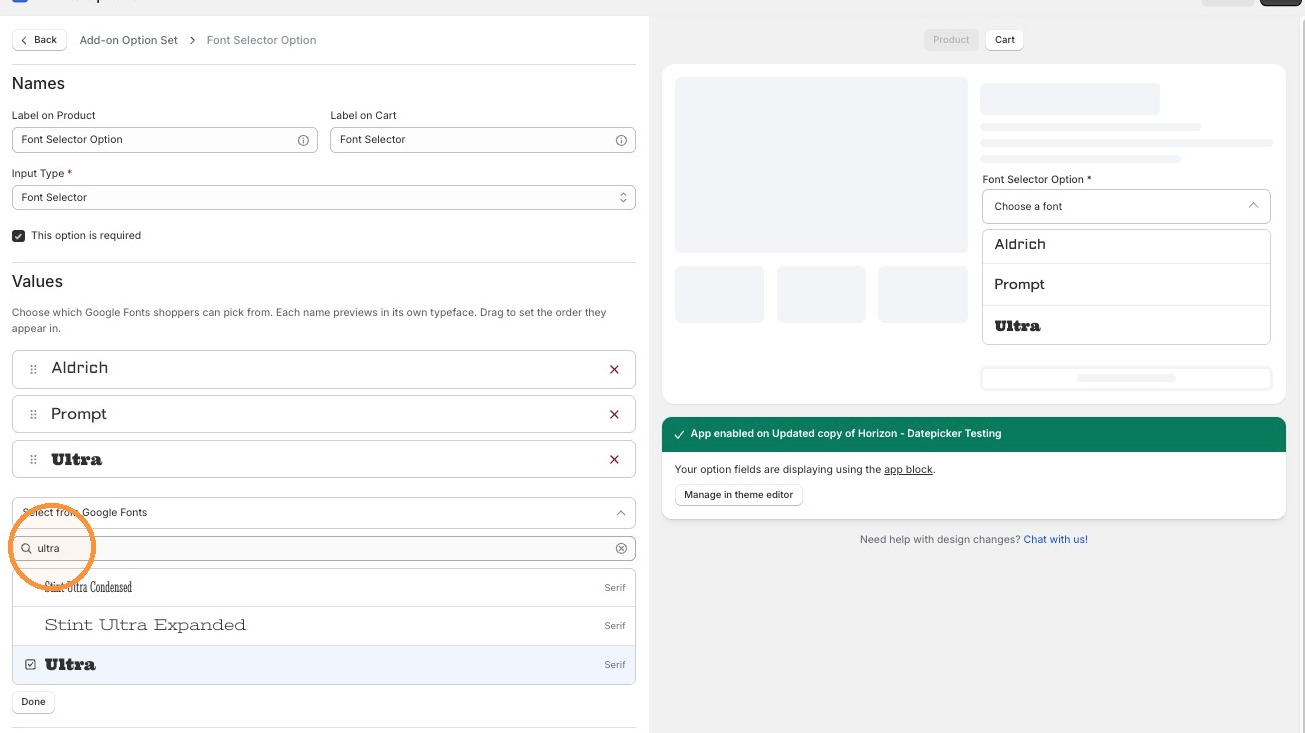
The font’s family name is what’s submitted to the cart.
Step 3: Style the Field
Section titled “Step 3: Style the Field”Under Styling, you can set a Class name for custom CSS. Font selector doesn’t have separate color or size styling, it follows your theme.
Step 4: Save Your Option Set
Section titled “Step 4: Save Your Option Set”Click Save to save your changes.
Using your Own Fonts
Section titled “Using your Own Fonts”The Font selector only supports fonts from the Google Fonts library. You can’t upload your own font files to it.
If you want to offer fonts you created or license, use a Swatch option instead to show each font:
- Create an image for each font.
- Open your Option Set and add a new option.
- Select Swatches as the input type.
- Add one value for each font.
- Click the swatch icon next to a value.
- Upload the image for that font.
- Click Save.
- Repeat steps 5 to 7 for each font.
- Click Save to save your Option Set.
For more on setting up image swatches, see Create Color and Image Swatches.
- All Google Fonts families are bundled into the admin, so there’s no external API call or API key needed while building the field.
- On the storefront, each Font selector field lazily loads one stylesheet the first time a shopper opens it, containing only the fonts you’ve chosen.